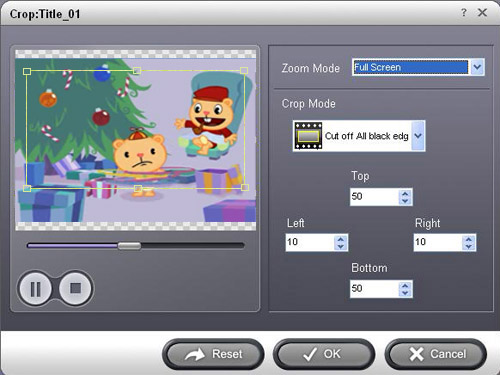
Furthermore, you can click the Crop drop-down list to select a Crop model you prefer, for example: "Cut off top and bottom black edges". You can even type the number in the box to cut off black border accurately.
If you want to combine several DVD chapters into one file, on the main interface, there is a check box "Merge into one file", select it, then you will only get one output file instead of several files by chapters.
If you want to snapshot pictures from DVD, while you previewing the DVD movie, there will be a small camera icon below the preview window, click it when you want to snapshot the picture, it support output picture as JPEG, GIF or BMP format.
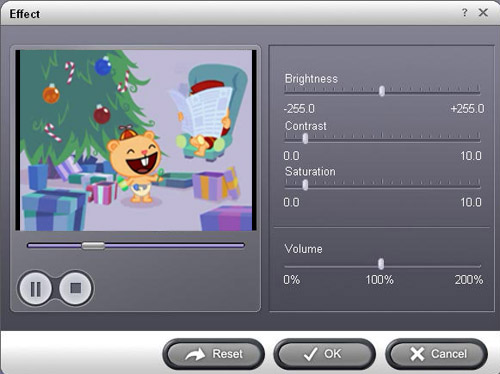
You can click the "Effect" button and customize the brightness, saturation, contrast, volume, etc (See the figure below).