2011年10月31日星期一

How to Convert DVD and Video to Any Video Format You Want Freely

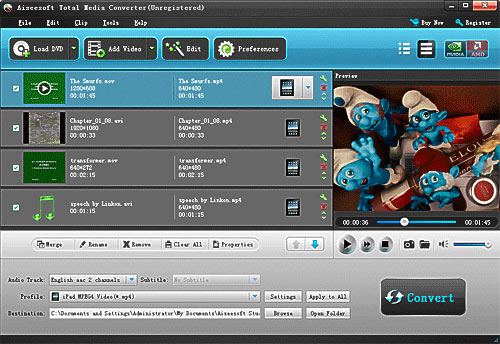
Convert DVD and video is really easy for most of people now. You just need a DVD converter and a video converter. Use dvd converter to convert your DVD and use video converter to convert video. Do you want only one converter that can help you to convert both DVD and video in one interface with few clicks and high output quality. Today I will introduce you a Total Media Converter that convert both DVD and video.

You need to download and install it first before you can use it.

Step 1: Load DVD/Video
Click “Add File” to load Videos from your computer
Click “Load DVD” to load your DVD from your DVD Drive


Step 2: Choose Output Info
a. Convert video:
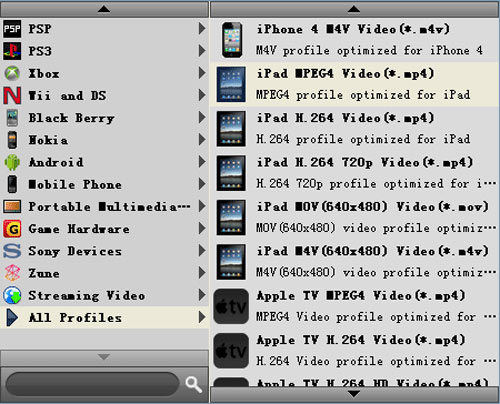
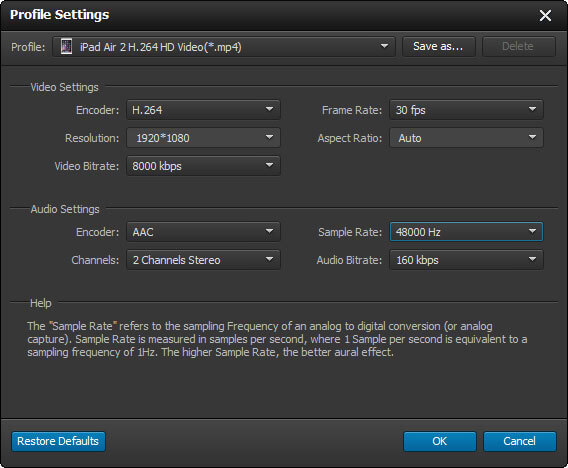
Choose output profile first in the drop-down list and then click “settings” button to adjust the specific settings, such as “resolution”, “encoder”, “bit rate”, “frame rate” and some audio settings such as “audio encoder”, “sample rate” and so on. You can save your profile and settings and give it a name, so you can use it next time easily.


b. Convert DVD
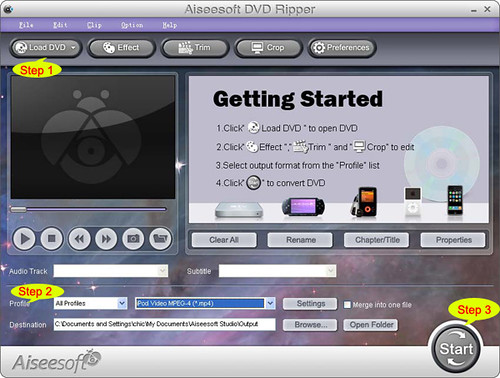
Choose output profile first and then you need to choose your output audio track and subtitle, if you do not want them you can leave them blank. Also like convert video you can adjust the specific output settings, such as “resolution”, “bit rate” and so on.
Save the profile and settings for next use is also available.

Step 3: Conversion
Click “Convert” button to start your conversion. You will get your output video soon.

Tips:

1. Adjust the output effect
You are allowed to adjust the “Brightness”, “Contrast” and “Saturation” of the output video. “Deinterlacing” is also available to improve the quality of the output video. You can choose “apply to all” to save your time.

2. Pick up a part to convert
If you do not want to convert the whole video or DVD you can just pick up the part that you want to convert using “Trim” function.
You can do it in 3 ways:
a: Enter the start time in the Start Time box and click OK, then enter the end time in the Set End Time box and click OK.
b: Drag the scissors bars under the preview window when you want to trim, then the time will be shown in the Start Time box and End Time box for your reference.
c: While playing video, click “Trim From” button where you want to begin your trimming and click “Trim To” button where you want to stop your trimming.

3. Crop the output video
This powerful video converter allows you to crop the video play area. You can choose a certain play area to convert, and do snapshot.
You can crop your output video in 2 ways:
a: Crop by adjusting the crop frame
The crop frame is the yellow line around the movie video. There are eight small adjustment boxes on the crop frame. Each adjustment box allows you to crop the movie video from a different position. To crop your movie video, you can just move your mouse cursor to an adjustment box and drag the crop frame.
b: Crop by setting the crop values
There are four crop values on the buttom of the window: Left, Top, Right, Bottom. You can set each value to crop your movie video, and the crop frame will move accordingly.

You can also set the output aspect ratio from the Zoom Mode according to your need. There are four choices available: Keep Original, Full Screen, 16:9 and 4:3.

4. Add watermark to the output video
You can add text and picture watermark to your output video easily with Aiseesoft Total Media Converter.
Check the “Enable Watermark” box and choose “Text” or “Picture” as you want.
You can drag the watermark to find the place you want to put and also you can adjust the Font info of the words you from “T” button.

2011年10月30日星期日

Aiseesoft Upgrades Total Video Converter to Support the AMD APP Acceleration

Last week, Aiseesoft Total Video Converter underwent a major upgrade, which brings some wonderful new features to this professional video converting software. Among all these new features, there are two significant improvements: a brand new user interface and supporting the AMD APP acceleration technology.

The redesigned user interface of this best Total Video Converter brings customers more user-friendly operations. We introduce the "List view" display mode to show the loaded source files, and the file list area can provide more file information and allow you to perform more operations on the selected video directly.

Since a long time ago, we have adopted the NVIDIA® CUDA™ technology in our software, which enables the Blu-ray/DVD/video converting software to convert files with 6x higher converting speed while running on the computer with a CUDA-enabled GPU. Now our software engineers also introduced the AMD APP acceleration technology to this Total Video Converter. And if your computer possesses an AMD APP-enabled GPU, this Video Converter, using the AMD graphics processors (GPU) together with CPU, will speed up the video converting process.

Besides of the two significant improvements, there are also some other interesting updates:

  • Support multi-language: English, Japanese, German, and French;
  • Improve the MKV decoding technology;
  • Support 5.1 channel audio;
  • Improve the "Merge" feature;
  • Support DE, CUE and WebM file;
  • Support outputting video without audio track;
  • Optional Aspect Ratio Settings & Zoom Mode;
  • Support adjusting output file volume
  • More output profile options

After this major upgrade, this Total Video Converter can provide customers with much better service while converting video files and editing output video effect.

System Requirements

OS Supported: Windows NT4/2000/2003/XP and Windows Vista, Windows 7
Hardware Requirements: 800MHz Intel or AMD CPU, or above; 512MB RAM or more

2011年10月28日星期五

Nokia Releases its First Windows Phones – Lumia 710 and 800

On Wednesday, Nokia CEO Stephen Elop showed off the first Windows phones Wednesday: the Lumia 800 and the Lumia 710 on Nokia World, the Finnish phone maker’s annual analyst and press event. The two phones are the first fruits of the partnership between Nokia and Microsoft.

In February, Nokia announced that it would abandon Symbian (and, later, its other mobile platform efforts, such as MeeGo) in favor of Microsoft’s nascent Windows Phone platform. It was a stunning move.

Now, six months after the Nokia-Microsoft marriage became public, we’re about to see the fruit of this ambitious project.

And this marks a milestone in the collaboration between the two companies that will see Nokia shift away from its Symbian operating system.

The high-end Lumia 800, available in black, cyan and magenta, features a 3.7-inch 800×480 AMOLED screen and a 1.4 GHz Snapdragon processor, along with 16 GB of storage and an 8-megapixel camera. The Lumia 710 offers the same 3.7-inch screen and 1.4 GHz processor found in the Lumia 800, but contains only 8 GB of storage and a 5-megapixel camera. The device is available in black and white, with changeable back covers available in an assortment of colors. Both handsets run the latest Windows Phone 7.5 Mango operating system.

The estimated retail price for the Nokia Lumia 800 will be approximately EUR 420, excluding taxes and subsidies. And the Nokia Lumia 710 will be sold at the price of EUR 270. Both devices are being sold in six European countries and will be sold later this year in parts of Asia. Other smartphones are planned for the United States, but not until early next year.

Analysts said the Nokia smartphones could also help Microsoft extend its dominant computer software business into the cellphone and mobile device market.

Nokia was paying $15 to Microsoft for each Windows smartphone it produced, less than the estimated $20 other handset makers must pay. The new Windows phone lineup has the potential to help restore Nokia’s fortunes in the smartphone market.

dvd ripper for mac, backup iphone sms

2011年10月27日星期四

How to Convert MOV to iPad with MOV to iPad Converter?

Do you want to enjoy the MOV file on your favorite iPad? Now Aiseesoft MOV to iPad Converter can help you. This magic MOV to iPad Converter enables you to convert MOV and other popular video formats to iPad compatible video formats. Also it can serve you as the video editor, which provides you with powerful video editing functions.

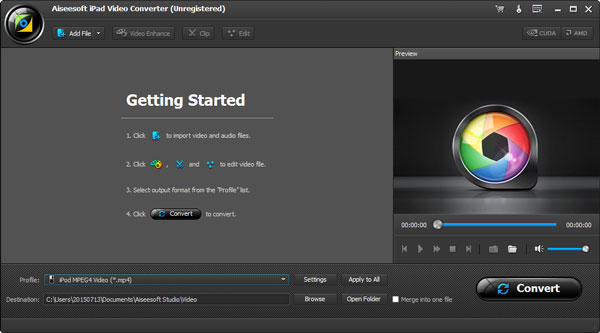
Now download the Aiseesoft iPad Video Converter, install and run the software. And you will see the main screen.

Step 1: Add files before MOV to iPad conversion

Before starting converting, add the target MOV file by clicking the "Add File" button.

Step 2: Choose profile, destination and settings

You are allowed to select the audio track and subtitle for your output video. Then choose the output format from the list by clicking the drop down arrow. Click "Browse" button to choose the destination file to place the output file.

Then you can adjust some further settings by clicking the "Settings" button. From the screen below, we can see that video Encoder, frame rate, audio Channels and more parameters are able to be adjusted.

Moreover, this video editor also provides you with powerful editing functions. It allows you to trim video, crop play area, capture the picture…

Click the "Effect" button and you can see this interface.

Then you can adjust the brightness, contrast and saturation through dragging the slide bar. Also it can help you to convert an interlaced video to a progressive one by checking the "Deinterlacing".

Also there are other editing functions in this video editor for you to explore.

Step 3: Convert MOV to iPad

After adjusting all these settings, you can click button to start converting MOV to iPad.

2011年10月26日星期三

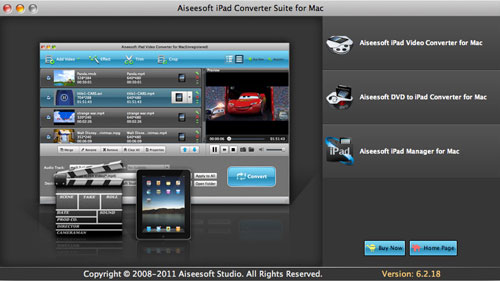
Aiseesoft's Newly Updated iPad Converter Suite

Aiseesoft, a top-ranking Windows and Mac DVD/video converting software provider, brings a new update to the professional iPad transferring and converting software product - Aiseesoft iPad Converter Suite. This amazing iPad assistant application is the best selling product of its kind and has received high recognition.

Now the updated iPad Converter Suite owns a redesigned interface, which could bring users a much better user experience. Also the converting and transferring functions have been enhanced. This software supports more input and output video formats.

Aiseesoft iPad Converter Suite is packed with iPad Video Converter, DVD to iPad Converter and iPad Transfer. The powerful converting features enable iPad users to convert all DVD and video files to iPad compatible formats (MP4, H.264, M4V, MOV, etc.). Then users can conveniently enjoy the perfect output video files on iPad anywhere and anytime. Moreover, this iPad Converter provides users with powerful video editing features. With it, users can trim video, crop video frame, add watermark, adjust iPad video effect, and so on.

The embedded iPad Transfer is the professional file transfer software for iPad. This application is able to import local movies, songs and images to iPad for enjoyment, and export iPad video/photo/music files to computer for backup. Then iPad users could conveniently handle with iPad files. For instance, customers can enjoy latest films on iPad, share iPad files with friends, and backup important iPad files.

To sum up, Aiseesoft iPad Converter Suite is one of the best iPad assistant software on the market. It can help iPad users convert DVD/video to iPad and transfer files between iPad and computer.

System Requirements
OS Supported: Windows NT4/2000/2003/XP and Windows Vista, Windows 7
Hardware Requirements: 800MHz Intel or AMD CPU, or above; 512MB RAM or more

About Aiseesoft Studio

As a professional multimedia software provider, Aiseesoft Studio is dedicated to developing the best multimedia desktop applications to help the Windows and Mac users smoothly convert, edit and transfer various video/audio files. In order to meet users' various requirements, Aiseesoft Studio constantly brings in new ideas, technologies, etc.

2011年10月25日星期二

Aiseesoft Releases iPhone 4S Movie Converter: Enjoy Your Latest Apple Technology!

In order to help Apple fans better enjoy iPhone 4S, Aiseesoft's newly released iPhone 4S Movie Converter, a multi-functional and user-friendly iPhone 4S video converter to give iPhone 4S users wonderful user experience.

Aiseesoft iPhone 4S Movie Converter has defined profiles for iPhone 4S's 1080p HD video recording feature, including iPhone 4S MPEG4 Video, iPhone 4S H.264 Video, iPhone 4S H.264 HD Video, iPhone 4S MOV (640*480) and iPhone 4S M4V Video. Through owning this iPhone 4S MP4 converter tool, users can easily convert 1080p HD video clips to various video or audio formats at random, such as MP4, M4V, AAC, AIFF, M4A, MP3, WAV, etc. Also, users can convert iPhone 4S 1080p video to many other mainstream video format to share with other friends on the internet or other video players, even iPad, iPod touch 4, etc.

What's more, depending on the proper graphics card, users can choose corresponding converting acceleration technology from AMD APP and NVIDIA® CUDA™ GPU Processing acceleration technology to get faster converting speed and superior output quality.

Key features of Aiseesoft iPhone 4S Movie Converter:

  1. Convert any video to iPhone 4S MPEG4, H.264, MOV, AVI, M4V and so on;
  2. Edit any source file to create customized video or audio files;
  3. Preview and take snapshot images from any loaded video files;
  4. Ultra-high converting speed and superior output quality.

In a word, this iPhone 4S video converter is easy-to-use and versatile. With it, iPhone 4S users can enjoy a more amazing iPhone without any confusion and trouble.

System Requirements

OS Supported: Windows NT4/2000/2003/XP and Windows Vista, Windows 7

Hardware Requirements: 800MHz Intel or AMD CPU, or above; 512MB RAM or more

2011年10月24日星期一

How to Enjoy Your Favorite Videos on Portable Devices at Will For Mac Users

Are you a Mac user?
Do you still feel frustrated that you can’t enjoy your favorite videos on portable devices at will?
Now, a professional software—Aiseesoft
Video Converter for Mac
can help you to solve all the problems. With it, you can convert between all popular video and audio formats with super fast conversion speed and high output quality, such as AVI, MP4, MOV, MKV, WMV, DivX, XviD, MPEG-1/2, 3GP, 3G2, VOB Video, MP3, AAC, and AC3 Audio etc. In addition, the best video converter for Mac can also extract audio from video file and convert video to MP3, AC3, and AAC…as you want.

OK, let’s move to how to use the amazing software.

Step 0: Download and install Aiseesoft Video Converter for Mac.
After a while, you can use the following interface:


Step 2. Load Video
You can load your video by clicking “Add File” button or clicking “File” button, you can choose “add file” on a drop-down list.

Step 3. Output format and Settings
From the “Profile” drop-down list you can find one format that meets your requirement.

After doing the 3 steps above, you can click “start” button to start conversion.
Wait a minute, the conversion will be soon finished.

Tips:
1. Trim
"Trim" function is for you to select the clips you want to convert.
There are 3 ways that you can trim your video.
a. You can drag the buttons(1) to set the start and end time
b. You can preview the video first and when you want to start trim click the left one of the pair buttons(2) when you want to end click the right one.
c. You can set the exact start and end time on the right side of the pop-up window.
It is for you to select the clips you want to convert.

2. Crop
Cut off the black edges of the original movie video and watch in full screen using the "Crop" function.
There are 3 ways that you can crop your video.
a. We provide 7 modes on our “Crop Mode”(1)
b. You can set your own mode on the right side of the pop-up window(2)
c. You can drag frame to set your own crop mode(3)
You can cut off the black edges of the original movie video and watch in full screen using the "Crop" function.

3. Snapshot and merge into one file
If you like the current image of the video you can use the “Snapshot” option. Just click the “Snapshot” button the image will be saved and you can click the “Open” button next to “Snapshot” button to open your picture.
If you want to make several files output as one you can choose “Merge into one file”.

If you are windows users, you can go to Aiseesoft Total Video Converter to get more information.

2011年10月23日星期日

Full Guide: How to Convert DVD to MP4, AVI, 3GP, iPod ......

DVD is the first choice for many people when they want to watch movies at home. It has high quality picture, different subtitles and audio tracks and most important, some of the DVD movies are more enjoyable than than the cinema one.
However, when we travel, when the disc is broken, when we want to backup the DVD movies, when we want to share the movies with friends, when we want to make usage of the movie, what should we do?
Convert DVD to video video formats you need.

This guide aims to show you how to convert DVD to different video format both for windows/mac users.

Part 1: How to Convert DVD on Windows with DVD Ripper


Step 1: Load DVD
Put your DVD to your DVD Drive and click “Load DVD” button to add your DVD
Step 2: Choose Profile
Choose your output video profile from a drop-down list.
Step 3: Start Conversion

Part 2: How to Convert DVD on Mac with DVD Ripper for Mac


Step 1: Load DVD
Click the “Load DVD” button, find the DVD folder of the movie you want to add from your DVD-ROM, and Click “Open”.
Step 2: Choose output profile and settings
Selecting output format is really easy, you can chose your output format according to your devices players and the default setting works great.
For a veteran of digital player, you could customize your own settings by clicking “Settings” button to chose your own video resolution, frame rate, bit rate, encoder, etc.
Step 3: Start Conversion

If you want to convert both DVD and videos, here is a really powerful DVD Converter Suite . It can help you to convert DVD and videos easily. It can also help you to backup the iPod music and videos to your computer.

2011年10月20日星期四

Brief Discussion on Mobile Payment

Mobile Payment is also known as Mobile Wallet. It is a new way for people to pay the products or service with their mobile devices. Starting from cellphone SMS payment and cellphone WAP payment to recently NFC and remote payment, Mobile Payment becomes more and more advanced. NFC is always understood commonly as mobile card service, which is promoted widely by operators. And remote payment needs payment software in your phone to complete the whole process of the payment and transfer money.

NFC, shorten from Near Field Communication, is a wireless tech first developed by Philips and promoted by Nokia and other large cellphone manufacturers. NFC can exchange data between compatible devices in short distance. It is integrated from radio frequency identification and interconnection technology, combining proximity, contactless card and point-to-point function in a single chip. If you put a NFC chip in your cellphone, it can pay small amont of electronic payment and read info from other NFC devices or label. The short distance interconnection of NFC simplifies the process of certification and identification and makes the visit between two devices more directly, clearly and safely. Because of NFC, mobile phone, computer, camera and PDA can connect each other wireless and exchange data. At the beginning, NFC is only the combination of RFID and web technology. But now, it is becomes a fast developping short distance wireless communication technology.

There are two exchange model of NFC supported devices, active and passive. Under the active model, when one device is sending data to the other device, they must produce their own RF. Both original and the target device must have their own RF in order to exchange data. This is the standard model of peer to peer network communication and it can receive the link setting fastly. While, nowadays, most mobile devices use passive model, because it requires low power and it can longten the battery life.

Under the passive model, the device with NFC provides the RF in the whole communication process with 3 options: 106kbps, 212kbps and 424kbps, to transfer the data to the other device. The other device is the target device does not need to produce RF. With load modulation technology, it can transfer the data back to the original device with the same speed. So under the passive model, the NFC original device can test smart card and NFC target device with the same link and initialization process, and bulid connection with it.

RFID's full name is Radio Frequency Identification. It is a kind of non-contact auto identification technology. It can identify a target through radio signals and read the info without mechanical or optical contact between the target and identification system. It can work in kinds of harsh environment and without manual intervention. It can identify high speed object and identify multi-labels. We can find RFID tech around us easily, such as some RFID chip buildin tickets and so on.

A safe GPRS mobile payment system based on RFID is made up by 5 parts, mobile device, communication network, mobile security trading system, bank and application service provider and certification center. In this article, I just take cellphone as example. It includes RFID label, mobile phone with JAVA mobile payment software and POS that can read RFID. Among those, RFID card and RFID POS is the sub-system of RFID. RFID POS reads the user's info through RFID tech, and connects mobile payment system with PSTN, GPRS and so on. Mobile phone users use JAVA mobile payment software to exchange data with mobile payment system with GPRS and complete the payment. ipad transfer, dvd ripper for mac

Let's just take an example. One day, we can take a cellphone with RFID SIM card to buy a breakfirst at McDonald's with your phone, and then you can take subway or bus without paying cash. And when you are at some place that support RFID, you can buy electronic ticket with your phone and in that pace you can also buy food and drink with your cellphone. That's only a preview of the RFID payment in your life. It will have a bright future.

2011年10月19日星期三

Let’s Wait for the Coming of the New iPhone on October 4th

In recent months, all kinds of rumors about the iPhone 5 and iPhone 4S were in flood. Everyone is guessing when the new iPhone would come out. Finally Apple tells us the release date is October 4th today.

Today Apple issued media invitations for a special iPhone event to be held next Tuesday, October 4th at the company’s Town Hall auditorium at its headquarters in Cupertino, California. The event is scheduled to begin at 10:00 AM Pacific Time.

The invitations for the event carry the tagline “Let’s talk iPhone” and depict iOS icons for Calendar, Clock, Maps, and Phone.

iphone 5, iphone 4s

The iPhone 5 is expected to include an 8MP camera, an aluminium case back, an expanded screen size and 1GB RAM. Wilder suggestions include finger print scanning, NFC payments technology, 4G connectivity and a (pfff) slide-out keyboard, but a dual core A5 chip like the one in the iPad 2 should also work its way into the new iPhone.

And according to AllThingsD, new iPhone 5 will go on sale “within a few weeks” of the unveiling announcement, meaning US punters may get their mitts on the new device mid to late October.

Besides of the release of the next-generation iPhone, this media even is expected to also be including a minor update to its iPod line. iOS 5 and iCloud are also expected to be topics of discussion at the event.

2011年10月18日星期二

DVD to iPad Converter Assist You to Enjoy DVD on iPad Freely!

With the appearance of the iPad, many types of video converters for iPad, like iPad video converter and iPad transfer have sprung up. Have you ever tried one of them? Whether or not, it is definite that these tools are surely useful to convert general video to iPad compatible formats. However, if you find a wonderful DVD video and want to watch it on your iPad while iPad can't play it directly, what should you do? Aiseesoft DVD to iPad Converter is specially designed to convert DVD files to iPad.

DVD to iPad Converter, the best and most powerful DVD to iPad converter, is able to rip any DVD file to almost all popular video formats including MPEG-4, H.264/MPEG-4 AVC, MOV, and M4V supported by iPad. In addition, this versatile software allows you to extract audio formats, such as AAC, MP3, WAV, AIFF, M4A, from DVD file.

In addition, this DVD to iPad Converter also brings you rich editing functions. You can trim video length, crop video play region, set video parameters, add watermark, etc. Moreover, you can choose your preferable audio track and subtitles or get some lovely pictures using the snapshot function. Also, you can merge several DVD pieces together and output them in a single file.

Furthermore, Aiseesoft DVD to iPad Converter for Mac plays the same role for Mac users. With DVD to iPad Converter software on hand, you can enjoy your favorite DVD video not only on your DVD player but also with your iPad conveniently. In a word, this DVD to iPad Converter should be your best choice when you want to enjoy your DVD movies in most efficient way.

Price and Availability

DVD to iPad Converter is now priced at $ 29.00

System Requirements

OS: Windows NT4/2000/2003/XP, Windows Vista and Windows 7

Requirements: 800MHz Intel or AMD CPU, or above; 512MB RAM or more

2011年10月17日星期一

How to Rip DVD and Convert Video for Your iPad On Windows/Mac

Aiseesoft iPad Converter Suite is newly released software for iPad fans. It can rip any DVD files (DVD-Video, DVD folder and DVD IFO file) to iPad, convert all popular videos/audios to iPad formats and transfer files from PC to iPad, from iPad to PC and from iPad to iPad. It works similar to iTunes. So why do you always buy movies and songs from iTunes with extra money? It can help you make use of your resources.
The product is very easy in use. You just need download, install and run the trial version.


The product is multifunctional. It can trim, crop, edit video effect, merge, add text and image watermark, select audio track and subtitle, adjust video settings and snapshot.

If you are Mac user, you can choose Aiseesoft iPad Converter Suite for Mac .

2011年10月15日星期六

2001 --- 2011 Ten Years' Development of Smart Phone

Nowadays, Cell phone becomes a necessary thing when people go out as key and wallet. Customers now are giving more attention to smart phones, which can link to internet and freely download apps from app store and internet. So, what about the beginning of the smart phone and how the smart phone developed during the 10 years? Now let us talk about the 10 years' development of smart phone.

2001: The born of Symbian and Ericsson Produced the First Smart Phone

At the beginning of 2001, Ericsson released the first smart phone R380s based on Symbian, which had a touch screen under a flip. This kind of PDA + Phone model became a kind of smart phone model: Symbian UIQ. R380s pointed a bright future to Sony Ericsson P800 and P900 series. That is the first smart phone in the world.

2002: Microsoft and Palm Breaking out

Nokia 7650 is the first phone based on Symbian S60. Having a clear interface as normal cell phone, S60 users can freely expand function to their phones. Inner-build camera and MMS supported help Nokia 7650 gain a much attention. The later N seris proved that Nokia choose a right direction on smart phone design for these years.

Handspring's first smart phone is Treo 180(Palm OS). It is interesting that its processor is come from MOTOROLA and only 33MHz and 16MB memory, however, at that time, it is one of the big storage space.

At the end of 2002, Windows Mobile Dopod 686 is released and receives a lot of eyes because the Windows PC liked interface and easy to use. And I would like to piont out that the OEM of Dopod 686 is HTC(now one of the most popular smart phone producers).

Sony Ericsson P800 is the first smart phone using Symbian UIQ touch screen, at the same time, it also has a Keypad which is really convinient for many bussiness man and they love it very much. Sony Ericsson P800 is relased at the end of 2002 and Flight mode is first appear at P800.

2003: Microsoft VS Symbian

At 2003, handSpring published GSM Treo 270 and Treo 300, frist introduced colorful screen and Blazer Browser. At that time Palm OS has many cellphone software for users to read ebook, play cellphone game and surfing the internet. Also Palm OS can share files with infared port. Treo leads RIM BlackBerry on most fields. Except sending Email, BalckBerry mainly attracts bussiness man.

The smart phone of 2003 is Dopod 696 without any doubt. Dopod 696 is warmly welcomed by bussiness man because it is using Windows Mobile 2003 for Pocket PC Phone Edition which is really like Wins PC. Dopod 696 is the most classic Windows Mobile smart phones.

Nokia N-Gage is the first mix of smart phone and game boy. All of us can not predict that the reall PSP smart phone will appear 7 years later with Android system.

Treo 600 is the last one from Handspring. This small Palm OS smart phone is one of the best touch feeling full keyboard smart phone. It is momeried by users with its nice-feeling keyboard and fast Palm single task system. After Palm buy Handspring and its hardware department and Handspring made up of the PalmOne and produced the later Palm smart phones.

2004: Treo led the way, Symbian and Mircrosoft getting better

Treo 650, the most successful smart phone in Palm history, is released in 2004. This powerful all running easy to use full keyboard smart phone improve the resolution and color and succeed the fast operation and nice hand-feeling. However, because of the browser of Palm OS can not keep pace with the development of internet and the bad market strategy, it is the beginning of the Palm's failure.

In this year, Symbian's 7610 and 6670 make Nokia the king of smart phone. Dopod 818 is welcomed by female users because the its size is suitable for female and gives a new impression of Windows Mobile smart phones. MOTO still using its Linux and published E680 and A780 two classic smart phone.

2005: S60, the king of smart phone system

With a 2-megapixel camera and cool appearence, Nokia N70 and its Symbian S60 system gain great attention. From N70, Nokia's Symbian S60 system is getting better and better and most of S60 users first became S60 and Nokia lovers.

At 2005, RIM published 8700 seris and became the model of morden BlackBerry phones. Also in this year, RIM has 4 million users all around the world.

2006: The era of Nokia

Nokia N73 is released at 2005 with perfect appearence and performence. This is the peak of Symbian S60. It is like today's iPhone. Later Nokia published different edition of N73, and also received high attention.

At the same year, Nokia smells the bussiness smart phone and published E61 with full keyboard and it is the begning of Nokia Bussiness seris E.

2007: Nokia N95 VS Apple iPhone

At the begning of 2007, Apple released the first generation of iPhone. At first iPhone is not optimistic from many analyst. However, the first week, iPhone sold out 270,000 suites and more than 400million in 2007. iPhone received the most succesfull invention 2007 from "Times". Unique interface, gravity sensing and muti-touch and other new tech make iPhone having large fans on the planet. But, at that time, Nokia N95 is also one of the most popular smart phone.

Dopod S1 is also released in 2007, This "iPhone killer" is using HTC own TouchFLO interface with Windows Mobile system, but Windows Mobile is nothing better than Apple OS. This is one of the reason that Microsoft stop Windows Mobile and make its fans unhappy.

At the end of 2007 another giant of today's smart phone market "Android" is first introduced by Google. This strange small robot is now the biggest competitor

2008: Android, iPhone 3GS and the end of former king

The second generation of iPhone, iPhone 3GS, and App Store born together in 2008. The App Store makes iPhone more and more complete. Apple's charm and nice commission make the App Store no longer a useless shop. Apple Store is the sign of Apple's fully success.

Windows Mobile smart phone still makes no change deeply and the only highlight is HTC Touch Diamond.

At the second half of 2008, the first Android T-mobile G1 borned. This sliding keyboard Android 1.0 giving people a new model of smart phone system. From G1, Android system joins the competition of smart phone.

You have to talk about Nokia E71. At 2008, Nokia E71 makes Nokia still in customers memories. And Nokia 5800's release is not even success for Nokia.

2009: iPhone VS Android

iPhone 3GS receives most people's heart after App Store supply rich source of App. Altough the appearence is the same, iPhone 3GS still gets warm welcome for its double fast processor.

At the same time, anothe so called "iPhone killer" Palm Pre is published. Its webOS notice and gesture give users fresh feeling, but the lackness of app and windows mobile's failure making Palm Pre can not threaten iPhone becomes the king of smart phone.

At the end of 2009, MOTO's Android Droid released, nice design and well developed Android system help it sold out 105 million suits after published 74 days and its GSM edition "Milestone" now becomes one of the most classic Android smart phones.

2010: iPhone 4 Released

January, 2010, Google published its own first smart phone Nexus One, OEM by HTC. This smart phone can first update to the latest Android system and makes other Android phones fell bad. However, internet sell makes its performence average and it has some hardware problem can not be solved even today.

February, 2010, Samsung introduced its own system Bada at MWC in Barcelona and the first smart phone with Bada Samsung S8500. Samsung finally has its own operartion system Bada. Also one the MWC, Microsoft introduced Windows Phone 7 and in October punlished it and 10 smart phones with Windows Phone 7. Their proformence is still not good under the shadow of iOS and Android.

April, 2010, HP buy Palm with $1.2 billion and HP share price down 1% immediatly.

27, April, 2010, Nokia published its latest symbian 3 and Nokia N8 with 12 million pixels camera.

Iphone 4 is published on WWDC 2010 and becomes the most popular smart phone on the market. It is the most successful smart phone in the history. Its users enjoy themselves with iPhone 4 most with total video converter.

2011: Google & MOTO VS Apple

2011 is the most unrest year for smart phone industry. MOTO and Sony Ericsson already use Android only and Samsung, LG, HTC use Android as the main system.

At the beginning of 2011, Samsung published Android smart phone GALAXY S II and sold out 500 million after 85 days.

Febuary 11, 2011, Nokia announced that they and Microsoft became Strategic Partner and made Windows Phone as its main smart phone system.

April 27th 2011, Nokia and Accenture signed strategic cooperation agreement and Accenture will respossible for the research and development of Symbian system. About 3000 Nokia employee become Accenture's staff.

June 21st 2011, Singapore, Nokia Connection 2011, Nokia officially published Meego smart phone N9 and later will on the market. And this is possible the last smart phone with Meego.

July 15th 2011, Google CEO Larry Page said that 550,000 Android deveces were activited everyday and now totally 135 million Android deveces on the world and more than 400 kinds of Android deveces on the market.

August 15th 2011, Google purcheased MOTOROLA as $40 per share and in a total of $12.5 billion. August 18th 2011, HP announced stop webOS devece's sale and sell their first TouchPad as $99.

It is said that iPhone 5 and iPhone 4S will be released on October 2011. During ten years' development, smart phone industry is like a game who will be the winner and who will be the next one that disappear from customers memories?

iPhone SMS Transfer | Transfer music from iPhone to iPhone
2011年10月14日星期五

Deep Analysis of Three Major Upgrades on iPhone 4S's Camera

It is a truth that iPhone 4S reveives most attention among this years' devices. Although, many upgrades on hardware are not satisfied by most of the Apple Fans, iPhone 4S's camera is really satisfied me. On one hand, the brand new 800 million pixels back-illuminated CMOS camear is 60% higher than the previous iPhone 4, on the other hand, it is worth to talk about the series attempts of iPhone 4S on taking photogragh. Today, I will talk about the Three major upgrades of iPhone 4S's camera.

How is the photo effect of iPhone 4S?

In 2011, 800 million pixels is not at the leading position. Apple upgrades iPhone 4S's camera to 800 million pixels just as its always negligence to camera. Tough the hardware is not that outstanding, we can see that the previous iPhone 4's photo effect is superior to other mobile phones. So I am really excitting to see the iPhone 4S's camera.

This time Apple gives iPhone 4S's camera three major upgrades: 800 million pixels, 1080p full HD video and faster response speed.

Nowadays, people is more and more reasonable on camera's pixels. People no longer think that the higher the pixel is, the better the camera is. That's right. Under the same sensor technology, the high pixel sometimes brings users more noise and longer save time. At the same time, people now are using twitter and mobile phone's screen is now 1280 * 720 most, too many pixel can not be seen on the screen.

From my pion of view, I think the 800 million pixel does mean something for iPhone 4S. Why? Because iOS is a kind of operating system that "depending on app". On the publish conference, Tim Coke, the CEO of Apple, talks about iCould more than once which connecting iOS and Mac OS closely. On the big screen of iMac 27, people can enjoy every corner of the photo from iPhone 4S's 800 million pixels camera. That is to say that app makes iPhone 4S having such high pixels.

Altough cellphone video share tech is not that common for people as cell phone's photo share today, with the development of 3G and 4G, it will be a common thing for users to share videos from their mobile phones. From iPhone 4, iphone family support taking HD video (not the highest one), but its effect is acceptable, even better than some kind of DC.

Iphone 4S supports full HD video taking as the prediction of media and analysis. We can not say anyting about it before we see the official sample of its full HD video from iPhone 4S. But one thing is definiately true that 1920*1080 HD video will be used more and more widely with the development of monitor and mobile device's support to full HD video.

Some fans may notice that iPhone 4S supports electronic image stabilization, which is underestimate by people for its lowing the video quality. But if you use it in the right way, it is a great tech of course, especially when you are taking video. Under the support of right algorithm, its effect is perfect, even better than the first generation of optical image stabilization.

Image sensor, lens and image processor are the three major technology of a camera. Lens is the same, image sensor got major upgrade, now let us talk about iPhone 4S's upgrade on processor. Compare with BIGIC and Bionz's single processor, iPhone 4S's brain A5 is dual-core and responssible for processing all the info of iPhone 4S, including photo and video. The official saying of Apple is A5 is 7x faster than A4. From the two generation of iPad, we know that A5 is much powerful than A4. That is a good thing for removing the noise on the photo of iPhone 4S. Also iPhone 4S is 33% faster than iPhone 4 on system response speed. This allows users to take pictures on fast moving things and reduce the interval time of two photos. Apple said that on focus speed, white balance and metering accuracy, iPhone 4S is much better than its previous.

Let us come to the conclusion, altough iPhone 4S's upgrade is not that impressive than the iPad 2's, you can see how much Apple care from the iPhone 4S's camera. Enjoy your iPhone famaily with DVD Converter, iPhone SMS Transfer and Total Video Converter

2011年10月9日星期日

How to Convert DVD and Video to Any Video Format You Want Freely

Convert DVD and video is really easy for most of people now. You just need a DVD converter and a video converter. Use dvd converter to convert your DVD and use video converter to convert video. Do you want only one converter that can help you to convert both DVD and video in one interface with few clicks and high output quality. Today I will introduce you a Total Media Converter that convert both DVD and video.

You need to download and install it first before you can use it.

Step 1: Load DVD/Video
Click “Add File” to load Videos from your computer
Click “Load DVD” to load your DVD from your DVD Drive


Step 2: Choose Output Info
a. Convert video:
Choose output profile first in the drop-down list and then click “settings” button to adjust the specific settings, such as “resolution”, “encoder”, “bit rate”, “frame rate” and some audio settings such as “audio encoder”, “sample rate” and so on. You can save your profile and settings and give it a name, so you can use it next time easily.


b. Convert DVD
Choose output profile first and then you need to choose your output audio track and subtitle, if you do not want them you can leave them blank. Also like convert video you can adjust the specific output settings, such as “resolution”, “bit rate” and so on.
Save the profile and settings for next use is also available.

Step 3: Conversion
Click “Convert” button to start your conversion. You will get your output video soon.

Tips:

1. Adjust the output effect
You are allowed to adjust the “Brightness”, “Contrast” and “Saturation” of the output video. “Deinterlacing” is also available to improve the quality of the output video. You can choose “apply to all” to save your time.

2. Pick up a part to convert
If you do not want to convert the whole video or DVD you can just pick up the part that you want to convert using “Trim” function.
You can do it in 3 ways:
a: Enter the start time in the Start Time box and click OK, then enter the end time in the Set End Time box and click OK.
b: Drag the scissors bars under the preview window when you want to trim, then the time will be shown in the Start Time box and End Time box for your reference.
c: While playing video, click “Trim From” button where you want to begin your trimming and click “Trim To” button where you want to stop your trimming.

3. Crop the output video
This powerful video converter allows you to crop the video play area. You can choose a certain play area to convert, and do snapshot.
You can crop your output video in 2 ways:
a: Crop by adjusting the crop frame
The crop frame is the yellow line around the movie video. There are eight small adjustment boxes on the crop frame. Each adjustment box allows you to crop the movie video from a different position. To crop your movie video, you can just move your mouse cursor to an adjustment box and drag the crop frame.
b: Crop by setting the crop values
There are four crop values on the buttom of the window: Left, Top, Right, Bottom. You can set each value to crop your movie video, and the crop frame will move accordingly.

You can also set the output aspect ratio from the Zoom Mode according to your need. There are four choices available: Keep Original, Full Screen, 16:9 and 4:3.

4. Add watermark to the output video
You can add text and picture watermark to your output video easily with Aiseesoft Total Media Converter.
Check the “Enable Watermark” box and choose “Text” or “Picture” as you want.
You can drag the watermark to find the place you want to put and also you can adjust the Font info of the words you from “T” button.

2011年10月7日星期五

Aiseesoft Updates All Mac Software to Support the Latest Mac OS X Lion

On Wednesday, Apple launched the Mac OS X Lion on the Mac App Store. The latest Mac OS X 10.7 brings customers many wonderful new features - full-screen apps, the mission control that brings together full-screen apps, Dashboard, Expose, and Spaces in one new feature, Launchpad, and some wonderful improved applications, such as Mail.

Since the Mac OS X Lion for developers was released about nine months ago, our software engineers have been studying this new Mac platform and testing the performance of our Mac software running on the OS X Lion. Now, with the launch of the new OS, all Aiseesoft Mac software could work perfectly on it and help you have a wonderful video/audio enjoyment experience. Here, we recommend you two Mac applications - Video Converter for Mac and Blu-ray Ripper for Mac. Both the two converters are star products of Aiseesoft.

Aiseesoft Video Converter for Mac is professional video converting software to assist users to convert all popular video and audio formats, such as AVI, MP4, MOV, MKV, WMV, DivX, XviD, MPEG-1/2, 3GP, VOB and HD video (TS, MTS, M2TS), etc., on Mac. And this Mac Video Converter supports numerous output formats. With it, you can enjoy any video on your portable devices, like PSP, iPad, iPhone, iPod, BlackBerry, Android phones, mobile phones, etc. This software can bring you the best output video quality.

Aiseesoft Blu-ray Ripper for Mac is a reliable Mac Blu-ray Converter, which owns the ability of ripping and converting any Blu-ray disc, DVD and video file to all popular video/audio formats. This software can help customers enjoy Blu-ray movies on portable devices that have no Blu-ray drive. Moreover, this Mac Blu-ray Ripper possesses powerful video editing features. For instance, you can trim video segment, crop video frame, watermark video, and join videos together, and so on.

System Requirements

OS Supported: Mac OS X v10.4 – v10.7

Hardware Requirements: 512MB RAM, Super VGA (800×600) resolution, 16-bit graphics card or higher.

2011年10月5日星期三

Updated iPad 2 Converter Suite - the Most Powerful APP for iPad Users

Apple is always the center of hot topics nowadays because it is constantly creating magic and fantastic products like iPhone, iPhone 4, iPad, and iPad 2, which is gaining in popularity because of its strong functions and convenience since it was released. The newly upgraded Aiseesoft iPad 2 Converter Suite is specially designed for iPad 2 users to manage video, audio or image files on iPad 2 much easier and more conveniently. Since more and more people prefer to use iPad, good iPad 2 converter software is becoming necessary in daily life.

Aiseesoft iPad 2 Converter Suite, composed of iPad 2 Video Converter, DVD to iPad 2 Converter and iPad 2 Transfer, possesses powerful functions to help users convert any video format including DVD to iPad 2 compatible formats in fast speed and high image/sound qualities. iPad 2 Video Converter allows users to convert any video format including MPG, MPEG, VOB, DAT, MP4, M4V, TS, RM, RMVB, WMV, ASF, MKV, AVI, etc. to iPad 2. By using the DVD to iPad 2 Converter, you can convert any type of DVD to iPad 2 easily and directly. The iPad 2 Transfer, the best iPad 2 Manager has the capabilities of transferring video, audio and image files between iPad 2 and computer without losing anything. In addition, all modes of iPod and iPhone are also supported by this software.

Key Features of iPad 2 Converter Suite

  1. Convert videos and DVDs to iPad 2 and extract audio from videos
  2. Convert one source to different video formats at one time.
  3. Transfer files between iPad 2 and computer with quick and auto searching function
  4. Customize output files through editing function. Users can merge, trim and crop videos, adjust video effects and add watermark to the videos according to their preference,
  5. Preview video effect and capture video frame.
  6. The newly adopted NVIDIA® CUDA™ and AMD APP acceleration technology makes it possible to complete the conversion and transfer process within a very short time.

To conclude, this iPad 2 Converter suite will absolutely provide you with the best and easiest way to help you manage your iPad 2 in order.

Price and Availability

Aiseesoft iPad 2 Converter Suite is now priced at $35.00

System Requirements

OS Supported: Windows NT4/2000/2003/XP and Windows Vista, Windows 7

Hardware Requirements: 800MHz Intel or AMD CPU, or above; 512MB RAM or more