2010年10月30日星期六

How to Rip DVDs to iPod, iPhone, etc. with Handbrake

Do you want to watch your DVDs on your iPod, iPhone or Apple TV? Here's a guide which explains how to use an excellent software - Handbrake to rip DVD's into MPEG-4 video files.

Requirements:
1. VLC player (Handbrake 0.9.3 and higher)
2. iTunes 6.0.1 or later
3. QuickTime 7.0.3 or later
4. 500 MHz processor or better with at least 16MB of video RAM
Step 1: Download Handbrake
Download Handbrake from here and install it. Handbrake is free. If you already have Handbrake installed, please check to see if your version is out of date. Several new improvements have been made recently to the program, specifically for the iPod and iPhone.
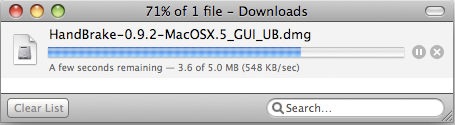
Download Handbrake

Step 2. Insert DVD
Grab a video DVD and put it into your computer. Handbrake can only convert standard video DVD's that you would normally play in a DVD player. If you have a DVD-ROM with video files saved on it as individual files (AVI, MPG, WMV, MOV, etc), Handbrake will NOT be able to convert these files. Handbrake only wants standard video DVD's.
Depending on your computer's preferences, the DVD Player application might automatically open. If it does, just quit it. Only one application should be accessing the DVD at a time.
Launch Handbrake. A screen asking you to select a DVD will appear. Select the DVD you've inserted into your computer and press the Open button.
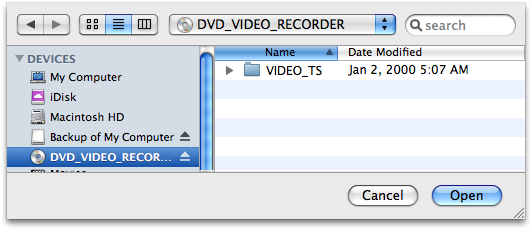
Insert DVD

Step 3: Download VLC player
What version of Handbrake are you using? As of version 0.9.3, Handbrake will no longer natively rip DVDs. Weird right? I wonder if they were getting some pressure from the movie industry. But don't give up on Handbrake just yet. You can still use Handbrake 0.9.3 to rip DVDs, you just need to install VLC on your machine first.
If you see the VLC screen like the one shown below, then you need to download and install VLC.
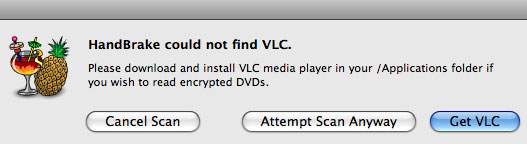
VLC on Mac

VLC Download Page:
http://www.videolan.org/vlc/

The VLC media player is a highly portable multimedia player for various audio and video formats (MPEG-1, MPEG-2, MPEG-4, DivX, mp3, ogg, etc.) as well as DVDs, VCDs, and various streaming protocols. It can also be used as a server to stream in unicast or multicast in IPv4 or IPv6 on a high-bandwidth network. Handbrake now uses some components of the VLC player and it must be installed if you want Handbrake to read DVDs.
After you download VLC, you need to install it on Mac:
VLC for Mac OS X is distributed as a disk image. Download the .dmg file, open it, and copy VLC to your hard drive (for instance the /Applications folder). Open VLC by double-clicking on it.

Step 4: Source Settings
Handbrake will now scan your DVD. This makes take up to a minute or two depending on the contents of the DVD and the speed of your optical drive.
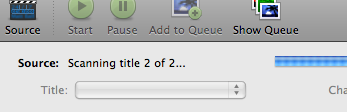
scanning

Title: By default, Handbrake will select the longest title in the list. However, this may not be the content you want.
Movies: If you are ripping a movie, the longest title is usually the main feature.
TV Shows: If you are ripping a DVD containing TV shows, you should see a list of several titles all about the same length. The shorter titles on the DVD are usually the video backgrounds used in the DVD menu screens and DVD extras like movie trailers. Unless you are a graphic artist, you probably don't want these tracks.

The shorter titles on the DVD are usually the video backgrounds used in the DVD menu screens and DVD extras like movie trailers. Unless you are a graphic artist, you probably don't want these tracks.

Title

If you only want to rip one title but aren't sure which one, you can click on the Picture Settings button (bottom right of the Handbrake interface) and manually step through several frames of the title to see what it looks like.
NOTE: Sometimes Handbrake is unable to see every track on a DVD. We've noticed issues with very old DVD's from the mid-1990s (before the days of fancy menus and Bonus features) and some newer DVD's like Stealth. There are different techniques and methods to authoring DVD's Sometimes the tracks get nested in weird ways that prevents Handbrake from seeing them. Other DVD ripping applications like Mac The Ripper and OSex might be able to see these tracks. Look for the longest track. That is probably the main feature.

Step 5: Destination Settings
The Destination section has 3 settings you can modify: file format, codec and file destination.
File Destination: You can name your file and choose its destination using this box. Try to pick a location that has sufficient disk space to store the ripped file. On average, you need about 1 GB per full length movie.

File Destination Settings

Step 6: Select A Preset
Handbrake has a variety of handy DVD ripping presets for iPod, iPhone, Apple TV, Xbox, Sony PSP and many more. Just select a preset and Handbrake will automatically fill in all the settings for you.
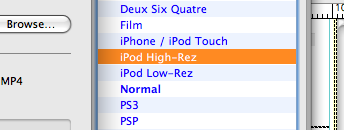
Preset

If you plan on watching this DVD on your iPod, iPhone or even Apple TV, we suggest you select iPod High-Rez and drop the average bitrate to 900 kbps. This will give you a nice high quality file that will work on both big (HDTVs) and small screens (iPod/iPhone) and won't take up a ton of hard drive space.
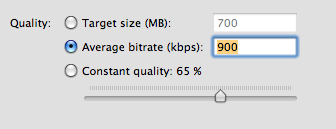
Handbrake - quality

Step 7: Picture Settings
Click on the Picture Settings button to launch a separate window. The only thing you really want to do here is to compensate for interlaced or grainy, compressed looking video. Handbrake will have adjusted everything here for you based on the preset you selected.
Sometimes video files will have horizontal lines in them. This is called interlacing. To get rid of interlacing, try turning on the Deinterlace option and select "Fast." The image below is animated and will toggle between when the deinterlace option is turned on or off. You can really see the difference around the edge of the flipper.
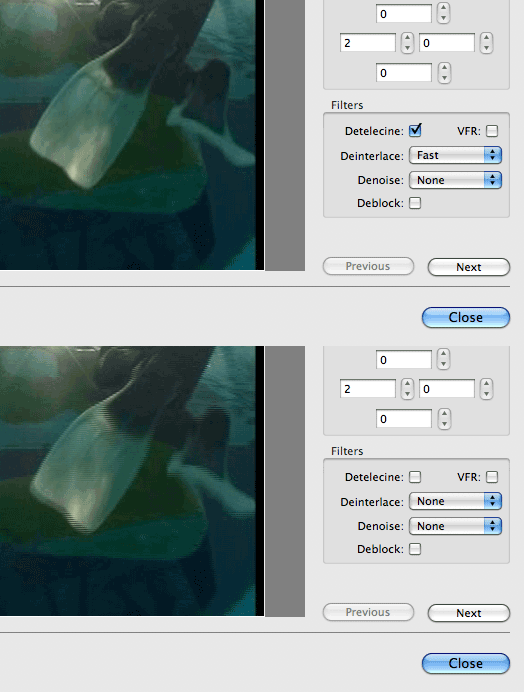
Handbrake - deinterlace

Denoise will help get rid of graininess and Deblock will help clean up blocky or compressed looking video. Experiment and try to make your video clip look the best possible.
NOTE: Your iPod really only wants video files that are 320 pixels wide by 240 wide. If you don't plan on watching this ripped DVD on anything else, you can mess around with the settings. Turn on the "Keep aspect ratio button" and decrease the Width until it says 320. Handbrake will auto-adjust the height to match the width. If your video source is 3:4 (full-screen), the height will be 240. For wide-screen content, the height will be a lower number. This is fine and isn't something to worry about.
But if you plan on watching this video on your TV with an Apple TV or an iPod Video dock, then you should keep the video size big. If you don't have the money for an Apple TV, there's this amazing iPod video dock called the Keyspan TuneView. If you want to hook your iPod Video up to your TV, you should check out the TuneView.
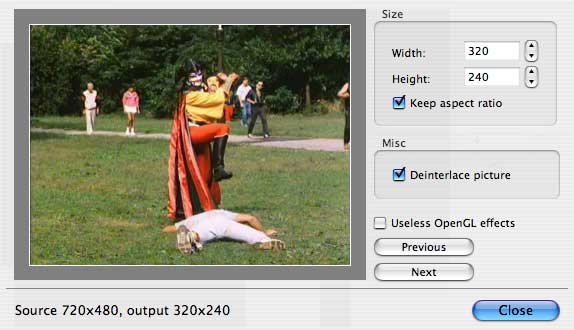
Handbrake - size

Step 8: Rip
Finally! Click on the Rip button and stand back. The encoding time will depend on several variables including: the duration of the video file, the speed of your computer, what other activity your computer is currently doing, the codec you selected (H264 or MP4) and if you decided to do a 2-pass encoding or not.

Handbrake - encoding

Handbrake will attempt to provide you with an ETA. The time will increase if you Pause the encode or do anything that will hog the processor like start a 3D render in Maya. We suggest you do your DVD ripping overnight or at a time when you don't need to use your computer.
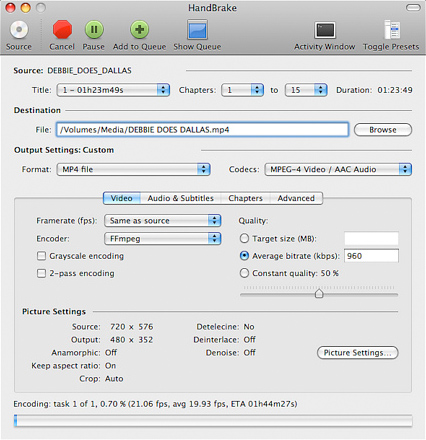

Handbrake

Step 9: Import Into iTunes
Connect your iPod Video or iPhone to your computer using the cable it came with and open iTunes (Applications > iTunes).
Drag and drop the video file into your iTunes library, or select Add to Library... from the File menu.
Make sure the video file you just added to iTunes is in a Playlist that will get synced to your device.
Select "Sync"
The sync may take a few minutes. Once the import completed, you could find the file which is ripped by Handbrake on your iPod or iPhone.

2010年10月28日星期四

Apple Owns Another 70 Acres Near NC Data Center

Turns out Apple’s real estate investments in Maiden, N.C., extend a bit further than the parcel where the company is currently finishing up work on its data center.

According to Catawba County Geospatial Information Services, Apple owns a little over 70 acres across the street from the 183-acre parcel on which its 500,000-square-foot data center is being built (click on image above to enlarge). That land was purchased in July of last year, but for what purpose?

The scuttlebutt around Maiden is that the company intends to use it for office space. But that seems about as likely as Apple using it to build some Jobsian theme park.

A more plausible explanation is that this parcel, too, will be used for data center space. As I reported last week, sources tell me that Apple is considering doubling the size of its Maiden data center operations, and architectural renderings posted to a Catawba County, N.C., Flickr page that show two structures side by side suggest this may have been the plan all along.

But these renderings don’t account for this newly discovered 70-acre parcel, and they were drawn up just a few weeks before Apple signed the deed on it. Which raises the question: Are Apple’s plans for the cloud so grand and its road map so clear that the company has already set the stage for further data center expansion by buying this lot across the street?

Below, parcel information for all of Apple’s recent land purchases in Maiden (click to enlarge).

PREVIOUSLY:

2010年10月27日星期三

Those Bits Aren’t Free: Netflix Could Be Racking Up a $2 Billion Content Tab

Investors are cheering on Netflix as it moves from DVDs to streaming video, and keeps adding customers along the way. But “digital” doesn’t equal “cheap” for Reed Hastings’ company. In fact, the online move has cost Netflix at least $1.2 billion.

That’s the amount the Netflix has committed to paying Hollywood studios for the rights to stream their movies and TV shows. And it’s up from $229 million three months ago, the company disclosed in an SEC filing yesterday.

Most of that leap comes from a 5-year deal that Netflix previously announced with the Epix pay channel, which is thought to be in the $900 million – $1 billion range. But that number could jump again within the next year, when Netflix’s deal with the Starz pay channel expires.

The Starz deal gives Netflix access to Sony and Disney titles, so it’s crucial that Reed Hasting hangs on to it. And that will make a new Starz deal about as expensive as the Epix deal, says Barclays analyst Douglas Anmuth: He figures Netflix will have a total streaming commitment of $2 billion by the end of 2011.

The magic of the Netflix Web model, though, is that as people consume more on the Web, they cut back on discs — “You’re
replacing the postal cost with content cost,” in Hastings’ words.

For more details on Netlix’s streaming plans and costs, I highly recommend nerding out with this transcript from its Q3 earnings call (PDF). It’s a fascinating peek into a company on the leading edge of the digital transition.

2010年10月25日星期一

How to Pay Google Without Buying an Ad

Google makes all of its money selling your attention to advertisers. But if you, the ordinary consumer, wanted to give Larry, Sergey and company your money directly?

You can do that, too. Browse on over to the Google Store, where you can buy…things that have the Google logo. And if you’re in Mountain View, Calif., and can get into the Googleplex itself, there’s now a physical outpost, as well.

Louis Gray (via Barry Schwartz) provides an enthusiastic–”there’s really no way to tell you how awesome this is”–walk-through. And those Android figurines do look kinda cool, actually.

2010年10月24日星期日

Some problems the new iPod touch users may meet

1. How to change iTunes to recognize the new iPod touch
Some New iPod users may meet the situation that your iTunes can not detect your new iPod nano, iPod touch, or iPod Classic. It should recognize it immediately. If it doesn't, download the latest version of iTunes. The problem will be solved:
1) Re-launch iTunes, with and without your iPod plugged in.
2) With iTunes open, reset your iPod Touch
(here:http://docs.info.apple.com/article.html?artnum=305743 ) Press and hold the Sleep/Wake button and the Home button at the same time for at least ten seconds until the Apple logo appears.
3) Restart your computer leaving your iPod touch plugged in
Note: If you uninstall iTunes from a computer, it will be uninstalled for all the users. But it will show up again for all users once you re-install it again. Before uninstalling each user should backup his/her playlists so they can bring them back when the re-install is completed.No music for any of the users will be removed by iTunes. It will remain intact where it is saved.

2.'I can't turn on my iPod'
I have a 1st or 2nd generation video iPod (80 gig).
My computer is windows 2000 so I downloaded the windows 2000 iTunes. So I decided to update my iPod, it was updated and it was fine. It ran out of power. Then it won't turn on? I tried to charge it but it just keeps saying please wait such and such. I left it there for like 2 hours already, and still it didn't charge up... Is the problem because I updated my iPod or something else? And when I opened my computer, iTunes asked me if I can format my iPod into windows. I put yes, it didnt do anything.So I have to problems, its not charging.. and its not turning on.
by Ashley :'My friend had this same problem a few years ago.She just left it plugged in to her computer for a few days, waited it out... eventually the problem fixed itself on its own. I'd say just wait it out for a day or two, and if it's still having problems, take it in to your nearest Circuit City or something.”
by Karat :'its the most popular iPod problem. If you drain the battery fully, you're screwed. Basically the battery is down, but the darn thing wont charge unless you connect it to the usb and the usb wont detect it unless it has charge! So please take it to your nearest apple outlet.”
by Kylla :'The one thing you never want to do with an iPod is let it run out of power, not good for it at all :P I've done it a few times but try to avoid it. What you want to do is hold the menu button and the play/pause button at the SAME time and just wait for it. It should restart it. Thats how my iPod works, yours could be different so experiment with the buttons. Try holding perhaps the center button and the play/pause button? or center button and the menu button? Try to see which two buttons will restart it, its bound to work. But hold BOTH of them down at the SAME time with one hand..and be patient, wait for about 10-15 seconds or so. :)”

3. Why does my 30G iPod video always die quickly?
Even when I am just listening to music. It shuts off after about 45 min. And that is a problem because I am going on a plane trip soon and I plan to watch a movie on my iPod, but movies eat your batttery. Does this happen to anyone else???? How can I make the battery life last longer. btw, it is only like a year old.
by dipin :'In an iPod the battery life is different.
it doesnt depend on how old it is rather it depends on how many times you have charged and discharged it.
for increasing the battery life you should fully charge the battery every time you are charging it . and secondly you should never let it discharge completely . put it on charging just before it shows the red signal and disconnect it only when it is fully charged.
sorry to say but now u'll have to get the battery replaced from apple reseller if you want to watch complete movie the battery life as said by apple is 500 complete cycles of charging and discharging”
by sugadoll :'The same thing happened to me. The problem is that your computer can't detect a completly dead iPod, but you need the computer to charge it so your screwed. j/k I solved it by pluging it into my ihome dock that plugs into the wall. So if you have a wall iPod dock or a car one you can charge it enough so that the computer can detect it. Problem solved.

Recommended Products For you:
DVD Ripper for Mac
Convert DVD to any video or audio formats on Mac OS X. Aiseesoft DVD Ripper for Mac is a professional Mac DVD ripper software.
Video Converter for Mac
Convert all video formats from one to another on Mac OS X. Aiseesoft Video Converter for Mac is a specially designed Mac video converter.

2010年10月22日星期五

How to convert videos such as MP4, WMV, MOV and AVI to DVD for Free

DVD Flick is a free DVD authoring program that allows you to take a video file saved on your computer and converts it into a DVD that can play back in a DVD player, your computer, or Home Cinema set. The software allows you to add audio tracks and subtitles to your DVD. Your original video files may be in any of the following container formats: AVI, MOV, MPG, WMV, ASF, FLV (Flash video), Matroska and MPG. Supported codecs include MPEG-1, MPEG-2, MPEG-4, XVid, DivX, WMA and WMV (Windows Media Audio and Video), MP3, OGG Vorbis, H264 and On2 VP5/6. The program is open source.
DVD Flick is the all-in-one tool that can convert:
AVI to DVD, FLV to DVD, HDMOV to DVD, MKV to DVD, MJPG to DVD, MPG to DVD, M2V to DVD, MP4 to DVD, M4V to DVD, NSV to DVD, NUT to DVD, QT to DVD, MOV to DVD, RM to DVD, SMK to DVD, OGM to DVD, WMV to DVD, ASF to DVD, 3GP to DVD, 3G2 to DVD for free.
DVD Flick supports DVD Authoring, ISO image creating, DVD burning also in one tool.
System requirements:

  • A Pentium or AMD K-6 processor. Pentium 3 or later recommended, the faster the better.
  • 64 MB of free physical RAM, 128 MB or more is recommended.
  • Windows 2000, Windows XP , Windows Vista (If you are Mac user, use this Mac dvd creator)

Download the latest version of the DVD Flick website
If you are using Mac, Please click here to download the Mac DVD Creator

1. Download and run DVD Flick

DVD Flick

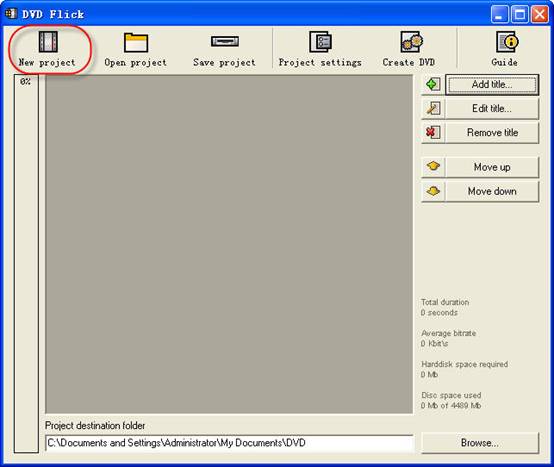
2. Click "New project” button to create a new project.
3. Browse your hard drives to select path to the folder, where the resulting DVD folders
(AUDIO_TS, VIDEO_TS) will be saved. It is highly recommended to use NTFS file system in your OS, cause the temporary m2v files in most cases exceeds 4GB limit for FAT32 file system. Additionally, don't use non-English letters to the browsing path, because the errors could occur during DVD authoring process.
4. Add your title - select the video file or files for the project. DVD Flick supports these video file types: AVI, FLV, HDMOV, MKV, MJPG, MPG, M2V, MP4, M4V, NSV, NUT, QT, MOV, RM, SMK, OGM, WMV, ASF, 3GP, 3G2.
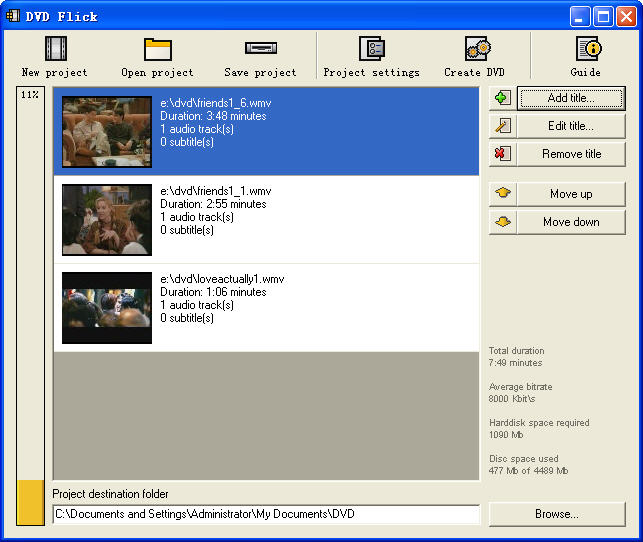
5. Title added. Left bar indicates how many bytes is used on the blank DVD disc with the default preferences. The percentage depends on the video file size which you have added in the previous guide step.

 DVD Flick - Title added

6. Edit title.
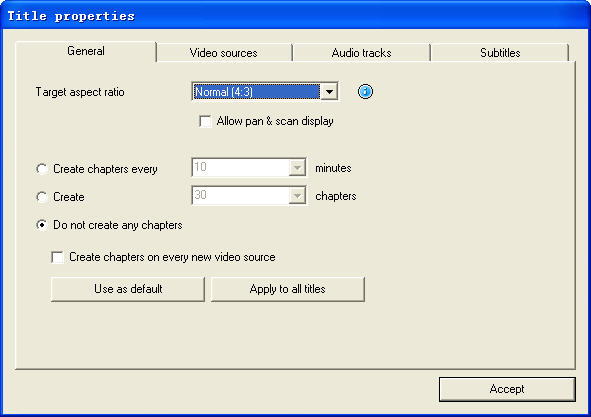
(1) General settings for the "Title".
reate chapters every: Purpose of the chapters usage is forward/back skipping forward during the DVD viewing. It is recommended to use this option.
You can also use fixed numbers of chapters - check "Create" button.
Aspect ratio is an auto detected value received from video file's frame dimension.

DVD Flick - Edit
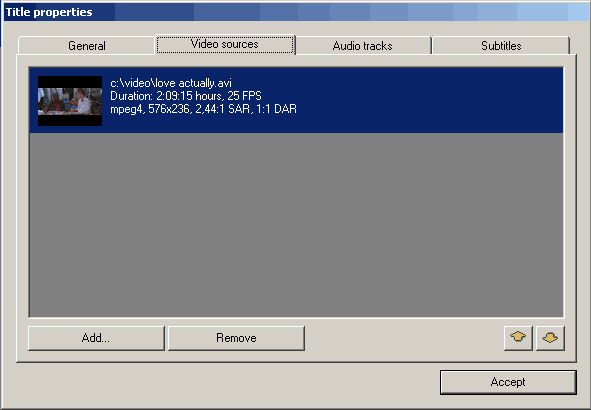
(2) Video sources for the "Title" - this tab informs us about video codec, frame size, Aspect ratio value, frame rate - Frames Per Second.

DVD Flick - Title
Frame rate. Check the bottom listing:

  • 23,976 FPS - NTSC Film Format
  • 25 FPS - PAL Format
  • 29,97 FPS - NTSC Format
  • 30 FPS - NTSC Format Reccomendations for the non-standard
  • 12,5 FPS - PAL Format
  • 15 FPS - NTSC Format Warning! Remember the format for your file - it will be the same "Target format" in "Project settings" .

Add a file to a title: This option allow to you to add new file or files to the "Title". It could be additional videos for this DVD, cutted scenes for examples, etc. Important thing is the same FPS for the main video file and the additional file.
Remove a file to a title: You can also remove a file to a title.
(3) Audio tracks tab.
Remove an audio track: Press "Edit" button, then remove from the "Audio track sources" additional audio track.
Add an audio track: Press "Add" button on the ”Audio track sources" tab, select the audio file from hard drive, check in the new "select audio track(s)" window track(s) you wish to add. Press "Accept" button. DVD Flick could extract audio tracks from all supported video files (AVI, FLV, HDMOV, MKV, MJPG, MPG, M2V, MP4, M4V, NSV, NUT, QT, MOV, RM, SMK, OGM, WMV, ASF, 3GP, 3G2), and also native audio file formats: AAC, AC3, Flac, MKA, MP3, MP2, MPA, OGG, WAV, WMA
Select language for the additional audio track. Select the audio track, and then select from the”Track language" list box.
(4). Subtitles tab.
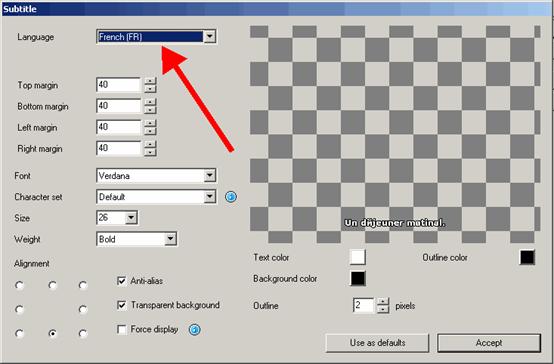
Add subtitles. Press "Add" button on the "Subtitles" tab, and then select from disk file with subtitles. DVD Flick supports these subtitles formats: AQT, JS, RT, SMI, ASS, SRT, SSA, TXT. Subtitle settings. Press "Edit" button to change subtitles settings. Select the language you need. Other settings are for the Font, Font size, and placement of the subtitles. As usually, press "Accept" button to save setting. "Force display" option will force subtitle displaying during playback, even they were not selected in menu.

DVD Flick - Subtitles tab

If everything was made rightly, we will see this window with the changed settings for subtitles. There are no more editing tabs for "Title properties". Press "Accept" button to save preferences.
7. Project settings. At the DVD Flick main window press "Project settings" button.
General tab.
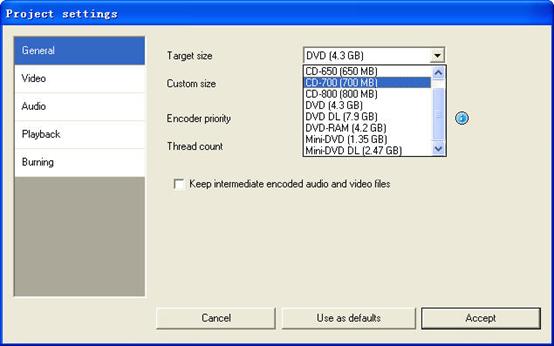
Select a "Target size" for your DVD from list box. The default value is "DVD (4,3 GB)", default values could be changed by pressing "Use as defaults" button. If you need to select custom DVD size just scroll up the list box to the "Custom" value and the bottom "Custom size" option will be enabled for editing.
"Encoder priority" allows to you to use "DVD Flick" with high priority in your operating system to decrease full encoding time.

DVD Flick - General tab.

Video tab.
Set your DVD "Target Format".
"Encoding profile" for better encoding performance is highly recommended to select as "Normal" or "Best". "Fastest" and "Fast" mode decrease full encoding time, but with the lower quality results.
"Target bitrate" is more easy to use as "Auto fit". This option will calculate bitrate for encoding automatically depends on DVD "Target size" and will be set as maximum possible value. If you have some advanced experience with DVD encoding, you can set "Custom bitrate".
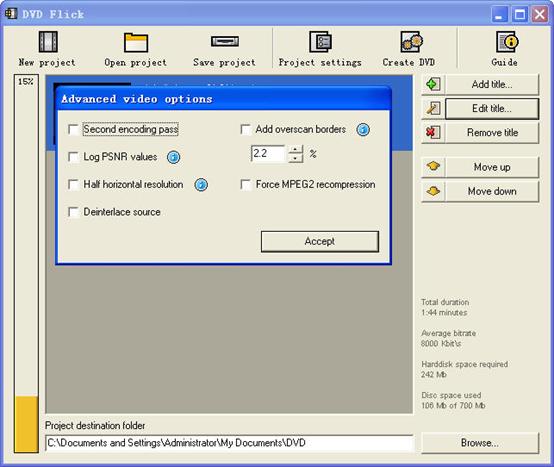
Set up advanced video options - press "Advanced" button.
Check "Second encoding pass" to improve output encoding results. It is highly recommended to use this option, but it wills increase full encoding time.
Check "Half horizontal resolution" to enable Half D1 DVD Mode - one of the standard for DVD, decreases frame size to 352x576 for PAL and to 352x480 for NTSC (instead of 720x576 (PAL) and 720x480 (NTSC)). Could be used as a possibility to decrease encoding bitrate, for more video length on one DVD disc.
Check "Add overscan borders" to make your DVD with black left and right borders to view all the source video on your TV.
Deinterlace option is not recommended to use.
Check "Force MPEG-2 recompression" to recompress your mpeg-2 video source files, do not check option if m2v files were encoded with Cam Video Tool 4 DVD Flick.

DVD Flick

Burning tab.
If the "Create ISO image" is set, the ISO image file will be created on your disk, in the "Project destination folder". ISO image could be useful, if you prefer to burn DVD using another application, supporting ISO images. "MDS" (Media decriptor) file will be created also. If you want to burn your DVD with DVD Flick, check "Burn project to disc" (red arrow). if you are using DVD+RW, DVD-RW disc, check "Automatically erase disc if it is rewritable". If quick erase will be not possible, ImgBurn (included in DVD Flick installation package) will make full erase for rewritable discs.
Accept all "Project settings" using "Accept" button. Now we are ready to burn our DVD.

8. Create DVD.
Press "Create DVD" button at the main window.
DVD Flick will ask for confirmation to proceed - press "Yes".
Additional warning about "Project destination folder" - Press "Yes".
"DVD Flick Progress" window shows to user all executed steps.
When the DVD burning will be done, we will see this window. Press "Close" to return to the DVD Flick main window. In the main window you can save DVD Flick project to your hard drive.

DVD Flick is only for Windows PC users. If you are Mac user, you can use this best DVD creator for Mac. It is a professional Mac DVD Burner program that converts almost all popular video formats such as FLV, MPEG1, MPEG2, MP4, DAT, 3GP, 3G2, MOV, AVI to DVD on Mac. And it can burn DVD movie playable on portable or home DVD player on Mac.

If you want to convert iTunes videos to DVD, you need to get the videos from iTunes to computer .
And then use DVD flick to convert iTunes videos to DVD for free.

If you want to burn YouTube videos on DVD, you can download the youtube videos to your computer.
And then using DVD flick to burn YouTube videos on DVD for free. If you are a Mac user, use this best dvd creator for Mac to help you. You can also copy videos form other video sites such as veoh, google video, iFlim, vidilife, blip.tv, music.com, zippyvideos, dailymotion, devilducky, etc and then burn them to DVD using this methods.

Here are some other DVD burner.
DVD Styler
DVD Styler is an open source DVD authoring system for Windows and Linux. It converts MPEG files, which you can drag and drop into its window, create NTSC/PAL DVD menus which are highly customizable (you can set image backgrounds, put text and images anywhere, change the font and colors, etc), set chapters for the movie, etc.
DivXtoDVD Perl Script
DivXtoDVD is a Perl script for Linux and other Posix systems (like BSD, Unix, Unix-like operating systems) that converts a DivX movie to DVD compliant files (AUDIO_TS and VIDEO_TS directories and files). It uses transcode, ffmpeg, mjpeg and dvdauthor to do the job in one step. The software is open source. Note that this is different from the commercial ConvertXtoDVD software which was also formerly named DivXtoDVD. If you're looking for the latter, a trial download is available.
ImgBurn
ImgBurn is a lightweight CD / DVD / HD DVD / Blu-ray burning application that everyone should have in their toolkit! It has several 'Modes', each one for performing a different task:
Read - Read a disc to an image file
Build - Create an image file from files on your computer or network - or you can write the files directly to a disc
Write - Write an image file to a disc
Verify - Check a disc is 100% readable. Optionally, you can also have ImgBurn compare it against a given image file to ensure the actual data is correct
Discovery - Put your drive / media to the test! Used in combination with DVDInfoPro, you can check the quality of the burns your drive is producing
Q DVD-Author
Q DVD-Author is essentially a GUI front-end for dvdauthor and other related tools found on a Linux system. You can create DVD menus, convert your projects between PAL and NTSC (and vice versa), create sub-menus, add subtitles, transcode your input videos from other formats, apply multiple audio streams to the videos, give menus multiple soundtracks, create a DVD slideshow, create animated menus, etc. This is an open source program that works under Linux and other Posix OSes.
KDE DVD Authoring Wizard
The KDE DVD Authoring Wizard allows you to create a DVD from a DVD-compatible MPEG-2 file (that is, it doesn't do the conversion from other formats for you). You can add multiple files and create a menu of the playlist if you wish. Your DVD menu can have multiple pages, a soundtrack from OGG or MP3, animated thumbnails and be in the NTSC or PAL format, be in 16:9 widescreen or 4:3 full screen, etc. This DVD authoring tool works under Linux. It is open source.

2010年10月19日星期二

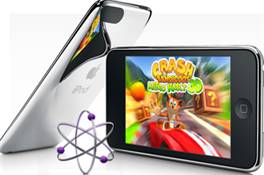
New iPod touch 2G Guide

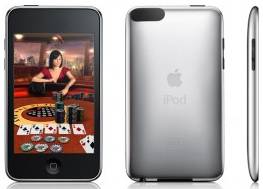
A big surprise turn up at 9th Sep for all iPod fans – the new iPod touch 2G and Nano 4G released. It’s really lucky and exciting to get a new iPod Touch 2G. And in order to help iPod users to learn more about it, I collected some information for this new iPod touch 2G guide. And it also includes how to enjoy the multimedia on you new iPod touch 2G such as download free video to iPod, convert DVD to iPod and transfer music video from iPod to iPod and iPod to computer.

Price:
As expected, the biggest news with Apple's second-generation iPod Touch is its drastically reduced price. The 8GB version of the iPod Touch 2G is now $229 (down from $299), the 16GB is $299 (down from $399), and the 32GB is $399 (down from $499).

Size:
The new iPod touch 2G is smaller and lighter than the original, 3.5 inch touch-screen, measuring 4.1 by 2.4 by 0.33 inches and weighing 4.05 ounces. With its rounded edges, flush display and curved, more compact design, the iPod touch 2G is promised to be more comfortable to hold and more portable than ever.

New iPod Touch - size

Game:
iPod touch 2G users can choose from hundreds of gaming titles such as "Spore Origins" and "Scrabble" from Electronic Arts, and "Real Football 2009" from Gameloft available on iTunes or directly through the App Store application on the iPod touch. The App Store works over Wi-Fi, enabling users to browse, purchase and wirelessly download applications.

New iPod Touch - game

Battery and “Genius”
The new iPod touch 2G promises up to 36 hours of music playback or six hours of video playback on a single charge. It also works with the new iTunes 8 Genius feature, allowing users to automatically create playlists while on the go. These playlists can also be synchronized with iTunes 8 servers.

Others features in new iPod touch 2G
Build-in accelerometer for casual listening; more convenient volume control button on the edge; the newest improvements “Nike+iPod” which can help you track your workouts by slipping a Nike+iPod sensor into you Nike+ shoes.

Then, Let’s talk about how to enjoy multimedia on your New iPod touch 2G
Part 1: How to free download video to your new iPod Touch 2G.
I always download free video and music from Youtube and limewire.
Youtube streaming videos are all FLV formats, so you need to play the video with a flash player programe on your computer, and if you want to put them on your new iPod touch 2G, use a iPod video Converter to convert FLV to MP4 format.
I got this totally free Youtube downloader, just enjoy.
http://www.aiseesoft.com/free-youtube-downloader.html

Limewire is a fast and popular freeware working on Windows, Linux and Mac OS. Through the P2P (peer-to-peer) network, you can free download various video and audio files by keywords searching. Most of its video formats is MPEG, so convert them and transfer to your iTunes then iPod touch 2G.
http://www.limewire.com/

Part 2: How to convert DVD to iPod Touch 2G
The new iPod touch 2G can only play MP4 and H.264 video, but DVD movie is MEPG, MPEG-2 video and CSS protected, so you need an application to convert DVD to MP4 video, then sync it to iPod touch 2G via iTunes.

convert DVD to New iPod Touch

To complete Part 1 and Part 2 I recommend you an iPod studio pack which includes a DVD to iPod converter and video to iPod converter.
You can get familiar with the apps by using this detailed step by step guide:
http://www.aiseesoft.com/article/download-dvd-pdf-youtube-videoto-ipod.html

Part 3: How to convert files back to your computer and transfer between iPod
Because iTunes prevents you from copying music or video from the iPod touch 2G back to computer, so you need a special tool to do that.
Yamipod, Aiseesoft iPod to Computer Transfer, Sharepod, iDump
And then re-add it to your iTunes library and sync it to other iPod touch 2G.

Free Trial: Free download Aiseesoft DVD to iPod Suite

view the datail of ipod nano chromatic/touch 2 converter

2010年10月18日星期一

Ad.ly Promises to Get More Celebrities, Pitching More Stuff, In Your Facebook Feed

Facebook has a big ad business. But its display ads tend to get ignored by the overwhelming majority of its users.

Ad.ly says it can fix this, with a time-tested method: Celebrity endorsements.

The social media ad start-up has already been doing this for some time, via its core product, which pays social network “influencers” to give products and brands a thumbs-up. That message appears in the celebrities’ news stream, where their followers are supposed to pay more attention than they would if they saw a conventional ad.

Now Ad.ly is rolling out a second ad unit, specifically for Facebook–a display ad featuring the celebrity’s endorsement. The start-up is packaging the two ads together to advertisers as the “Facebook Bundle” and promises that it can deliver eyeballs for less than $5 per 1,000 views.

It’s a pretty simple concept, as you can see from the materials the company has been sending to advertisers. Here’s the original “in-stream” Ad.ly ad unit (click to enlarge):

And here’s the new display unit that’s supposed to run in conjunction with the in-stream ad:

Don’t know if they’ll work, but they can’t be worse than many of the display ads Facebook sends my way right now. It routinely thinks, for instance, that I may be interested in joining the CIA, after I spend 18 to 24 months getting my Criminal Justice Degree. The social network is also insistent about getting me to whiten my teeth.

There’s always a risk that Facebook finds the new ads problematic for some reason (see: Twitter), but Ad.ly CEO Arnie Gullov-Singh says he reached out to Facebook last week and they sounded enthusiastic. I’m waiting for Facebook PR to confirm that with me, but for now we’ll take Gullov-Singh at his word.

I do have one worry, though. I keep looking at this Sgt. Peppers collage that Ad.ly put out to show off the “influencers” it has on its roster, and I don’t think I can recognize more than half of them. But that may have more to do with my impending old age than anything else. Right?

2010年10月17日星期日

RIM Gets Reprieve in India; Plan May Involve Local Server

Research in Motion narrowly avoided a ban on its BlackBerry service in the United Arab Emirates last week after reaching some sort of accord with the government there. But it continues to face one in India, which has demanded similar access to its encrypted email and instant messaging data.

The deadline for compliance had been Oct. 31, but India’s Home Ministry has extended it to give RIM (RIMM) a bit more time to provide a solution that would allow it to “lawfully” intercept encrypted corporate information. The new deadline: January 31. Evidently, the two parties have settled on a solution; RIM just needs more time to implement it–at least that’s what these minutes from a recent Home Ministry meeting suggest.

“RIM would be asked to adhere to the timeline of January 2011 to give the final solution wherein lawful access for BlackBerry messenger will not involve the overseas data path. Intelligence Bureau (IB) and National Technical Research Organisation (NTRO), which had attended the discussions, found that the solutions offered by RIM (for BlackBerry messenger) are prime-facie agreeable. The timelines of January 2011 were also agreeable.”

That bit about lawful access not involving an overseas data path seems to suggest that RIM has, at the very least, agreed to host a server in India. What it’s planning to do beyond that remains to be seen. Company execs continue to insist that there’s no technical solution to allow lawful access to its BlackBerry Enterprise Service. This is the second time RIM has won a reprieve from the Indian government. It seems doubtful there will be a third.

2010年10月16日星期六

More Bling From Bing, as Microsoft Adds Social Zing and More

Microsoft is holding yet another feature update event for its Bing search service later today at its Silicon Valley HQ.

Microsoft (MSFT) Online Services Division President Qi Lu will be there, as well as SVP Yusuf Mehdi, for–according to the invite–”a conversation about new directions and future opportunities of search and a demonstration of some new search innovation by Bing.”

Those two are the big guns at Bing, so this won’t be a minor update.

As has been widely reported, a lot will be about its continuing integration with Facebook data, which BoomTown scooped out last year.

Big giant and sustained yawn, since it is a year gone and everyone is doing this in some fashion, including Google (GOOG) and Yahoo (YHOO).

Unless, of course, it is executed in some distinct and unusual manner.

Maybe a search of Facebook CEO and co-founder Mark Zuckerberg’s data, every time yours is displayed without explicit permission?

We can dream!

I am hoping, as before, there is some kind of mapping update, since Bing often shows some cool new stuff at these regular events.

And I’ll be asking about how the Yahoo search and online advertising partnership is going, natch.

Liveblogging and possible video attack to begin at 11:30 am PT. (Note to Microsoft minions: Donuts, not cream puffs.)

2010年10月11日星期一

How to put movies on an iPod

How to put movies on an iPod is always a problem that most iPod users are confused about. There are many tools can help you to convert video on iPod, such as avi iPod Converter for Mac, Mpeg 4 iPod Converter, 3gp converter for iPod and so on. Those tools can help you to put avi, wmv, 3gp, Mpeg on iPod easily. This is the easiest way to put movies on an iPod. You can also put movies from one iPod to another one and from computer to your iPod directly with iPod transfer tools.

This guide includes two Parts:
Part 1: How to put movies on an iPod for Windows (convert & transfer)
Part 2: How to put movies on an iPod for Mac (convert & transfer)

Part 1: How to put movies on an iPod for Windows
A. With Converter
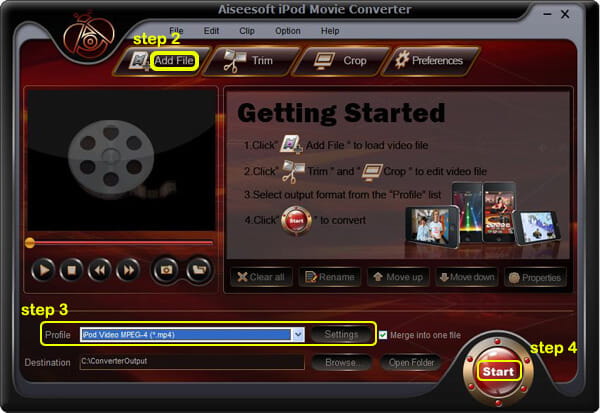
Step 1: Download and install Aiseesoft iPod Video Converter.

put movies on an iPod for Windows With Converter

Step 2: Add Video
Click “Add File” button to load your movies that you want to put on iPod.
Step 3: Choose output format
You can choose your output format according to your iPod’s generation from the drop-down list named “profile”. You can also adjust the settings of your output video by clicking “Settings” button.
Step 4: Start Conversion
Click “Start” button to begin your conversion.

B. With Transfer
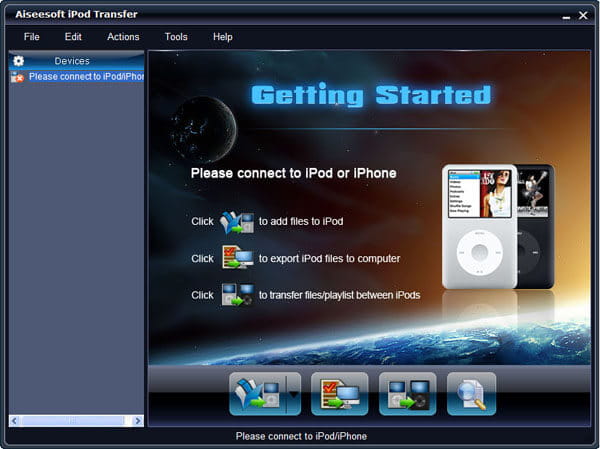
Step 1: Free download Aiseesoft iPod Transfer.

put movies on an iPod for Windows With Transfer

Step 2: Plug iPod
Plug your iPods or iPhones to computer
Step 3: Find movies
Find the movies that you want to put on your iPod from the other iPod.
Step 4: Transfer
Click “Transfer” button

Part 2: How to put movies on an iPod for Mac
A. With Converter
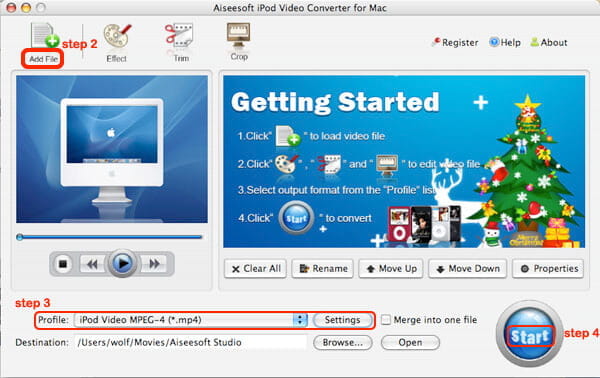
Step 1: Download and install Aiseesoft iPod Video Converter for Mac.

put movies on an iPod for Mac with Converter

Step 2: Add File
Click “Add File” button to load your movies that you want to put on iPod.
Step 3: Profile and Settings
Choose your output video’s profile from a drop-down list and you can also adjust the settings of your output movie.
Step 4: Conversion
Click “Start” button to begin your conversion.

B. With Transfer
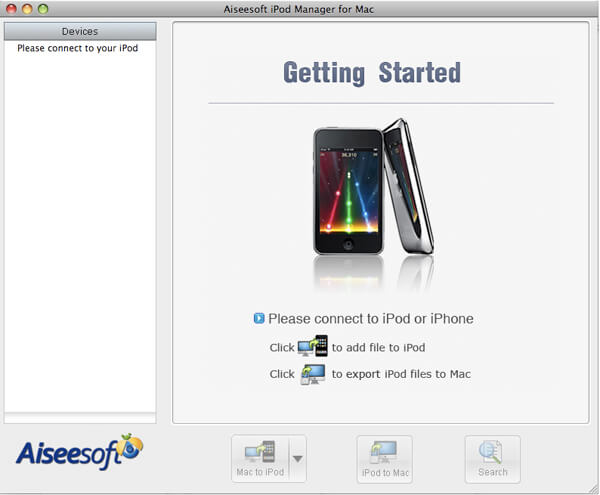
Step 1: Download and install Aiseesoft iPod Manager for Mac.

put movies on an iPod for Mac with Transfer

Step 2: Plug
Plug your iPod via USB cable.
Step 3: Find Movies
Find your movies you want to put your iPod from your local disk.
Step 4: Transfer
Click Transfer button to begin your transfer and seconds later you will get your movies on your iPod.

2010年10月10日星期日

How to import video from camcorder to Mac

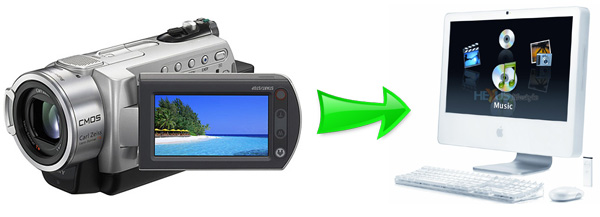
You may be ready to make a movie after you capture great footage with your FireWire camcorder. In this condition, you need import your camcorder to your Mac. More specially, you need to connect your camcorder to your Mac, and then copy footage from the camcorder into iMovie. And when you import video into an iMovie project, it would divide your video into individual clips for the easy editing.

camcorder video to Mac

Part 1. How to Import Video from a Camcorder to your Mac
Step 1: Connect camcorder to your Mac computer with cable (USB/Wifi)
Step 2: Select mode of camcorder such as PC/Computer mode.
Step 3: iMovie will automatic open Import window.
Step 4: If DVD Player automatic open. just quit DVD Player first.
Step 5: So now, you can review your video or select "Import All"(make sure your switch is set to "Automatic").
Step 6: If you select "Manual", you can import some clip to iMovie
Step 7: If you import from Tape based device (DV/HDV), iMovie will automatic revise tape and import all
Step 8: iMovie automatic create thumbnail video after complete import

Part 2. Tips:
iMovie automatically detects your camcorder
iMovie will automatically detect when you have a FireWire camcorder connected. If you see the message No Camera Attached, make sure your camera is turned on and properly plugged in to your computer via a FireWire cable and that your camcorder is set to VCR, VTR, or Play mode. You can also click the Connection Help button for more suggestions.
iMovie supports different video formats
When you create your project, choose the appropriate video format depending on your needs. For importing video from your camcorder, choose between DV, DV Widescreen, HDV 1080i, and HDV 720i. For recording from your iSight, select iSight. If you will be copying MPEG-4 files from your PDA or phone, select MPEG-4.
Import directly to the iMovie timeline
You can import footage directly from your camcorder to the iMovie timeline rather than to the Clips pane. This is a quick and easy way to get your footage into your iMovie project. You can then edit right in the timeline. From the iMovie menu, choose Preferences, click Import, and then choose the option Place clips in Movie Timeline.
If you're importing video that is already edited
Instead of importing your video as separate clips, you can set iMovie to import your video as a single clip. This may be useful if you're importing a movie that you've already edited and you just want to change a small portion. From the iMovie menu, choose Preferences, click Import, and then deselect the "Start a new clip at each scene break" option. If you prefer, select "Limit scene length to" and set a limit for the number of minutes. This will ensure your imported files don't get too large, in case you'll be copying clips between iMovie projects.
What you need to make a high-definition video with iMovie
High definition video is quickly becoming the format you see broadcast on TV. An HD camcorder stores more pixels than a standard camcorder, letting you see more detail in your video footage. iMovie supports importing and editing video from HD camcorders (HDV 720p and 1080i), so you can make movies just like the pros-and it's a great way to archive your most precious life events in the highest resolution possible .
Using video from an MPEG-4 camera
Many digital still cameras, PDAs, and mobile phones let you record short videos in the MPEG-4 format, a standard compression that is used to significantly reduce the file size of video. While iMovie doesn't know how to import video from these devices directly, as it does with FireWire devices, you can still use the MPEG-4 files once you've copied them to your Mac. Just drag them into the iMovie Clips pane using the Finder or import them using Import from the File menu.
Monitor the remaining amount of hard disk space
Digital video clips use a large amount of hard disk space. For example, five minutes of DV footage uses approximately 1GB of space. The same amount of HD video can occupy between 2GB to 4GB, depending on the format and footage. To save hard disk space, import and edit your video in sections instead of trying to do so all at once. You can see how much space remains on your hard disk by using the monitor located in the lower-right corner of the iMovie window.
Using video from your connected or built-in iSight camera
You can record video directly into your iMovie project with your iSight camera. That’s to say, you can add clips to your project spontaneously while you're working on it. Just connect your iSight camera to the FireWire port of your Mac and you're ready to start recording. If you have more then one camcorder connected, such as a camcorder and an iSight,- or you have an iMac with a built-in iSight-choose iSight from the pop-up menu that appears when you switch to camera mode.

2010年10月9日星期六

Three Ways to Download Music To Your Zune Player

There are several ways you can download your Zune movies, Zune music videos, Zune MP3's and Zune software to your Zune player.
1) The first is from the Microsoft Zune Marketplace and other Pay-Per-Download Sites which have movie downloads, music downloads, music video downloads, and more. The problem with downloading Zune files from places like Microsoft Zune Marketplace is the cost. The Microsoft Zune Marketplace charges a monthly subscription service called the "Zune Pass" with unlimited downloads for $14.99 per month. The pay-per-download sites charge on the average about $1.00 per Zune download. So, with a Zune player that has a 30 gigabyte hard drive whic allows users to store up to 7,500 Zune MP3s, 2,500 pictures or 100 hours of Zune movies and Zune music videos, that is going to cost a fortune to fill up.

2) WiFi - Microsoft Zune players has a technology called WiFi which allows friends and family to share Zune music, Zune movies, Zune software, pictures and Zune music videos both effortlessly and wirelessly. If you have a cool picture or something you found on a zune download site you can share it easily. Anytime you come in close range of another Zune player you can connect to that Zune player via WiFi and share your Zune downloads. The only drawback is you can only play a shared song only 3 times before it is deleted although, pictures are saved and can be viewed many times. It's a nice feature but needs improvement.

3) The third way is by ripping your music CD's to your Zune player. The definition of ripping means converting CD music files to a file format usable by your Zune player which is either in MP3 or WMA file format. After doing this, all you need to do is plug your Microsoft Zune player into your computer with a USB cable and transfer the ripped music files to your Zune player using the provided Zune software.

1. Put the music CD that you want ripped into your PC.
2. After the media player opens. Select the song you would like to copy and click on RIP.
3. Save the song you just ripped to a folder of your choice.
4. Plug in your Zune Player to your PC using the USB Cable. The Zune Software will automatically search for music that you saved in the folder on your PC. Select the files you want and manually drag and drop them into your Zune player's music folder.

Related theme:
New Zune review part 2-1
New Zune review part 2-2
New Zune review part 2-3
New Zune review part 2-4

Recommended Products:
DVD to Zune Converter
This Zune Converter can convert or rip DVD to what you want video/audio formats.
Zune Movie Converter
It supports convert video to Zune supporting video and audio format.

2010年10月8日星期五

Bit.ly URL Shortener Raises $10 Million

Bit.ly, the start-up you’ve probably used recently to send someone a shorter version of a Web address, has raised another round of funding. The service, spun out of the Betaworks incubator, says that the RRE VC fund led the $10 million round, and that partner Eric Wiesen will join the company’s board.

Bit.ly has now raised about $14 million in a couple of years, but so far has only a nascent revenue stream: About 4,000 different companies have white label versions of Bit.ly’s URL shortener (the New York Times, for instance, uses Bit.ly to create addresses like this: http://nyti.ms/bm8lk2). But only some of them pay for that service, at a rate of $1,000 a month.

The real business, which Betaworks CEO John Borthwick says the company will begin to build out with its new money, is turning Bit.ly’s data set into money.

People clicked on six billion Bit.ly links last month, Borthwick says. And he imagines that all sorts of folks, from Google (GOOG) on down, would be willing to pay to license the data.

It’s worth noting that Yahoo (YHOO), among others, has been doing some tire-kicking around the service–maybe more, depending on whose story you’d like to listen to.

Other investors in this round include OATV, Mitch Kapor, Founders Fund, SV Angel, Joshua Stylman, Peter Hershberg and David Shen. The New York Times (NYT), as I have previously written, picked up a piece of Bit.ly this summer as partial payment for its work in in News.me, a yet-to-be-launched social news service for Apple’s (AAPL) iPad.

2010年10月6日星期三

Nokia N8 Ships

Market availability will vary by country and carrier, but Nokia’s N8–the first smartphone running the company’s new Symbian 3 operating system–is headed to market after some delay. Last week Nokia warned that preorder customers who’d expected to receive the N8 by September’s end would now have to wait until October, offering no explanation for the delay. So to hear that the device is actually on the trucks is good news for those looking to purchase them, and for Nokia and its shareholders as well. At $10.14, the company’s stock is up 3.26 percent with the news.

2010年10月5日星期二

Apple Stacks Sandbags Against Cover Flow Damages

Cover Flow, the animated GUI Apple uses to display content in iTunes and Time Machine, is causing the company some legal and financial woes. Last week a U.S. District Court in East Texas ordered Apple to pay as much as $625.5 million in damages to Mirror Worlds, which sued it alleging Cover Flow violated a series of patents describing a “document stream operating system with document organizing and display facilities.”

For a company with $45.8 billion in cash and securities in its coffers, a $625 million damage award is hardly large. That said, Apple isn’t going to pay it without a fight–particularly when there may be some prior art to be found in HyperCard. The company has filed an emergency motion to stay the ruling, claiming there problems with at least two of the patents at issue here, according to court filings.

2010年10月4日星期一

Top 5 Best DVD to iPod Converter Review

You may haven’t figured out how to rip your DVD to your iPod, and played in the right resolution for your iPod. And often, you are confused about which software is the best one. Everybody has its own opinion about that. Here, I give you top 5 best DVD to iPod Converter Review. You can choose what you think the best DVD to iPod Converter among them. I will take 6 points into review.

1) Cost/Performance: Everybody wants to gain more with less money.
2)Video Quality: Someone often uses the video iPod to watch movie, so the output video quality should be considered seriously. Top DVD to iPod output without any loss in the video and image quality of the exports. To enjoying the high definition video is of great pleasure. Or else, not only your eyes may get hurt; the annoying jumpy and mosaics will also bother you.
3) Speed: Convert DVD often takes time, an hour DVD movie takes around thirty minutes to convert to MPEG-4 movie, if you have multiple DVDs to be converted, a high speed converter would be your best bet, or else, you will waste much time on the conversion, and your computer will be tied to the process.
4) Quality of DVD: Sometimes, rip DVD to iPod according to the original DVD quality, or the types of the DVD to determine the ripped file quality.
5) Easy to use: There are still many iPod users knew little about computer, so complicated parameter settings will strain their brain, as a result, a application with simple interface and steps is the acceptable.
6) Personal Demands: For example, someone just wants to convert part of the DVD video, or others want the special output video format like Apple TV compliant forms and etc.

Concerning the above factors, I've selected five DVD to iPod converters for reference.
DVD to iPod Converter for Windows Review:
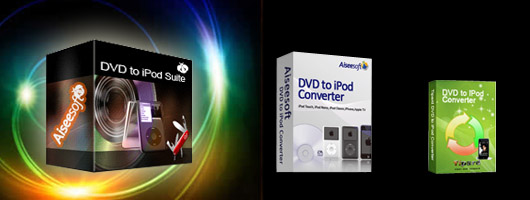
First: Aiseesoft DVD to iPod Suite.
Second: Aiseesoft DVD to iPod Converter.
Third: Tipard DVD to iPod Converter.

DVD to iPod Converter for Windows Review

Comment: After you install Aiseesoft DVD to iPod Converter, You will be greatly impressed by its friendly interface. In addition to its top conversion function, it provides the function to optimize your conversion file, set the parameters for you, crop video, trim video, select subtitle etc. If you have many DVDs must be converted and cropped. Aiseesoft DVD to iPod Converter meet your needs.

We tested Tipard DVD to iPod Converter, it is amazing that Regardless of the DVD media we used, the ripped files looked and sounded great. It is also combined with many useful features, trim your video clips; crop the play region of video; set the video effect. If you care about the Cost/Performance, and you care about the video/ audio quality, Tipard DVD to iPod Converter is suit for you.

As for Aiseesoft DVD to iPod Suite, It is the top favorable software, I believe. The reason is that it combines DVD to iPod Converter, iPod to Computer Transfer and iPod Movie Converter into one. With this powerful software, you not only can rip DVD to your iPod, but also convert any video formats to your iPod supporting one. As well as Transfer music and video from iPod to computer. If you want to Rip DVD and convert your favorite video including the FLV format to your iPod with one and inexpensive software, Aiseesoft DVD to iPod Suite is the best one.

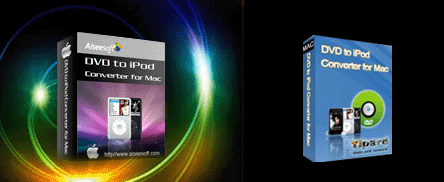
DVD to iPod Converter for Mac Review:
First: Aiseesoft DVD to iPod Converter for Mac
Second: Tipard DVD to iPod Converter for Mac

DVD to iPod Converter for Mac Review

Comment: Similarity, the above two Mac software is same on the main function. As for the interface, it’s up to you preference. Frankly, Tipard DVD to iPod Converter for Mac take a little shorter to convert, but considering the video quality, Aiseesoft DVD to iPod Converter for Mac ripped DVD video is more remarkable. Of course, you can test it by yourself. You would found the video conversions are just as clear as the original, sometimes even better.