You’d think David Lawee has it easy. He’s the mergers-and-acquisitions chief for Google (GOOG), a company with $33.4 billion in cash and a willingness to spend it.
2010年11月29日星期一

2010年11月25日星期四
Downgrade PSP to version1.5 using PSP battery
Lots of users downgrade their PSP to version 1.5 because they can upgrade their PSP to any version from 1.5. And if you upgrade your PSP to version 3.51, you can play any downloaded games and run any applications. Do you know that you can downgrade your PSP system to version 1.5 all by yourself by turning your PSP battery into a pandora's battery? All you need are an original PSP battery (with more than 50% charge) and a Memory Stick Pro Duo with 1GB memory or above.
I. Get ready (Reformat PSP memory stick)
Before you get started with the downgrade, you need to reformat your PSP memory stick. If you don't know how to reformat it, you can refer to the steps below:
1. Press the HOME button on the bottom left of your PSP.
2. Use the arrow keys to move to the Settings area, then move the up and down keys to go to System Settings.
3. Push the "X" button (or the "O" button, depending on which button is the "Enter" button of your PSP) and scroll to find the "Format Memory Stick" option. Push the "X" button again to select this option.
4. Your PSP will now confirm that you want to reformat the memory stick, choose yes and your PSP will be physically formatted in a few seconds.
To do the downgrade, you also need to download an application pack. After the downloading is finished, what you get will be a compressed application pack named "pandora", decompress it to the root directory of a hard disc, say Disc H. In this "pandora" folder, you can see four folders including mspformat, msinst, battery and installer, and a file named UPDATE.PBP.
Now you are ALL ready to turn your PSP battery to a Pandora's battery and use it to downgrade any PSP!
II.Turn your PSP battery into a padora's battery
Step 1: Logically reformat your PSP Connect your PSP to your computer. And your PSP will be recognized as a new hard disc, say K. Then click Start -> Run, input cmd in the popped up dialog box, and click OK to enter DOS system. Use the below commands one by one to run the mspformat file: Input "H:", and press the "Enter" Key on your keyboard. (Here H is the disc where the "panndora" folder is located) Input "cd pandora" and press the "Enter" Key on your keyboard. Input "cd mspformat" and press the "Enter" Key on your keyboard. Then input "mspformat.exe K" and press the "Enter" Key on your keyboard. (Here K is the name of the disc that your PSP is recognized on your computer.) After these commands, your PSP will be logically reformatted in a minute.
Step 2: Open the recognized PSP hard disc on your computer, create a new folder and name it "PSP", open this "PSP" folder, create a new folder and name it "game". Copy and paste the "installer" folder and the "battery" folder into the "game" folder. Then copy and paste the UPDATE.PBP file to the root directory of the PSP hard disc on your computer.
Step 3: On your PSP, switch to the Game option, press X or O (depending on which is the "Enter" key of your PSP). Go to "installer" and press X or O to run it.
In a few seconds, a file named "msipl.bin" will be created on the root directory of your PSP memory disc. And now, you should take out your memory disc and then put it back in, which seems to be useless but is a very necessary step.
Step 4: Connect to your PSP back to your computer. Then enter DOS system as mentioned in Step 1. Use the below commands one by one to run the mspformat file:
Input "H:", and press the "Enter" Key on your keyboard
Input "cd pandora" and press the "Enter" Key on your keyboard.
Input "cd minst" and press the "Enter" Key on your keyboard.
Then input "msinst.exe K K:\msipl.bin " and press the "Enter" Key on your keyboard. (Here K is the name of the disc that your PSP is recognized on your computer.)
When you see a popped up message asking if you are sure, click "Yes".
Step 5: Go back to your PSP, switch to the Game option, press X or O (depending on which is the "Enter" key of your PSP). Go to "battery" and press X or O to run it, press X or O to OK every popped up message to finish running the battery application.
Now, your pandora's battery has been created!
III. Use the created pandora's battery to downgrade your PSP
After you turn your batter to a PSP downgrade battery (pandora's battery), you can use it to downgrade your PSP by following the instructions below:
Take out your PSP Memory Stick and battery, then put back in your PSP Memory Stick first, and put your battery back in.Turn your PSP power on, when you see three options; select the Downgrade option, your PSP will be downgraded in a very short time and it will be automatically shut down afterwards.Turn your PSP on again, and you will see a blue screen. But no worries, you can just press the O key, and your PSP system is already version 1.5!
Note: The above process will turn your PSP battery to a pandora's battery that can be used for PSP downgrade. But the pandora's battery cannot be used to play PSP games, videos or music. And the process is not reversible. You will need to get an additional PSP battery for regular uses. However, you can use your pandora's battery to downgrade any PSP to version 1.5 or even repair you PSP.
Recommended Products For you:
DVD to PSP Converter for Windows
Aiseesoft DVD to PSP Converter for Windows is a professional application that is designed to convert DVD movie to PSP on PC.
PSP Movie Converter for Windows
Aiseesoft PSP Movie Converter is a professional video to PSP converter for Windows that can convert all sorts of video formats to PSP video on PC.
How to Convert video and DVD to DV for DVD Studio Pro, Final Cut Pro, iMovie
This is a tutorial on how to convert video and DVD to DV for DVD Studio Pro, Final Cut Pro, iMovie.
Here are 2 parts:
Part 1, How to convert DVD to DV on Mac?
Part 2, How to convert videos such FLV to DVD on Mac?
Part 1, How to convert DVD to DV on Mac?
You need the following two software:
Aiseesoft DVD Ripper for Mac
MPEG Streamclip
Step 1, Rip DVD to formats that are compatible with MPEG Streamclip
Many free Mac DVD Rippers don't support ripping encrypted DVD. We recommend you Aiseesoft DVD Ripper for Mac (Intel Version, PPC Version) which can rip encrypted DVD to many other video formats such as MP4, FLV, MOV etc.
MPEG Streamclip Supports the following input formats: MPEG, VOB, PS, M2P, MOD, VRO, DAT, MOV, DV, AVI, MP4, TS, M2T, MMV, REC, VID, AUD, AVR, VDR, PVR, TP0, TOD, M2V, M1V, MPV, AIFF, M1A, MP2, MPA, AC3.
You need to use DVD Ripper for Mac to rip DVD to any video formats such as MP4, MOV compatible with MPEG Streamclip. After conversion, you can find the converted files in the output folder.
Tutorial on how to use DVD Ripper for Mac
Step 2, use MPEG Streamclip to convert videos to DV
Click 'File'>'Open Flies' to Open the converted files in the output folder.
Click 'File'>'Export to DV' to convert videos to DV.
That’s all.
Now you have converted DVD to DV on Mac. Then you can put the DV to DVD Studio Pro, Final Cut Pro, iMovie to edit.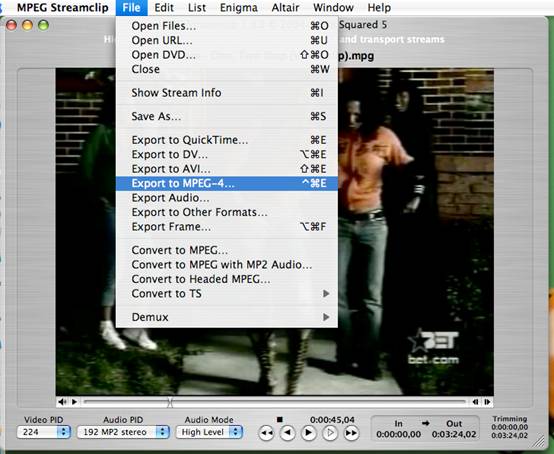
Part 2, How to convert videos such as FLV to DV on Mac?
Software you need:
Aiseesoft Video Converter for Mac
MPEG Streamclip
Step 1, Convert videos to the formats compatible with MPEG Streamclip (Optional)
MPEG Streamclip Supports input formats: MPEG, VOB, PS, M2P, MOD, VRO, DAT, MOV, DV, AVI, MP4, TS, M2T, MMV, REC, VID, AUD, AVR, VDR, PVR, TP0, TOD, M2V, M1V, MPV, AIFF, M1A, MP2, MPA, AC3.
If your videos such as FLV, 3GP, 3G2, WMV, XVID are not the above formats, you need to use Video Converter for Mac to convert your videos to MPEG Streamclip format.
Here is a tutorial on how to use Video Converter for Mac.
If your videos are compatible with MPEG Streamclip, please go to step 2.
Step 2, use MPEG Streamclip to convert videos to DV on Mac
Click “File”>”Open Flies” to Open the converted files in the output folder.
Click “File”>”Export to DV” to convert videos to DV.
That’s all. Now you are succeed in convert DVD to DV on Mac.
Then you can put the DV to DVD Studio Pro, Final Cut Pro, iMovie to edit.
2010年11月24日星期三
How to transfer music from iPod
Basically, there is a need for you to transfer music from iPod with iPod Rip and iPod Rip for Mac to avoid your files are lost. Now, I guide you how to Rip your iPod to hard drives with Aiseesoft iPod to Computer Transfer. So you don’t need to worry about losing anything.
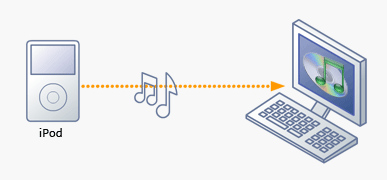
Step 1: Download Aiseesoft iPod to Computer Transfer and install.
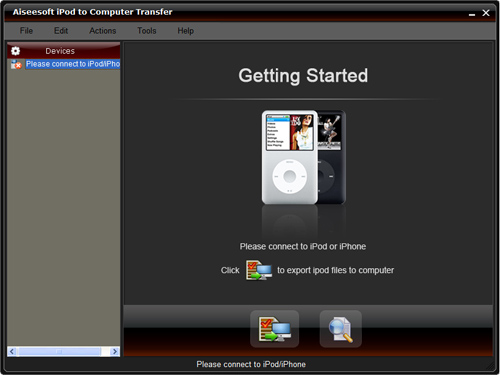
Step 2: Launch the program
Double-click the icon to run the software; or launch it from the “Start” Menu.
Step 3: Rip iPod files.
1) Run the software, and connect your iPod/iPhone to your computer via USB cable. After done, the iPod/iPhone icon and its library and playlists will appear in the Device list.
2) Open the library/playlist that you want to export files, and then check the music/movie you want to export in the file list to your computer.
3) Click the "Export to PC" button to select the destination of the exporting files and start ripping files
Otherwise, you could also choose the Export to local option from the Actions menu, and then export the files from your iPod/iPhone to actual device.
Tip: Use “Track filter” function to help you quickly browse your library by genre, artist and album. If you are using Mac, please use the iPod Rip for Mac software.
iPod Rip for Mac download.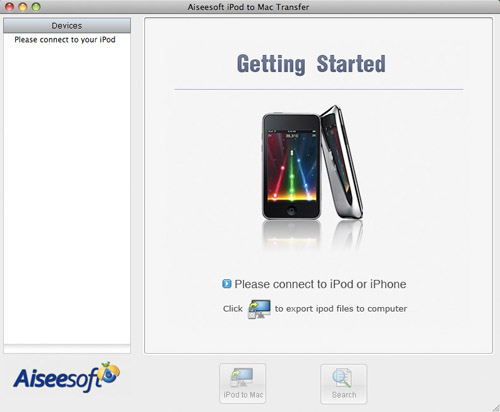
2010年11月22日星期一
A Faraday Cage for Your Fetus
Here’s a stocking-stuffer idea for the hypervigilant expectant mother on your holiday list: The Belly Band from Belly Armor. The stretchy rayon-and-spandex binding features RadiaShield lining that the company says blocks 99 percent of the radiation from cell phones, laptops and other electronic devices (and presumably blocks all outgoing calls from the womb as well). The maternal defense system runs $60.
What Facebook Messages Means and Why You Should Care
Facebook yesterday launched an interesting product that tries to get at the heart of how highly connected people communicate casually. CEO Mark Zuckerberg and others from the company reiterated over and over again (see my live notes; the repetition is excessive) that the product is “not email.”
In large part, that’s because if Facebook Messages were evaluated as an email system, it would look terrible. There’s no incorporation of IMAP so you can access your mail from other clients, there’s no way to save drafts, there’s no way to cc people, there are no folders.
Even more jarring, there are no subject lines or time stamps, and you only ever have one continuous conversation with a contact. Instead, like instant messaging, when you type a message and press enter, it gets set loose to your contact.

But maybe Facebook has a point, and we don’t need all that cc, bcc gobbledygook for personal communications. Maybe we just want to more casually correspond with each other. And some of these email conventions have probably outlived their usefulness. Facebook says prior to the change its top three subject lines were blank, “Hi!” and “Yo.”–if that tells you anything.
The problem is, the way Facebook Messages works is a bit complicated and unfamiliar. You can see why the company is rolling it out very, very slowly–it’s the kind of new experience that aggravates people and makes them whiny.
Facebook Messages treats the correspondence between you and another person as a single conversation, whether it’s by IM, within the Facebook Messages interface, received as an email or as a Facebook-delivered SMS. Often those channels overlap. Messages that are not from Facebook members, and those from entities other than individuals, get shunted to a second-tier inbox.
Yesterday I was playing with the new Messages, first within the Messages interface on the Facebook Web site, then on IM on the Web site, and then via text message when I closed my computer. A few things confused me–for instance, chat is disabled and disappears when you go into Messages. I guess it’s redundant to have the same conversation in two places. But as someone who felt like I was in an IM chat, it was super weird.
Another thing that’s odd is that those life-time conversation threads only really work for one-to-one relationships. Group messages seem like a little bit of an afterthought; for instance, group threads show a split-screen image of two of the participants’ profile pics, no matter how many people participate. The system is prejudiced against people who email you from outside Facebook (say, your mother emails your @Facebook.com address from an @Yahoo.com address), until you explicitly say you want to see them in your main Facebook inbox. If a person sends you messages from two email addresses, Facebook doesn’t allow you to help it understand that they are the same person.
While I will probably acclimate to the Messages experience over the next few weeks, one thing that’s going to continue to be very annoying, and accentuated by Messages, is redundant Facebook notifications. Already a problem for those of us who use Facebook on multiple platforms like the Web and a phone app, redundant notifications run rampant in Facebook Messages. Say someone sends you a message from the Web site and checks the box to send it to your phone. Without changing any defaults, you could get a text message from Facebook, an email message from Facebook, a new IM on the Web site and a flag that you have a new message in the Facebook nav bar.
I spoke to Messages product manager Dan Hsiao yesterday, and he said the team had thought carefully about trimming down notifications but decided it would be worse if users weren’t alerted to the fact that they had a message.
Hsiao said that his mantra in building the product was to make it “email compatible but not email complete.”
I think there will be two main outcomes from the new Facebook Messages:
- Other Web mail outfits will (and should) better integrate their email and instant messaging conversations, based on Facebook’s example. Folks like Gmail can go one better, and incorporate additional forms of communication like voice messages. Facebook is right–there’s no reason this shouldn’t all be condensed and scannable.
- Provided the Facebook Messages product doesn’t have major usability issues, it will continue to supplant email, especially for young people. There will be a bigger distinction between formal, especially corporate, correspondence via email and personal messages. If you think about it, we all already make a distinction between messages from people and messages from mailing lists, and Facebook is right to say the ones from people are more important.
The thing is, Facebook Messages splits out a part of the communication experience that is, for most, a part of other tools and services.
Facebook Messages won’t replace email for people who use email for professional purposes, people who prefer desktop mail clients or people who firmly associate themselves and their archive of emails with an existing address.
Rather than killing Gmail (and its much larger competitors Hotmail and Yahoo), Facebook Messages will probably have the biggest impact on usage of IM services like AIM and GChat. The only thing the new product will fully replace is the previous version of Facebook Messages–which, by the way, has 350 million active users, and four billion messages sent per day.
2010年11月21日星期日
Tumblr Falls Into a Really Big Pile of Money
Tumblr, the super-hot blogging service, has finished up a very, very big funding round that’s going to put the company’s value well above $100 million.
Fortune.com’s Dan Primack reports that Sequoia is leading a round that will add “between $25 million and $30 million” in funding at a valuation “in the ballpark of $135 million.”
Someone familiar with the transaction tells me that Primack’s numbers are “not a bad guess.” And it’s possible the numbers will end up somewhere higher than his report. Another source tells me that the round will end up bringing in between $20 million and $30 million, at a pre-money valuation of $120 million. That would put Tumblr’s value at $140 million or more.
In any case, it’s a lot of money. And as wise Om Malik says, “Investors are never the story.” (Except when they are. And what’s really relevant here is that at these prices, the list of potential Tumblr acquirers gets much smaller: Google, sure. Facebook, perhaps. Yahoo, theoretically, etc.)
The real story for Tumblr remains the one we’ve asked every other time the company has raised money ($4.5 million in 2008; $5 million earlier this year): How’s it going to make money? Founder David Karp has offered several different ideas in the past, but as far as I can tell, none of them have really taken off (the fact that big publishers like Newsweek now maintain Tumblr sites, which are free to set up, does not constitute a business).
Best I can tell, the real appeal for Tumblr is its go-go growth, and the fact that it’s doing it on a very light footprint. But don’t take my word for it: Ask Spark Capital’s Bijan Sabet and Union Square Ventures’ Fred Wilson, who have been the primary investors in the company to date and who both wrote glowingly about the company in recent days.
Presumably, the company’s pitch to investors went something like this: “Look at our hockey stick! Hockey sticks like this only come around a few times a lifetime–perhaps you’ve heard of Twitter?” That is: Buy now, and we’ll figure out money later.
And it looks like it worked.
2010年11月19日星期五
Download limewire free music and video to iPod, iPhone, PSP, Zune
This guide is mainly about how to use limewire to download free music and video to computer, and then transfer the limewire free music and video to iPod, PSP, Zune and iPhone. If you think it's useful, please digg it to let more people know it. This guide will include five parts as follow:
How to download free limewire video and music to computer?
How to put limewire free movie to iPod?
How to transfer limewire free movie to Zune?
How to add limewire free movie to PSP?
How to import limewire free movie to iPhone?
You can download limewire software free from its official site: http://www.limewire.com If you want to download youtube video to iPod, Zune, PSP, you can refer to this step by step guide: http://www.aiseesoft.com/article/free-download-youtube-video.html
Part1. How to download free limewire video and music to computer?
1. Download Limewire software, it’s totally free. http://www.limewire.com/download/version.php.
2. Install and run the Limewire, Just type in some words that you may be interested in, choose the type, and press search, then you can get a lot of files to download.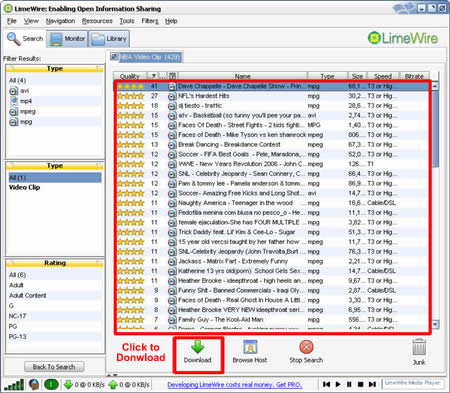
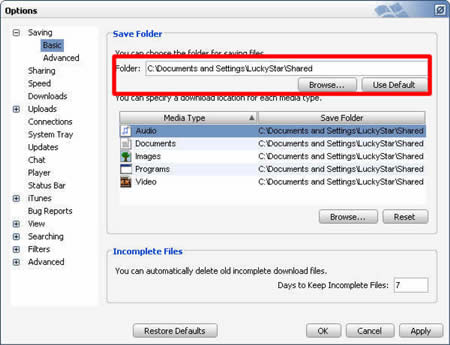
Find the just file and click download to get it. You can also download multiple files in one time. After you download the file, then right-click on the download files and choose “explore”, then you can locate your download files on your computer. You can also click Option, then you can set the default downloaded directory. Click tool folder for saving your file.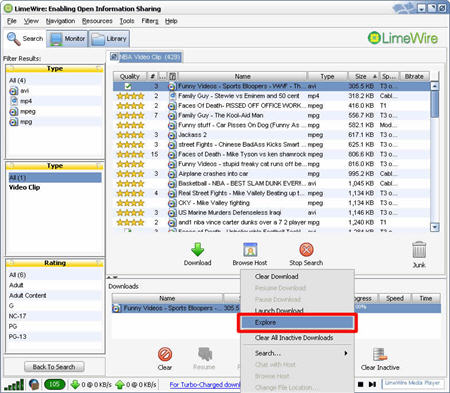
Part2. How to put limewire free movie to iPod?
Because iPod can play only MP4 and H.264 video. If your download limewire videos are not compatible with iPod, you can use Aiseesoft iPod Video Converter to convert them to MP4 video for iPod Touch/Nano/Classic. (Don't use iTunes to convert limewire video, because most limewire videos are muxed video, muxed video converted by iTunes will lost sound, you can learn more info about this problem by referring Apple official document: http://docs.info.apple.com/article.html?artnum=302588 )
Please follow these steps:
1. Download and install Aiseesoft iPod Movie Converter, you can Download the latest version for free from here: http://www.aiseesoft.com/ipod-movie-converter.html
2. Run Aiseesoft iPod Video Converter, click “Add” button to import your downloaded limewire videos, then click “Start” to start the conversion, the default setting works perfect.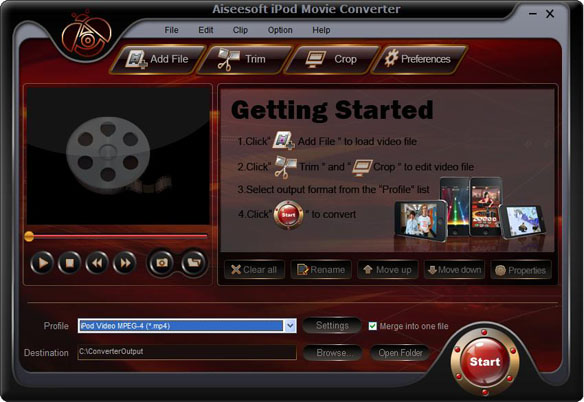
3. After conversion finished, You can use iTunes to transfer the mp4 video to your iPod, here are the steps:
1). Open iTunes and click "File" to add your converted videos to iTunes library.
2). plug in your iPod to computer, then iTunes will detect your iPod as a device.
3). Select your iPod device on the left panel of iTunes, click "Movies" tab, check the videos you want to sync and click "Apply", done.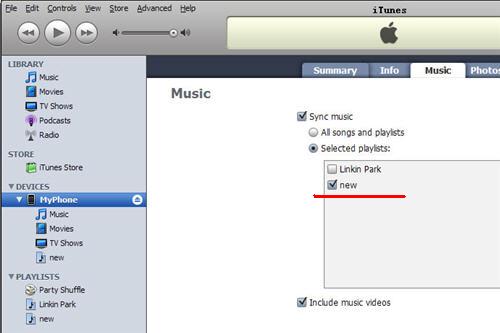
By the way, you can use another useful software – iPod to Computer Transfer, which is made by Aiseesoft. The best iPod to Computer Transfer to help you backup iPod video/audio files to computer, you don’t need to worry about losing anything. If you have any iPod/iPhone device, you can safely play your iPod/iPhone with this iPod Transfer software.
For More info, please visit: http://www.aiseesoft.com/ipod-to-computer-transfer.html
Part3. How to transfer limewire free movie to Zune PSP and iPhone?
2010年11月17日星期三
How to convert FLV to iPod, iPhone, PSP, etc. on Mac OS X
What is FLV?
Flash Video (FLV) is the name of a file format used to deliver video over the Internet using Adobe Flash Player and has extension FLV. The most recent public release of Flash Player supports H.264 video and HE-AAC audio. Flash Video content may also be embedded within SWF files. Notable users of the Flash Video format include YouTube, Google Video, Yahoo! Video, Reuters.com and many other news providers.
How to play .FLV files on Mac?
If you want to play FLV (Flash Video) files on your Mac, you'll need to use a player that can handle FLV files. Here are two recommendations (both of them are FREE):
VLC Media Player
The VLC Media Player is a free, cross-platform media player that supports a large number of multimedia formats, without the need for additional codecs. It can handle FLV, WMV and VOB files to name a few.
Perian
Perian is a free, open source QuickTime component that adds native support for many popular media formats including FLV, MKV, AVI, DivX, 3ivX, FLV1, FSV1, Flash ADPCM and many more.
How to Convert Youtube FLV Videos to iPod, iPod touch, iPhone on Mac OS X?
As we know, most of the video files downloaded from these online video hosting sites are in the format of Flash Video (.flv). For whatever reasons, such as prefer to view and store the videos in mpeg format, or want to play the offline video clips in portable player such as PSP, iPod, and iPhone, or simply don’t like to view it with FLV Player, then there is a need to convert the .flv video format to another format such as .avi, .mov, .wmv and .mpg. So, how can you convert your flv video to all popular video formats easily and quickly? Please follow this step-by-step guide:
Step 1: Download FLV Video Converter for Mac, then run this program.
We recommend you Aiseesoft FLV Converter for Mac, which can convert all video files (including .flv format) from one format to another perfectly. Compared with other FLV converters, this Mac FLV video converter provides you with better output quality, more advanced functions and higher conversion speed(>300%), it also has more friendly and easy-to-use interface.
You can download free trial Version here: for Mac intel users, for Mac PowerPC users.
Then install and run this program.
Step 2: Load the FLV files you want to convert.
Click the "Add File" button to browse your computer hard disc and add the .flv video files you want to convert to the program.
Step 3: Choose the output format
After you added FLV files, you can select an output format for each video file and specify a directory on your computer to save the output files. This Mac FLV Converter supports comprehensive output video formats including AVI, MPEG, WMV, MP4, XviD, 3GP, etc. You can choose "*avi", "*mpg", etc. as the output format as you want. Apart form this, You can just select the format according to the device name.
for exapmle, you can select 'iPod Touch MPEG-4(*.mp4)' when you want to convert FLV to iPod touch on Mac.
Or you can select 'iPhone 3G Video MPEG-4(*.mp4)' when you want to convert FLV files to iPhone 3G on Mac. The default setting works well.
Step 4: Advanced settings(optional)
Of course, if you don't want to use the default video and audio encoding settings, just click the "Settings" button to customize these settings.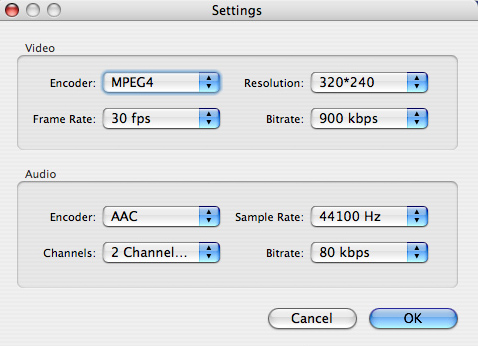
Step 5: Edit your flv files(optional)
Aiseesoft FLV Converter for Mac can help you set video brightness, contrast, saturation, Hue, volume, crop video, trim video and even merge multiple files into one single file before the conversion.
you can know more here: How to crop, trim video files on Mac OS X ?
Click the “Start”button to start conversion.
How to download flash videos from video sites for free?
You can download the flash video (.FLV files, the default video format that most video social sites are using) from online video host into your local hard disk. With some tricks, it’s now very easy to download the videos hosted and shared on online video sites such as YouTube and Google Video.
You can follow the 2 guides:
Guide : How to get videos from video sites for free?
For windows users, use Free YouTube Downloader
2010年11月15日星期一
Best 5 MP3 players
There's no one-size-fits-all MP3 player that's perfect for everybody. Some people need a small MP3 player for the gym, while others need tablet-size players with wide-screen video playback. Whatever your interests are, these five MP3 players broadly represent our current favorite portable music gadgets. If you're looking for your first MP3 player and you want to start at square one, then take a look at CNET's MP3 player buying guide.
Zune (second generation, 80GB, black)
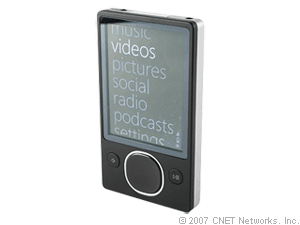
The second-generation, 80GB Zune from Microsoft offers tremendous value for the money, as well as innovative features such as wireless sync, RBDS FM radio information, Wi-Fi music sharing, and subscription music support (Zune Pass). We know the Zune name was dragged through the mud last year, but the second-generation Zune 80 does not disappoint.
Price: $237.49 - $249.99
Filed in: Best 5 MP3 players.
Apple iPod Nano (third generation, 8GB, red)
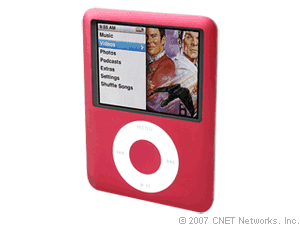
The latest version of the Nano is no longer the feature-crippled cousin to the iPod. Now in its third generation, the iPod Nano delivers every feature found on the iPod Classic, only in an exceptionally smaller and thinner format. The Nano's best assets are its crisp screen, attractive interface, sturdy and lightweight design, as well as a rechargeable battery that can play music continuously for as many as 24 hours.
Price: $199.00 - $199.00
Filed in: Best 5 MP3 players
Archos 605 WiFi (30GB)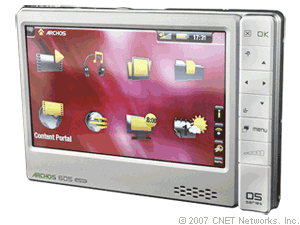
If you're looking for an MP3 player that also makes for a fantastic portable video player, the Archos 605 WiFi is one of the most advanced gadgets around. With it's touch screen interface, gorgeous high-resolution screen, and integrated wireless video and music downloads, the Archos 605 WiFi is one of the best portable distractions money can buy. If you frequently find yourself on the road or in the air with nothing to do, consider the 605 a must-have.
Price:$259.00 - $299.99
Filed in: Best 5 MP3 players
Creative Zen V Plus (4GB, black)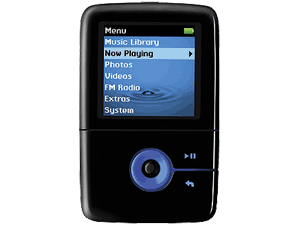
One of the first flash-memory players to break into the 16GB range, the Creative Zen V Plus packs a monster wallop into an ultracompact space, and the vivid OLED display is viewable from any angle. Features include an FM radio, voice and line-in recording, photo and video playback, and compatibility with subscription WMA tracks.
Price: $99.99 - $149.77
Filed in: Best 5 MP3 players
iRiver Clix (4GB, second generation)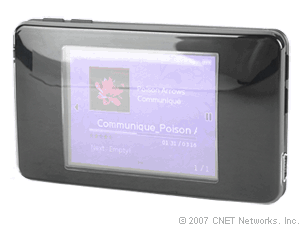
The iRiver Clix is the perfect slim and sleek MP3 player for those who find the iPod Nano too stifling, but the Toshiba Gigabeat too bulky. This player comes packed with extras such as an FM radio; a voice recorder; an alarm clock; support for subscription content as well as OGG and Audible files; and photo, video, and text viewing. The Clix includes SRS Wow sound effects, it has good battery life, and it's priced competitively.
Price: $150.95 - $168.99
Filed in: Best 5 MP3 players.
Recommended Products
Audio Converter for Mac
Convert video to MP3, convert audio to any audio format. Aiseesoft Audio Converter for Mac is a program designed just for Mac OS X
Audio Converter for Windows
Convert video, audio to MP3, M4A, WAV, AAC, AC3, and WMA etc. And these audio files can be played on all kinds of different MP3 players and audio players.
SAP Co-CEO Expected to Testify in Oracle Trial Today
Oracle may not get former SAP CEO Léo Apotheker on the stand in its trial against its Teutonic arch-rival, but it will get a shot at its current executive leadership. SAP co-CEO Bill McDermott is expected to testify as a witness for the defense today, if Oracle concludes its case, as the company’s legal team indicated last Friday.
SAP tapped McDermott as co-CEO earlier this year, but he’s been on the company’s executive board since 2008 and was serving as CEO of SAP America when SAP acquired TomorrowNow. Ironically, one of his first acts as co-CEO was to scrap an internal program examining SAP’s corporate values.
“Companies that are too internally focused are sick,” McDermott said at the time. “There’s nothing healthy about being obsessed with your own internal nonsense. If there was a project that built bureaucracy into the company or required people to think about our internal stuff, we’ve killed those projects.”
PREVIOUSLY:
- HP to Oracle: Leave Léo Alone
- Oracle Still Hoping to Snag HP’s Apotheker for SAP Trial
- HP CEO to Oracle: Here’s Looking at You, Kid–Suntory Time!
- Ellison to Self: Damn, Damn. I Knew I Should Have Said $4.5 Billion
- SAP Attorney: Board Knew TomorrowNow Was Infringing at Time of Acquisition
- Oracle Co-President on SAP’s Damages Offer: “It’s Crazy”
- Oracle Enlists Process Servers, Not PIs, to Find HP CEO
- Oracle-SAP Trial: Ellison Swaps Katana for Poison Darts
- Objection: Mr. Ellison Is Referring to the Defendant as “Choleric of Temper” Again
- Oracle Lands Early Shots in SAP Trial
- Your Honor, We Object to Mr. Ellison’s Repeated Use of the Term “Slimy Weasels”
- Oracle to HP CEO: Chicken!
- Oracle Vs. SAP: We Got a Right to Pick a Little Fight–Bonanza!
- SAP’s Tab in Oracle Case: $120 Million and Counting
- Gag Order Denied in Oracle, SAP Trial
- Ellison Taunts HP CEO a Second Time
- SAP to Ellison: Save the Drama for Your Mama
- Ellison to HP CEO: “Warrior, Come Out to Plaaeeay!
- SAP: Please Gag Oracle
- HP Scandal Sucks in New York Times Columnist Over Conflict of Interest
- Welch to HP Board: You Don’t Know Jack!
- Insiders Criticize Ellison For HP CEO Slam
- Was Apotheker HP’s First Choice of CEO?
- HP Names Ex-SAP Chief Apotheker as CEO
2010年11月14日星期日
Jimmy Fallon, Ev Williams, Biz Stone and Twitter History 101
Jimmy Fallon has embraced technology in general, and Twitter specifically, since his late-night show launched last year.
2010年11月11日星期四
Motorola Announces Inevitable Microsoft Countersuit
 On Tuesday Microsoft sued Motorola, accusing it of charging excessive royalties on some patent licenses Redmond uses in the Xbox. Now Motorola has responded in kind.
Late Wednesday, its Motorola Mobility subsidiary slapped Microsoft with a lawsuit accusing the company of infringing 16 of its patents in a variety of products– including Windows, Exchange, Messenger, Outlook, Windows Marketplace, Bing Maps and Xbox.
“[We are] bringing this action against Microsoft in order to halt its infringement of key Motorola patents,” Kirk Dailey, corporate VP of intellectual property at Motorola Mobility, said in a statement. “Motorola has invested billions of dollars in R&D to create a deep and broad intellectual property portfolio and we will continue to do what is necessary to protect our proprietary technology.”
Microsoft, for its part, seems largely unfazed by Motorola’s right-back-at-ya maneuver. Indeed, in a statement, Horacio Gutierrez–Microsoft’s deputy general counsel of intellectual property and licensing–essentially said the company was waiting for it. “This move is typical of the litigation process and we are not surprised,” he said. “We remain confident in our position and will continue to move forward with the complaints we initiated against Motorola in the U.S. District Court for the Western District of Washington and with the International Trade Commission (ITC).”
2010年11月10日星期三
How to Add Limewire Songs to iPod
Many people download music from Limewire, but they can only listen them on computer. Put songs from Limewire to iPod touch is really difficult to many iPod users. Yes, you need to convert Limewire songs to iPod audio format by iPod Music Converter; actually, it is iPod mp3 converter or audio to mp3 converter, because iPod accepts mp3 audio files.
This article will share you how to add Limewire songs to iPod.
Part 1: For Windows users, how to add Limewire songs to iPod.
Step 1: Download Aiseesoft iPod Movie Converter
You need to download an iPod Music converter: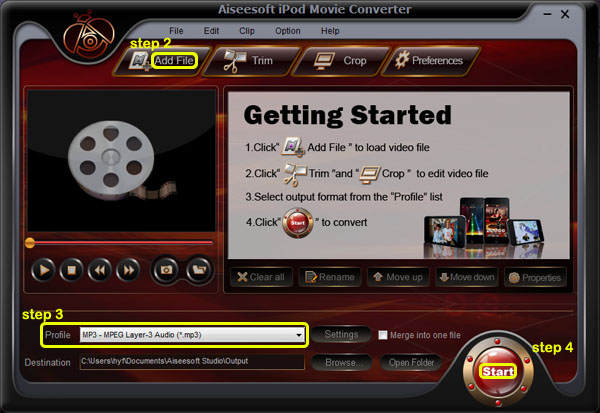
Step 2: Add Music
Click “Add File” and find your Limewire songs to load into iPod Music Converter
Step 3: Choose output format
You can choose output audio format from profile drop-down list—MP3
Step 4: Start to convert
Click “Start” button to begin your conversion.
Then you also need a tool to transfer your songs to your iPod.
Here I recommend you Aiseesoft iPod Transfer.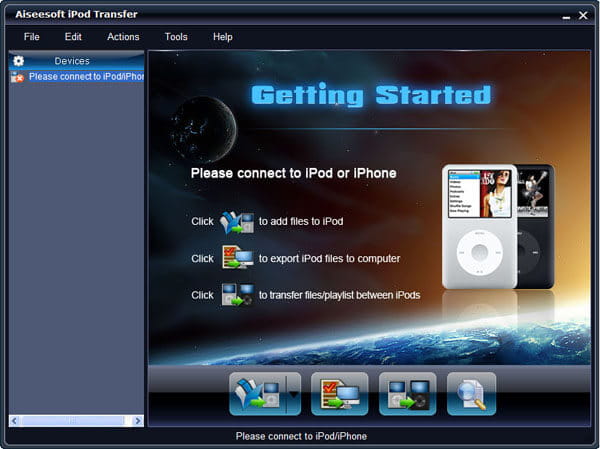
It is very easy to use:
Step 1: Connect iPod.
Plug your iPod to your computer via USB cable.
Step 2: Add songs
Click “PC to iPod” button to pick up the songs you have already converted and click “OK”. Now, you can enjoy your Limewire songs on your iPod at will.
Part 2: For Mac users, how to add Limewire songs to iPod
For Mac users, I recommend you Aiseesoft iPod Video Converter for Mac and Aiseesoft iPod Manager for Mac.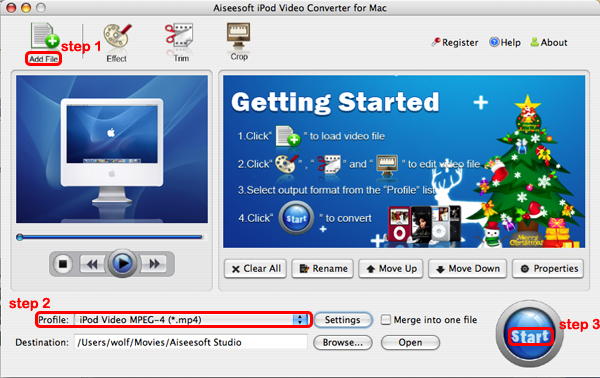
Step 1: Add file
Click “Add File” to load your music
Step 2: Choose output audio format
Click “profile” to choose your output audio format.
Step 3: Convert
Click “Start” button to begin your conversion.
To transfer converted songs to iPod, Mac users can use iPod Manager for Mac.
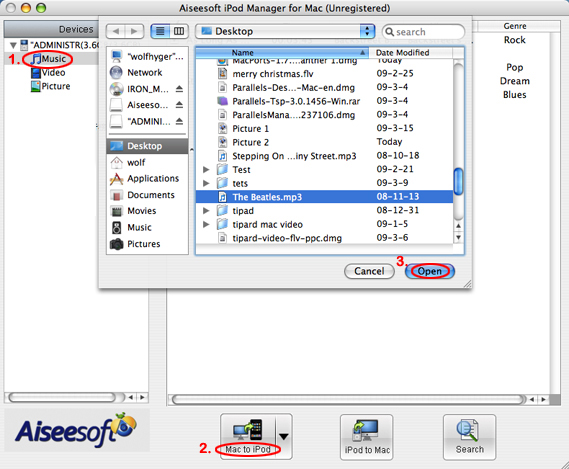
Step 1: Connect iPod
Plug your iPod to your computer
Step 2: Add music
1. Click “Music” (1)
2. Click “Mac to iPod” (2) and pick up the songs on your Mac you want to put on your iPod and click “Open” (3)
Few seconds later, the songs will be on your iPod.
2010年11月8日星期一
Using Windows Movie Maker to edit videos on PC for free
This is a tutorial which explains the process of editing videos on a PC using Windows Movie Maker and editing videos on Mac using iMovie. This tutorial will be a concise explanation of how to editing videos for free. Then share your movie via the Web, e-mail, or CD. Using dvd burner you can even take movies you've made and turn movies into DVDs.
You can also save your movie back to the video tape in your camera to play back on a TV or on the camera itself.
This tutorial includes three parts, this is part one:
Part 1. Using Windows Movie Maker to edit videos on PC for free
Part 2. Using iMovie to edit videos on Mac for free
Part 3. A table that compares free video editors.
Windows Movie Maker 2.1 makes home movies amazingly fun. With Movie Maker 2.1, you can create, edit, and share your home movies right on your computer. Build your movie with a few simple drag-and-drops. Delete bad shots and include only the best scenes.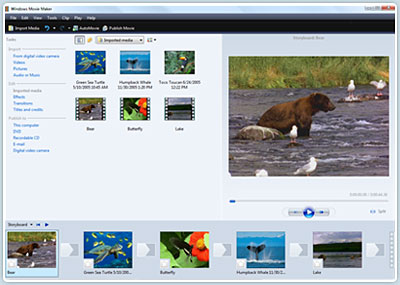
Step 1, Capture video
You can capture video from video device, import video, pictures, audio and music. MM2 will allow you to import the following file formats:
- Audio files: .aif, .aifc, .aiff .asf, .au, .mp2, .mp3, .mpa, .snd, .wav and .wma
- Picture files: .bmp, .dib, .emf, .gif, .jfif, .jpe, .jpeg, .jpg, .png, .tif, .tiff, and .wmf
- Video files: .asf, .avi, .m1v, .mp2, .mp2v, .mpe, .mpeg, .mpg, .mpv2, .wm, and .wmv
If your videos are not the formats compatible with Windows Movie Maker such as MP4/3GP, FLV and MOV, MIDI, AIFF, AAC, you can use the video converter to convert the video to the formats supported by MM2 first.
Step 2, Edit movie
-Add Video Transitions.
Open your Windows Movie Maker project file. If Movie Maker opens in Timeline view, return to Storyboard view by clicking on the Show Storyboard link. From the Movie Tasks pane, under Edit Movie, select View video transitions . Choose the desired transition, select and drag into storyboard between desired clips. After inserting transition, sample the change in the Monitor to determine if it works in the way you desire. To change a transition you can Undo the action, right click on the transition in the Storyboard and select delete, or simply drag a new transition over the old transition.
-Add Video Effects.
Choose "View video effects" under the Edit Movie section and drag the chosen effect to the star in the lower left corner of the picture. Preview your movie to see the effects. Continue to add effects to other pictures if desired. Save the file. A video effect applies to the picture itself rather than the change from one picture to another as in a transition.
-Add Titles and Credits.
Under the Edit Movie section, choose Make titles or credits. You have several options for where to place your Windows Movie Maker title and credits. They may precede or follow a picture or video clip, or be used as an overlay.
Here are tips for you to add special effects to your movies using Windows Movie Maker
Step 3, Finish movie
Now that your movie is complete, you may wish to save the project in a different format.
Saving the project and saving the movie are two different things. The movie project is the working file so that you may continue to edit until you have a final version of your work completed. The movie file is the final output of your movie.
Windows Movie Maker compresses all the parts of your movie into a single unit. The file size is much smaller so that it can be used on a web site or emailed.
You also have the option to create a CD or DVD of your movie. These options are all under the heading Finish Movie. If you want to convert the movie made by Windows Movies Maker to other video format such as YouTube video, AVI, MP4, 3GP, you can use this video converter. You can also use free third-party software to burn the movie made by Windows Movies Maker to DVD for free.
How to Rip DVD to iPod Touch, iPod Nano on Windows, Vista and Mac
The software you will need: DVD to iPod Converter Windows(DVD to iPod Vista) and DVD to iPod for Mac.
This guide will show you how to rip DVD to iPod Touch with these iPod Nano Converter.
The following video and audio formats are supported by iPod Touch/iPod Nano: H.264, MPEG-4, MP3, AAC, WAV. So for you enjoy DVD on iPod, you need to convert DVD to these formats.
Part One: How to rip DVD to iPod Windows, DVD to iPod Vista
Part Two: How to rip DVD to iPod Mac
Part One:
1. Download Aiseesoft DVD to iPod Converter Windows(DVD to iPod Vista), then follow the instructions to install and run it.
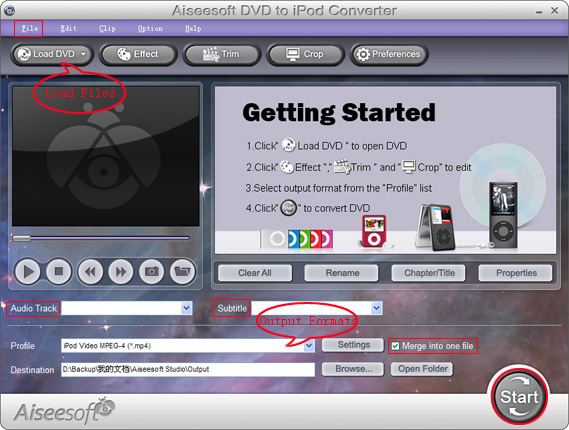
2. Click "Load DVD" to load DVD, DVD Folder or IFO files.
3. Click "Profile" to set the exact output format. Click "Settings" to set the exact parameters for your iPod. Select "Audio Track" and "Subtitle" for the output file.
4. After finishing all the pre-settings, click "Start".
Part Two:
1. Download Aiseesoft DVD to iPod Mac (Intel, Power PC). Install and run it.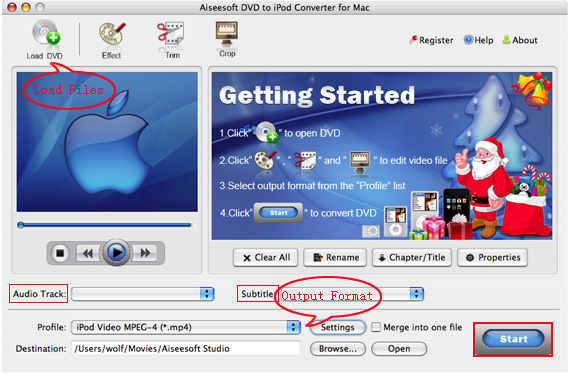
2. All the process are the same as DVD to iPod Windows.
Tips:
1. Click "Effect" to make special effect for your video.
You can adjust Brightness, Contract, Saturation of the video and the adjust the volume of music.
2. "Trim" function is for you to select the clips you want to convert.
3. Cut off the black edges of the original video and watch in full screen on your iPod using the "Crop" function.
4. This software allows you to join several DVD chapters into one clips by using "Merge into one file".
2010年11月7日星期日
Twitter Makes a Capital Hire
One of the signs that a young company is reaching puberty is the development of its political organ, and by that measure, our little Twitter is growing up. The company has hired its first Washington, D.C., employee–Adam Sharp, an executive producer at C-SPAN and former top staffer for Sen. Mary Landrieu (D-La.). Sharp will not be serving as a policy lobbyist but rather an evangelist/liaison/facilitator, helping members of Congress and the executive branch use Twitter to connect with constituents.
2010年11月4日星期四
For Sale: Inside.com, Barely Used
Psst. Wanna buy a cool Web address?
Guardian Media has one for sale. The British publisher is peddling the “Inside.com” domain name, people familiar with the company tell me. Asking price, I’m told, is something north of $100,000.
If that name rings a bell, it’s probably because you used to dine on big, well-prepared plates of media-covering-media during the first boom, when Inside.com spent a lot of money trying to create an industry insider/outsider publishing business.
That didn’t work, and eventually paidContent’s Rafat Ali, an Inside.com veteran himself, bought up the domain in 2008.
The idea was to use the name as an umbrella for his collection of trade sites, and perhaps to help Ali open up a Hollywood outpost. But that never panned out, and if you head to Inside.com now it will direct you to paidContent.
Ali ended up selling that site and its parent company to Guardian Media in 2008, and left two years later. The British company once had aggressive plans to expand in the U.S., but it’s unclear what it intends to do now. Caroline Little, who was running American operations for the publisher, stepped down earlier this year.
I’ve asked Guardian for comment and will update if it has one.
2010年11月2日星期二
Casual Games Start-Up OMGPOP Raising a Serious Funding Round
Does the casual games boom have more life in it? Here’s another bet that it does: Investors are pouring more money into OMGPOP, via a round that could bring in more than $10 million for the game site.
The New York-based company is still closing the round, but I’m told existing investors Bessemer Venture Partners and Spark Capital will re-up, and that Softbank Capital NY will also come aboard. There’s at least one other significant investor likely to join, but I don’t have their name (feel free to tell me, though–I keep all correspondence anonymous: peter@allthingsd.com).
OMGPOP has raised $6.5 million during its four-year history, which saw it start out as a sorta-dating site. But for the past few years it has focused squarely on free-to-play casual games, and has recently been trying to generate revenue via a freemium model, as well as some forays into advertising.
And like many casual games start-ups, it is getting a big boost by integrating its games into Facebook. It integrated with the social network this summer, and CEO Dan Porter says that move has doubled the company’s user base from three million to six million. Porter declined to talk about funding news.
Interest in casual games has sparked a flurry of deals in the past year, including Electronic Arts’ purchase of Playfish, Disney’s purchase of Tapulous and DeNA’s purchase of Ngmoco. But the big player remains Zynga, which is both tightly integrated with Facebook and often described as an obvious IPO candidate.
How to use Mac TS converter to convert TS to MP4, MOV, etc on Mac OS X
What is TS?
Transport stream(TS, TP, MPEG-TS, or M2T) is a communications protocol for audio, video, and data which is specified in MPEG-2 Part 1, Systems (ISO/IEC standard 13818-1). Its design goal is to allow multiplexing of digital video and audio and to synchronize the output. Transport stream offers features for error correction for transportation over unreliable media, and is used in broadcast applications such as DVB and ATSC. It is contrasted with program stream, designed for more reliable media such as DVDs.
TS format is a container format that encapsulates pocketsize elementary streams and other data.
Important elements of a transport stream: Packet, PID, Programs, Program Specific Information (PSI) , 1 PAT , PMT , PCR , Null packets
How to play TS files on Mac?
You need media player to play TS files on Mac OS X:
VLC media player is a highly portable multimedia player for various audio and video formats (MPEG-1, MPEG-2, MPEG-4, DivX, mp3, ogg, ...) as well as DVDs, VCDs, and various streaming protocols. It can also be used as a server to stream in unicast or multicast in IPv4 or IPv6 on a high-bandwidth network. It supports Mac, linux, Windows.
How to convert TS to MP4, AVI,MOV, etc on Mac?
You need a video converter for Mac to convert TS to MP4, AVI, MOV, etc on Mac. Then you can put them on iPod, iPhone, PSP, Xbox 360, iMove, other potable players.
Step 1: Download TS Video Converter for Mac:
We recommend you Aiseesoft Video Converter for Mac which can convert TS to MP4, Convert TS to AVI perfectly. This Mac TS Video Converter also can extract audio from TS and Convert to MP3, M4A, etc. Compared with other video converters, this TS video converter for Mac provides you with better output quality, more advanced functions and higher conversion speed. You can download free trial Version here: for Mac intel users, for Mac PowerPC users. Then install and run this program. The trial version should be fully functional for what you want to do.
Step 2: Load the TS files you want to convert
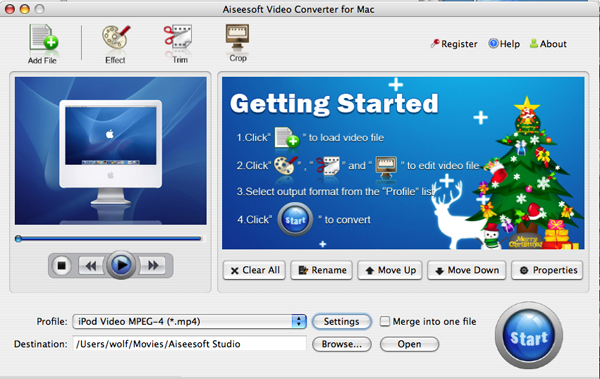
Click the "Add File" button to browse your computer hard disc and add the .TS files you want to convert to the program.
Step 3: Output Settings
After you added TS files, you can select an output format for each video file and specify a directory on your computer to save the output files.
The TS Converter for Mac supports comprehensive video formats including AVI, MPEG, WMV, MP4, XviD, 3GP, FLV, etc.
If you don't know what formats your device supports, you can just select the format according to the device name. Of course, if you don't want to use the default video and audio encoding settings, just click the "Settings" button to customize these settings.
Step 4: Edit your TS files
This TS Video Converter for Mac set video brightness, contrast, saturation, crop video, trim video/audio and even merge multiple files into one file.
Step 5: Start the conversion
Click the Convert button to start conversion and then you can just go out for a walk or take a nap, and the conversion may have been finished when you come back: )
Modifications of transport stream specification for random-access media (M2TS)
Transport Stream was designed for tape and broadcast, but it required modifications for usage with random-access media devices like new generation of digital camcorders that record onto DVD disks, hard drives or solid-state memory cards.
Random-access based systems may save data packets into a temporary buffer if a storage device is not ready, for example on device startup. Packets are written out of order, and to keep track of them, a 4-byte timecode (TC) is added to standard 188-byte packets. The result is a 192-byte packet. This is what is informally called M2TS stream. Sony calls it "BDAV MPEG-2 transport stream". JVC calls it TOD (possibly an abbreviation for "Transport stream on media") when used in HDD-based camcorders like GZ-HD7.[9] M2TS transport stream is also used for AVCHD video files, which often have MTS extension.
Transport stream(TS, TP, MPEG-TS, or M2T) is a communications protocol for audio, video, and data which is specified in MPEG-2 Part 1, Systems (ISO/IEC standard 13818-1). Its design goal is to allow multiplexing of digital video and audio and to synchronize the output. Transport stream offers features for error correction for transportation over unreliable media, and is used in broadcast applications such as DVB and ATSC. It is contrasted with program stream, designed for more reliable media such as DVDs.
TS format is a container format that encapsulates pocketsize elementary streams and other data.
Important elements of a transport stream: Packet, PID, Programs, Program Specific Information (PSI) , 1 PAT , PMT , PCR , Null packets
How to play TS files on Mac?
You need media player to play TS files on Mac OS X:
VLC media player is a highly portable multimedia player for various audio and video formats (MPEG-1, MPEG-2, MPEG-4, DivX, mp3, ogg, ...) as well as DVDs, VCDs, and various streaming protocols. It can also be used as a server to stream in unicast or multicast in IPv4 or IPv6 on a high-bandwidth network. It supports Mac, linux, Windows.
How to convert TS to MP4, AVI,MOV, etc on Mac?
You need a video converter for Mac to convert TS to MP4, AVI, MOV, etc on Mac. Then you can put them on iPod, iPhone, PSP, Xbox 360, iMove, other potable players.
Step 1: Download TS Video Converter for Mac:
We recommend you Aiseesoft Video Converter for Mac which can convert TS to MP4, Convert TS to AVI perfectly. This Mac TS Video Converter also can extract audio from TS and Convert to MP3, M4A, etc. Compared with other video converters, this TS video converter for Mac provides you with better output quality, more advanced functions and higher conversion speed. You can download free trial Version here: for Mac intel users, for Mac PowerPC users. Then install and run this program. The trial version should be fully functional for what you want to do.
Step 2: Load the TS files you want to convert
Click the "Add File" button to browse your computer hard disc and add the .TS files you want to convert to the program.
Step 3: Output Settings
After you added TS files, you can select an output format for each video file and specify a directory on your computer to save the output files.
The TS Converter for Mac supports comprehensive video formats including AVI, MPEG, WMV, MP4, XviD, 3GP, FLV, etc.
If you don't know what formats your device supports, you can just select the format according to the device name. Of course, if you don't want to use the default video and audio encoding settings, just click the "Settings" button to customize these settings.
Step 4: Edit your TS files
This TS Video Converter for Mac set video brightness, contrast, saturation, crop video, trim video/audio and even merge multiple files into one file.
Step 5: Start the conversion
Click the Convert button to start conversion and then you can just go out for a walk or take a nap, and the conversion may have been finished when you come back: )
Modifications of transport stream specification for random-access media (M2TS)
Transport Stream was designed for tape and broadcast, but it required modifications for usage with random-access media devices like new generation of digital camcorders that record onto DVD disks, hard drives or solid-state memory cards.
Random-access based systems may save data packets into a temporary buffer if a storage device is not ready, for example on device startup. Packets are written out of order, and to keep track of them, a 4-byte timecode (TC) is added to standard 188-byte packets. The result is a 192-byte packet. This is what is informally called M2TS stream. Sony calls it "BDAV MPEG-2 transport stream". JVC calls it TOD (possibly an abbreviation for "Transport stream on media") when used in HDD-based camcorders like GZ-HD7.[9] M2TS transport stream is also used for AVCHD video files, which often have MTS extension.
2010年11月1日星期一
How to Remove DRM protection from iTunes
iTunes is a champion of music, video downloading services. The user-friendly iTunes makes downloading music, videos quick and hassle-free; however, iTunes purchased songs and videos will not run on any other media player except for Apple products due to digital rights managements (DRM) which limit usages of devices or files.
This is a tutorial to remove DRM protection from iTunes. Then you can burn the iTunes videos to DVD and convert the iTunes videos to other format files.
Part 1, Remove DRM protection from iTunes Music using iTunes + CD-R/W
Probably the most widely accepted method for stripping purchased songs of DRM protection is burning tracks to a CD-R/W then re-importing back into the iTunes library. A method guaranteed to free you of DRM madness.
Create an iTunes playlist containing your purchased songs.
Insert a blank CD-R or a CD-RW.
Burn the playlist to disk.
Re-import the songs after a successful burn.
Delete the original purchased tracks.
Part 2, Remove DRM protection from iTunes using software
1. Remove DRM protection from iTunes music and videos for free on PC.
QTFairUse. It can Remove DRM protection from iTunes music and videos for free.
QTFairUse(.) for ITunes will allow you to convert protected m4p format files purchased in the iTunes Music Store to unprotected m4a files, playable everywhere. It supports fully automated conversion of all protected tracks in your iTunes library.
It will confirm whether you want to convert all the files in your library. Press 'y' and Enter to do that. Next it will ask if you want to skip already converted tracks (e.g. from the previous run). Press 'n' and Enter to overwrite them, 'y' and Enter to skip. After that, the script will begin conversion of all files in the library. Converted files will have m4a extension and will reside next to their m4p counterparts. To stop the conversion in process, press Ctrl-C in the console window. You can also close iTunes.
If you want to convert specific m4p files, pass their filenames as the commanding parameter. You can do that by e.g. dragging and dropping the files on QTFairUse6.exe. QTFairUse6 will convert them and exit. You can find converted files next to the originals, with m4a extension.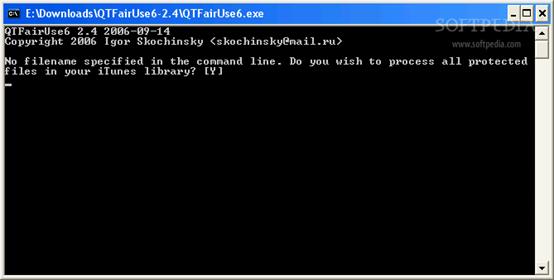
MyFairTunes. It can Remove DRM protection from iTunes music for free.
2. Remove DRM protection from iTunes music on Mac.
The software I introduce:
FairGame It is a freeware to Remove DRM protection from iTunes music on Mac OS X. FairGame(http://seidai.50webs.com/Seidai%20Software_files/FairGame.zip)will convert the songs you bought on the iTunes Store to an unprotected format (using iTunes default encoder) and keep all the original metadata, lyrics and artwork. FairGame doesn't do lossless DRM stripping. It re-encodes protected AAC files purchased in iTMS into unprotected AAC file using Apple's iMovie software.
What you MUST DO (only once) to get FairGame to work:
enable "Access for assistive devices" in the "Universal Access" system preference
select "Place clip in Movie Timeline" in the "Import" preference of iMovie HD
Then you can simply
select some songs in iTunes
click on the "Process songs" button
then don't touch anything and wait until it's done...(FairGame is scripting iMovie's interface to process the songs, don't interfere)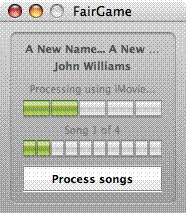
Tips:
If you want to burn the iTunes video to DVD, Just follow these steps:
1. Get the iTunes video to computer. You need to transfer the videos to iPod or iPhone and then use free iPod manager to get the videos from iPod or iPhone to computer.
Here is a tutorial: How to get videos from iPod and iPhone to Mac and PC for free?
2. Use freeware to burn the iTunes video to DVD. Here are the tutorials:
How to convert iTunes videos to DVD on PC for free?
Recommended Products For you:
DVD to iPod Converter for Mac
It's a specially designed iPod conversion program to Convert DVD to iPod touch, iPod classic, iPod nano, convert DVD to iTunes on Leopard.
iPod Video Converter for Mac
It can convert MP4, MOV, 3GP, AVI, RM, MPEG, ASF and FLV to iPod video with high output quality and various features.
订阅:
博文 (Atom)