2010年8月31日星期二

How to sync and put cusomized ringtone on iPhone

There are also some other ways to convert audio to iPhone ringtone and sync it to iPhone with iTunes, but I think these are a little complicated and users may be at a loss with such ways.

Here I recommend iPhone PC Suite, an almighty iPhone manager that can let you manage phone book, software, media and other files between iPhone and computer without iTunes easily.

But before using this tool, make sure your iTunes installed and has been connected with iPhone once before (Then you will never need not run iTunes when you use iPhone PC Suite to manage your iPhone).And when the first time you connecting iPhone, it will install PhoneDaemon on your iPhone, don’t worry it is green software and will do nothing harm.

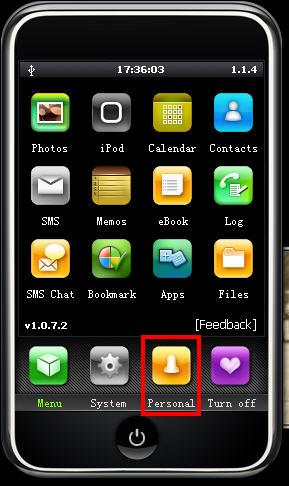
Now I will show you how to sync the converted iPhone ringtone to iPhone without iTunes. Connect you iPhone to computer, double click” iPhone PC Suite” to start iPhone PC Suite, the program will scan you iPhone automatically for a short while. Then click button “Personal” on the main menu, select ”ringtone”.

put ringtong on iPhone

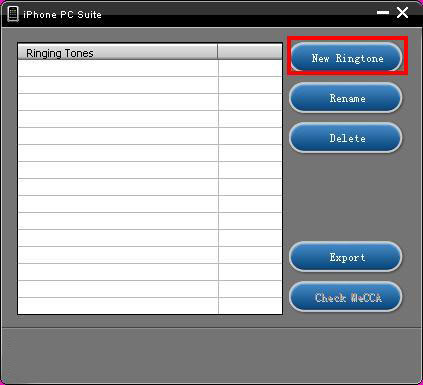
Click “New Ringtone” to locate the converted iPhone ringtone.put ringtong on iPhone

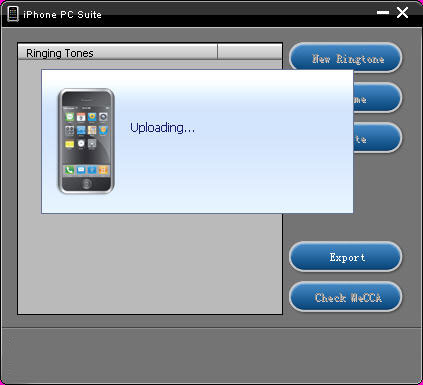
Select your target iPhone ringtone, then it will upload the ringtone to iPhone automatically.

put ringtong on iPhone - ringtong loading

Then you can select your favorite audio file and set it as your iPhone ringtone on iPhone. Click “setting”->”Sound”->”Ringtone”, the converted ringtone is listed on column “Customize”. Now you can enjoy the fun of your unique iPhone ringtone!
This free iPhone PC Suite also has other powerful functions, we will share them later.

Previous part: How to convert DVD, Movie, Music to iPhone ringtone and put ringtone on iPhone?

2010年8月30日星期一

Using iMovie to edit videos on Mac for free

This is a tutorial which explains the process of editing videos on a PC using Windows Movie Maker and editing videos on Mac using iMovie. This tutorial will be a concise explanation of how to editing videos for free. Then share your movie via the Web, e-mail, or CD. Using dvd burner you can even take movies you've made and turn movies into DVDs.
You can also save your movie back to the video tape in your camera to play back on a TV or on the camera itself.

This tutorial includes three parts, this is part two:
Part 1. Using Windows Movie Maker to edit videos on PC for free
Part 2. Using iMovie to edit videos on Mac for free
Part 3. A table that compares free video editors.

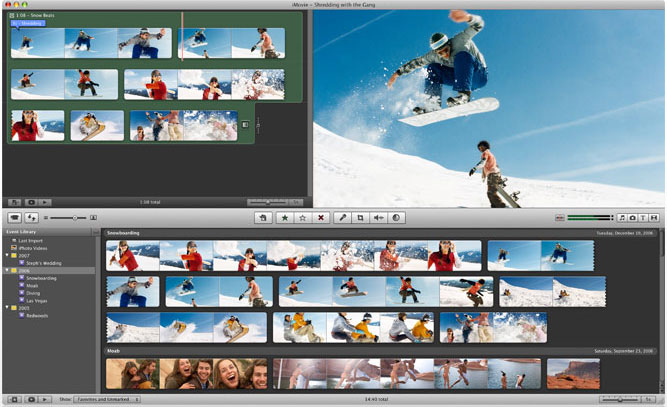
iMovie '08 makes viewing and working with video as intuitive as enjoying your photos. A built-in library automatically organizes your video, so all the clips you've captured and movies you've created are just a click away. With its revolutionary interface, iMovie makes it quick and easy to browse your library and create new movies. And iMovie is built for sharing. In just a few steps, you can add movies to your website, publish them on YouTube, and create versions for iPod, iPhone, and Apple TV.

iMovie - edit video

Step 1, Create an iMovie Project
Before doing anything in iMovie, you must create and title a new default folder as well as title and save our new project.
Step 2, Connect DV Camera
Make sure the camera is in PLAY (VCR) mode
Step 3, Add video
When your viewer says "Camera Connected," click the "Import" button. iMovie will play and import your digital video. When you wish to stop importing, click the "Import" button once more. Drag your imported clip(s) from the clips pane to the editable timeline along the bottom of the iMovie interface. iMovie treats deleted files differently that most other programs. If you delete a clip you CANNOT get it back.
iMovie will also allow you to import the following file formats:
3gp, AVI, DAT, MOV, MP4,MPG
If your videos are not the format that is compatible with iMove such as FLV and M4A, AIFF, AAC, you can use the video converter for Mac to convert the video first.
Step 4, Edit video
To Split a Clip: Place the cursor beneath the viewing window at the place in the movie where you want to split the clip into two. Go up to the "Edit" menu at the top, and select "Split Video Clip at Playhead."
To Crop a Clip: Drag the little triangles beneath the viewing window timeline to the desired in and out points. Go to the "Edit" menu at the top and select "Crop."
To add effect: Select "Effects" from the menu below the clips pane. Select a clip from the editing region to add an effect to it. Select an effect. Adjust the parameters of the effect beneath the preview window. The effect should automatically preview in the preview window. If you adjust the parameters of the effect, click "Preview" again to load the new effect settings. Click "Apply," and wait for the effect to render. You can monitor the effect rendering by the red progress bar that occurs within the clip the effect is being added to in the editing region. Save your work.
Step 5, Save your project
From the main menu, go to File > Save Project.
If you want to convert the movies made by iMovie to other video format, you can use this video converter for Mac. If you want to burn the movies made by iMovie to DVD, use DVD Creator for Mac.

2010年8月29日星期日

How to convert MTS, TS, M2TS Video to HD video, MP4, WMV, AVI

Record everything around you and share with the world/friends/family is becoming more and more popular among young people. Get a HD Camcorder is necessary and also how to share is really important. I think you can use youtube.com, make a DVD and so on. As the video you record on your camcorder is MTS, TS, M2TS or other HD video format, so you have to convert them into normal video format to edit.

Today I will share with you how to convert MTS, TS, M2TS video to normal video formats.
You need 3 nice tool to do it: MTS Converter, TS Video Converter, M2TS Converter.

Part 1: How to convert MTS video
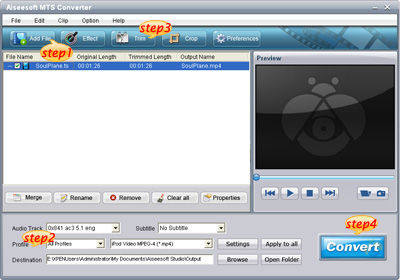
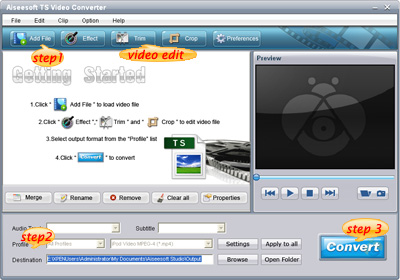
Step 1: Load Video
Click "Add File" to load the video that you want.

MTS converter

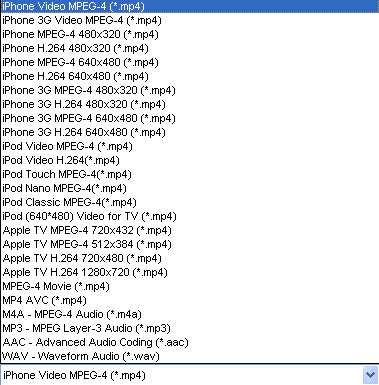
Step 2: Choose Your Output Profile and Settings
From "Profile" drop-down list you can choose your output profile according to your need.
For example, if you have a iPod and you want to convert video for it, you need to choose "iPod" from the profile list and then it also provides the second chance to specify your iPod generation.
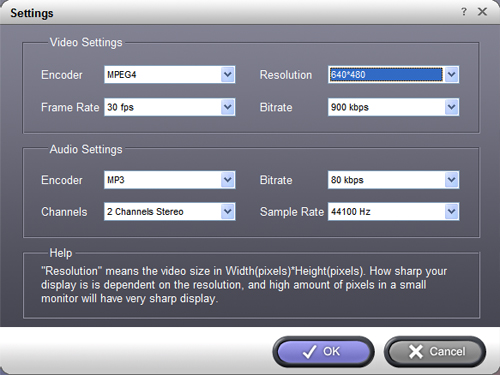
You can also click "setting" adjust the settings of your output video, such as "video/audio encoder", "Video/audio Bitrate", "Channels", "Resolution" and so on..

Step 3: Video Editing
This powerful MTS Converter allows you to do many video editings.
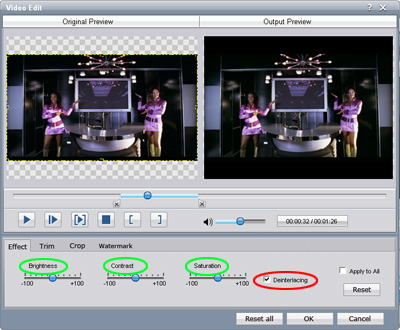
1. Click "Effect" to make special effect for your movie.
You can adjust the "Brightness", "Contrast", "Saturation" and also you can use "deinterlacing" to improve you output effect.

effect

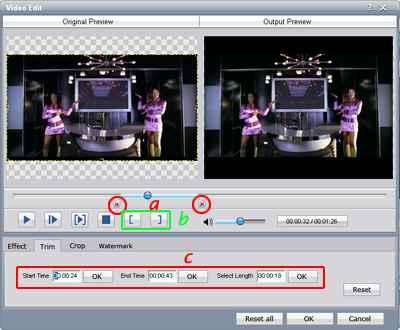
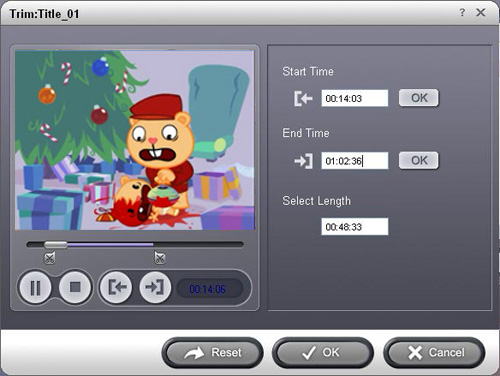
2. Trim:
"Trim" function allows you to pick up any part of your video to convert. You can just convert a part of your video that you want.

trim

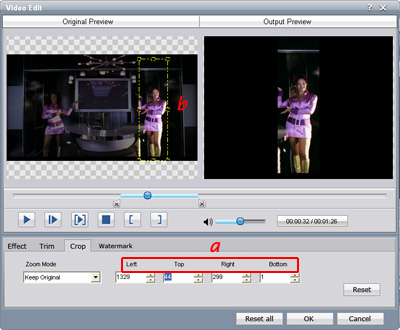
3: Crop:
Cut off the black edges of the original movie video and watch in full screen on your iPod using the "Crop" function.

crop

Step 4: Conversion
After you have done all the steps above you can click "Start" button to start your conversion.

Part 2: How to convert TS video

TS video converter

Step 1: Load Video
Click "Add File" to load the video that you want to convert.

Step 2: Choose Your Output Profile and Settings
From "Profile" drop-down list you can choose your output profile according to your need.
You can also click "setteing" adjust the settings of your output video, such as "video/audio encoder", "Video/audio Bitrate", "Channels", "Resolution" and so on..

Step 3: Conversion
After you have done all the steps above you can click "Start" button to start your conversion.

Tips: Video Editing
This powerful TS Converter allows you to do many video editings.
1. Click "Effect" to make special effect for your movie.
You can adjust the "Brightness", "Contrast", "Saturation" and also you can use "deinterlacing" to improve you output effect.
2. Trim:
"Trim" function allows you to pick up any part of your video to convert. You can just convert a part of your video that you want.
3: Crop:
Cut off the black edges of the original movie video and watch in full screen on your iPod using the "Crop" function.

Part 3: How to convert M2TS video

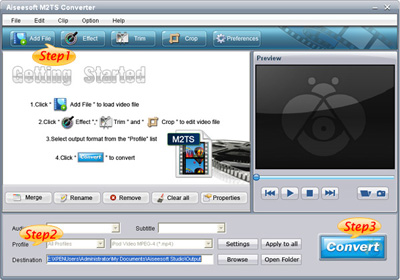
M2TS converter

Step 1: Add File
Load your M2TS video.

Step 2: Choose Profile and Settings
Select your output profile according your need and adjust the settings of your output video if you like.
(the default setting works well)

Step 3: Start Conversion
Click "Start" to begin your conversion.

2010年8月27日星期五

How to convert DVD, Movie, Music to iPhone ringtone and put ringtone on iPhone, iPhone 3G

Everyone wants his iPhone ringtone to be personalized,and sometimes want to make iPhone ringtone from a clip of their favorite DVD, movie or songs. Here I found a easy way to achieve this target for iPhone ringtone, hope it helpful.

The tools you need are Aiseesoft DVD to iPhone Suite and iPhone PC Suite (free), download links are as following:
Aiseesoft iPhone Converter Suite:
http://www.aiseesoft.com/downloads/dvd-to-iphone-suite.exe

iPhone PC Suite (Totally free)
http://www.free-codecs.com/download/iPhone_PC_Suite.htm

Note: iPhone PC Suite has to run under Microsoft .NET Framework, you can download it from: http://www.microsoft.com/downloads/details.aspx?FamilyID=333325fd-ae52-4e35-b531-508d977d32a6&DisplayLang=en

The iPhone ringtone guide is composed of 3 parts:
1. How to extract audio to ringtone from DVD?
2. How convert audio and video to iPhone ringtone?
3. How to sync/ put ringtone to iPhone without iTunes

Part 1 How to make iPhone ringtone from DVD?
Install Aiseesoft DVD to iPhone Suite and run it. For Windows Vista user, you may have to run this program as Administrator, right click the program shortcut and click “Run as Administrator”.
Run the DVD to iPhone Converter load your DVD by clicking “Load DVD” button, you also can load IFO file from your hard drive by clicking “Load IFO File” button.
Click drop down list and select iPhone supported format (AAC, MP3, WAV, etc.) you want:Convert DVD Movie to iPhone - format

You can also customize the sample rate, bit rate and other parameters of your iPhone ringtone by click “setting”

Convert DVD movie to iPhone - settings

To extract a clip from DVD to iPhone ringtone, you can click button “trim”, set the start time and end time.

Convert DVD movie to iPhone - trim

Then click “Start” to extract iPhone ringtone from you DVD, Done.

Part 2 How to make iPhone ringtone from videos and songs?
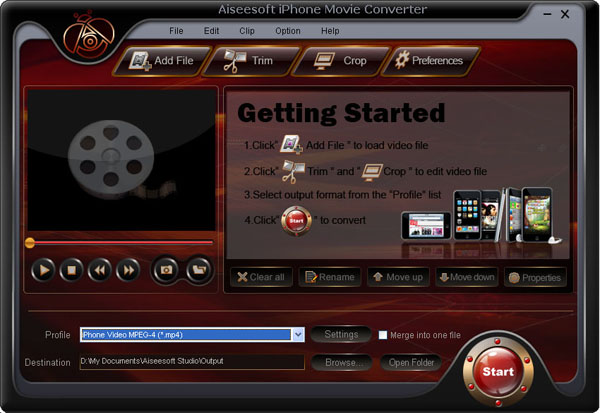
Start Aiseesoft iPhone Movie Converter, then click “Add” button to load video file which you want to extract iPhone ringtone from(You can also load audio file to convert music to iPhone ringtone).

iPhone Movie Converter


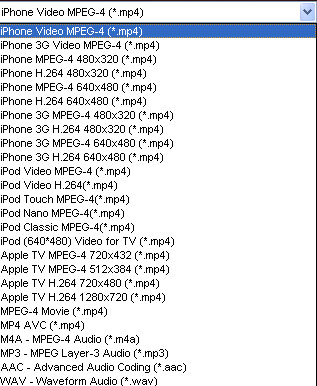
Click drop down list and select iPhone supported format (AAC, MP3, WAV, etc.) you want:

iPhone Movie Converter - output

The operation is similar as extracting iPhone audio from DVD with DVD to iPhone Converter, set sample rate, bit rate and other parameters of your iPhone ringtone by click “setting”

Most users’ iPhone ringtone are always short, so you may want to convert a clip from movie to set as ringtone. Click button “trim” to set the start and end point of your iPhone ringtone.

Then click “Start” to convert a clip to iPhone ringtone from your movies or songs.

Next part: How to sync/ put ringtone to iPhone/iPhone 3G without iTunes

Free Trial: Download Aiseesoft DVD to iPhone Suite

2010年8月24日星期二

Gadget Giant’s Evolution: Make, Then Sell

Hon Hai Precision Industry Co., whose Chinese factories produce many of the world’s most popular electronics products, including iPads and iPhones is making a push to sell gadgets in China’s own fast-growing consumer market.

Starting later this year, Hon Hai plans to open at least 10 large electronics stores in the Shanghai area by the end of 2011, under a partnership initiated last year with Germany retailer Metro AG. Louis Woo, the senior Hon Hai executive in charge of the retail push, outlined the plans in an interview.

Hon Hai also intends to open 45 to 50 branches of Cybermart, a small retail chain it purchased a decade ago but which has seen little growth. Cybermart currently operates 34 stores in 20 Chinese cities.

Read the rest of this post on the original site

How (and Why) Facebook, Twitter, Became Recess for Grown-ups

The more I think about the rise of social-media gaming culture, the more it breaks my heart. Gaming giant Zynga, in particular, makes me feel unplayful.

At the risk of sounding like a spoilsport, I just want to point out the sad, rather blatant subtext riding just below the surface of some of Zynga’s biggest recent hits.

Read the rest of this post on the original site

2010年8月22日星期日

T-Mobile’s G2 Tease Draws Interest, Faces a Glitch

T-Mobile’s effort to drum up interest in its next flagship phone appeared to be a hit—but also a miss—on Wednesday.

The official announcement of the new phone—dubbed the G2—spurred Web searches for the device and made it a trending topic on Google (GOOG). But the carrier temporarily pulled down a new promotional site for the phone after discovering that the website showed some visitors the names and email addresses of other people registering for information about the device.

The G2 is the follow-up to 2008’s G1, the first phone based on Google’s Android operating system, and T-Mobile promises that it “will deliver tight integration with Google.” The carrier also is touting the phone as the first to take full advantage of the faster speeds on its new HSPA+ network, which is speedier than regular 3G.

Read the rest of this post on the original site

MKV file, MLV player, Free MKV Converter and MKV Burner on Mac OS

What is MKV file?
.MKV is a container format developed by Matroska. Matroska file types are .MKV for video (with subtitles and audio), .MKA for audio-only files and .MKS for subtitles only. The most common use of .MKV files is to store HD video files.It can hold different types of video and audio. For example, there might be an .avi file contained within the .MKV file. High Definition movies in 720 or 1080 pixel width format are often encoded and packaged as a Matroska format video with a .MKV file extension.

How to play MKV file s on Mac?
I recommend trying either MPlayer OS X or VLC Media Player. They are all free.
These excellent and free multimedia players can tackle many of the video formats unknown to QuickTime. They contain a decoder to decode the .MKV files. They will also play many of the formats you will find inside the .MKV file.
How to convert MKV to DVD, MP4, AVI, etc on Mac for free?
I recommend VisualHub to convert MKV to MP4, AVI, etc on Mac. It can convert MKV to iPod Nano, convert MKV to iPod Classic, convert MKV to iPod touch , convert MKV to iPhone, convert MKV to Apple TV, convert MKV to Xbox 360, convert MKV to PSP, convert MKV to PS3, AVI, convert MKV to MP4, convert MKV to MPEG, convert MKV to Flash, convert MKV to WMV and convert MKV to DVD.
Techspanion (The developer of VisualHub) has closed shop and after an outcry from fans, VisualHub, the popular video converter on Mac OS X have now gone open source. It has got new name Film Redux. You can download its open source and built it by yourself. Here is a tutorial: How to build iSquint and VisualHub?
Convert MKV on Mac

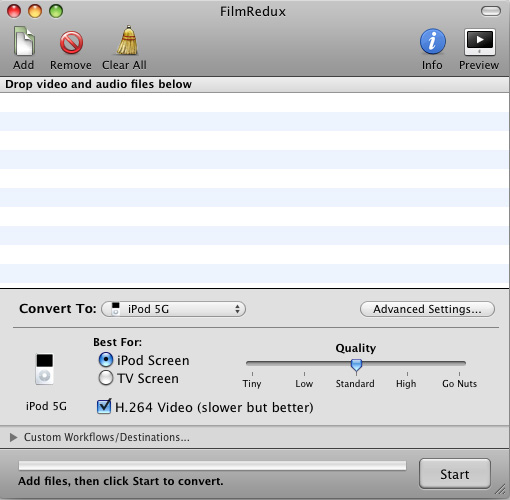
Step 1, Run Film Redux (VisualHub)
Step2, Load MKV videos
Insert your MKV files from your Mac .Click the Add files button to load your MKV videos.
Step3, Convert MKV to MP4, AVI, iPod, etc.
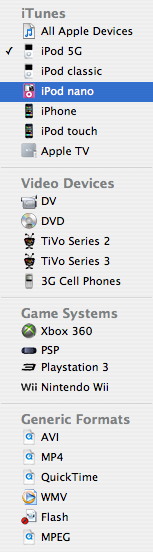
Here is the list of the formats that VisualHub can convert MKV
They are iPod Nano, iPod Classic, iPod touch , iPhone, Apple TV, Xbox 360, PSP, PS3, AVI, MP4, Quicktime, MPEG, Flash, WMV. Choose the format you want to convert MKV to and click Start.
VisualHub - convert MKV list

That’s all. Now, we have converted MKV to iPod Nano, iPod Classic, iPod touch , iPhone, Apple TV, Xbox 360, PSP, PS3, AVI, MP4, Quicktime, MPEG, Flash, WMV.
How to convert DVD to MKV on Mac for free?
I recommend you use Handbrake to you to convert DVD to MKV on Mac . HandBrake is an open-source, GPL-licensed, multiplatform, multithreaded DVD to MPEG-4 converter. It can convert DVD to MKV on Mac eaisly and for free.
Step 1, Download and Install Handbake
Download the free program Handbrake. Check to see if your Mac has the system requirements; click on the apple icon in the top left corner and About this Mac. Then install HandBrake.
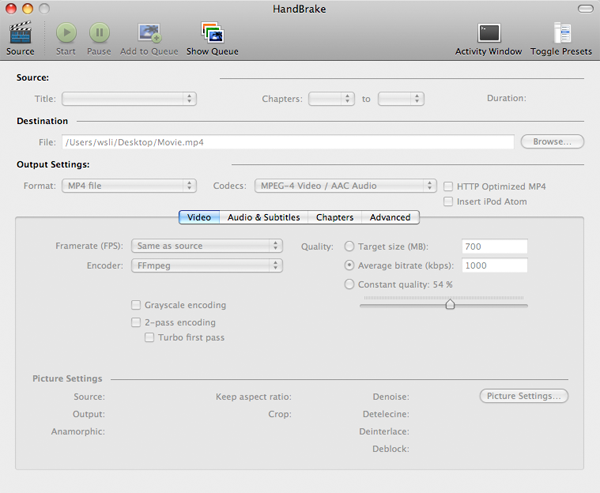
Handbrake - convert DVD to MKV

Step 2, Run it and insert DVD.
Select your favorite DVD disk and put it in the disk drive. Then run HandBrake and click Detected Volume to choose source. Click Open and you will be able to see many titles included in this DVD disk. Choose the longest title if this is a movie DVD, or choose your favorite chapter if this is an episode.
Step 3, Select Output setting
Select MKV files as output format and select other settings such as video quality, audio track, Audio Sample Rate, bitrate, Picture Settings, etc. Handbrake - select output setting
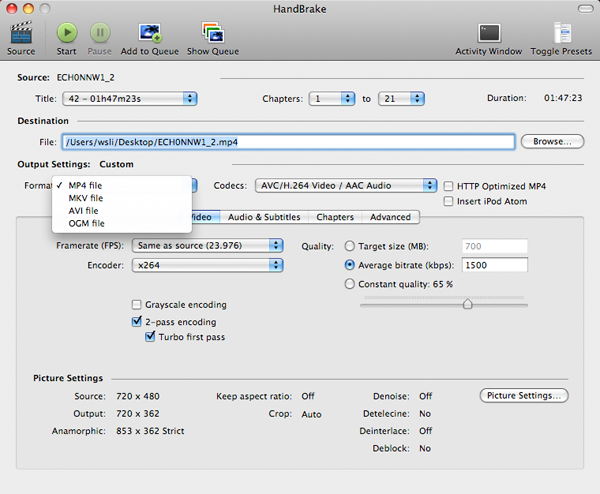
Step 4, Rip DVD to MKV on Mac
Check all settings and click Rip. A progress bar will show its ripping speed; depends on many factors like speed of Mac, filesize, etc.
That’s all. We have converted DVD to MKV for free now.
Note: Handbrake can not rip encrypted DVD movies. If you want to rip encrypted DVD movies, you can use this DVD Ripper for Mac. You can also use Mac the ripper which is free.
2010年8月18日星期三

How to change iPhone Wallpaper

Here are the easy steps you can take to change iPhone Wallpaper easily.

Make preparations:
Step 1: Find an image that you would like to use as wallpaper from iPhone Wallpaper.
Step 2: Right-click on a PC or control-click on an Apple computer and select "Save As" to save the image to your computer. Save it to your "My Pictures" folder or iPhoto library on a PC or Apple respectively, or wherever you prefer to store your images on your computer as long as you will be able to easily locate it.
Step 3: Connect the iPhone to your computer with the USB cable and wait for iTunes to launch itself automatically. Click on the "Photos" tab in the side panel.
Step 4: Click on the "Sync Photos From:" tab in the "Photos" menu on iTunes and locate the folder where your photos are stored. Select all of the images that you would like to transfer your to iPhone. Click on "Sync" in iTunes to transfer all of the photos to your iPhone.

Change iPhone Wallpaper
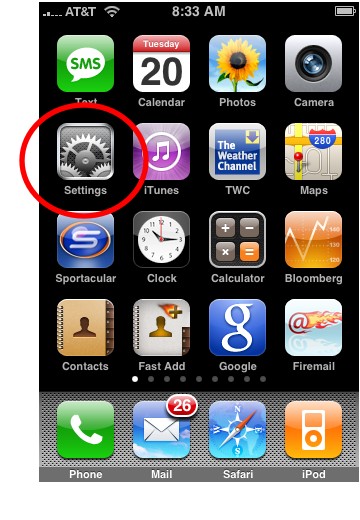
Step 1: Tap Settings on the iPhone’s home screen:

Change iPhone Wallpaper

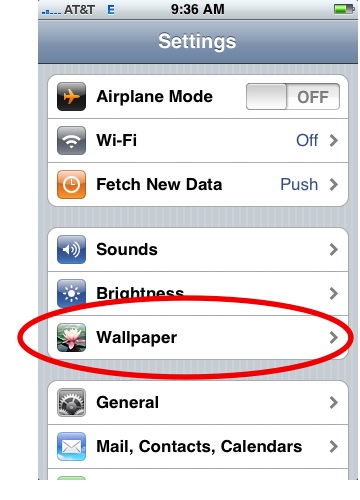
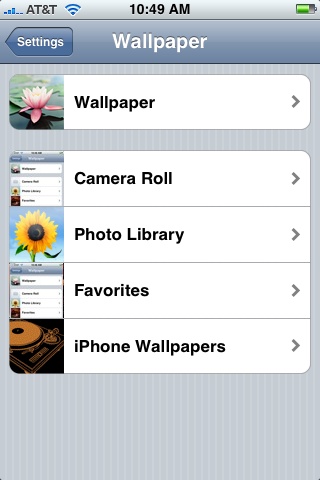
Step 2: Tap the Wallpaper tab:

Wallpaper Tab in iPhone Settings

Several tabs should appear, including one that says Wallpaper. You can tap any of the tabs to select wallpaper for the iPhone. The Wallpaper tab features a collection of pictures supplied by Apple. The other tabs feature pictures you have added to the iPhone, including those taken with the iPhone’s camera.

Wallpaper Selections

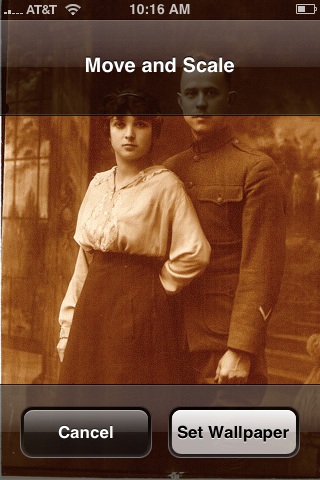
Step 3: Tap any picture. A preview screen of the wallpaper will appear, along with the words Move and Scale at the top. You can pinch and reverse pinch the picture to resize. The transparent bars at the top and bottom simulate the bars for the clock and Slide to unlock that will eventually display on top of your wallpaper.
In the example below you can see that the heads of the two peoples will be partially covered by the top bar:

Resize iPhone Wallpaper

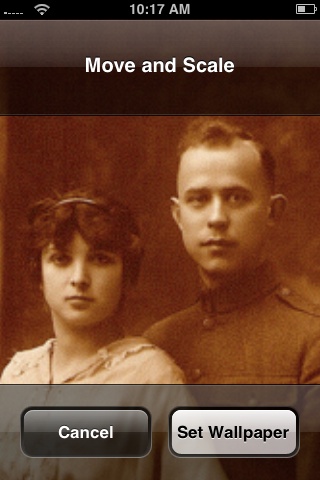
To fix, I will reverse pinch to expand the picture, then drag the picture so that their faces appear in the center:

Resize iPhone Wallpaper
Step 4:
Tap Set Wallpaper to finish.
To view your new iPhone wallpaper, put the iPhone to sleep by pressing the sleep button on the top of the iPhone. Then hit the home button to wake the iPhone, and you should see the wallpaper.
Note the position of the clock and Slide to unlock transparent bars. If you’re unhappy with the position of the wallpaper, repeat the steps above.

2010年8月17日星期二

Gawker’s Next Redesign Thinks Big–Like Big-Screen TV

For better or worse, Nick Denton’s Gawker Media leads the way for a lot of online media. So it’s worth checking out what he has up his sleeve, which happens to be in plain view: A super-sized redesign of his nine-blog network.

You can see what Denton is up to by visiting his “beta” sites, which are open to the public: beta.gawker.com, beta.deadspin.com, etc.

Check out the difference between Gawker.com’s current homepage and the beta version and you’ll get the basic gist: Instead of a river of stories floating down the middle of the page, there’s one big one, a couple of secondary ones and then a menu bar linking to the rest of the site.

But if you really want to see where Denton is headed, make sure you find one of his pages featuring super-sized art. You can get a sense from these screenshots (click to enlarge), but it’s really best to visit the individual pages, where you’ll see that these images take up the full width of your screen:

This is where Denton wants to end up: stories–and ads–that fill up your screen. Sound familiar?

“Web media needs to move to TV metaphor–with full-screen imagery and other content interrupted with full-screen ads,” he tells me via email. “Everything right now is so, um, bitty.”

Which is funny, because Denton’s last redesign shrank lots of elements on the page so he could cram more stuff in. You’ll still see evidence of it today on his sites, with the occasional headline-only story. And if you look around the blogosphere, you’ll find plenty of people following suit. (Even All Things D has introduced something we’re calling a “newsbyte.”)

But plenty of Web-ad sellers have been pushing super-sized stuff for some time now–see the ginormous ad units that the Online Publishers Association pushed out last year or Yahoo’s (YHOO) transformation of its login page.

And in the last few months I’ve seen a new ad unit on Huffington Post and Business Insider that fills my entire screen with a short video ad before sending me along to my “free content.” Just like, um, TV.

So Denton is either on to something here or maybe even a little bit behind the curve. That can’t be right, can it?

2010年8月15日星期日

If You Build a Web Series Around It, Will They Come?

In the past three years, it seems “Make me a branded web series” has become the new “Make me a viral video” for marketers, with brands as varied as Ikea, Procter & Gamble, Toyota, Kraft Philadelphia Cream Cheese and even Poise incontinence pads all trying their hands at branded storytelling online. But as these webisodes clamor to find audiences in increasingly fragmented numbers, a larger metric for success pervades: Did they actually deliver on the hoped-for ROI for the brand?

Read the rest of thus post on the original site

Why did Jim Dolan and Lynn Casey Invest a Million Bucks in BringMeTheNews?

It’s not every day a year-old local news aggregator gets $1 million from investors — much less when it has just 100,000 monthly page views and three advertisers.

But that didn’t stop Dolan Media president Jim Dolan and Padilla Speer Beardsley CEO Lynn Casey from pumping a combined seven figures into Rick Kupchella’s BringMeTheNews, a multi-media site that also produces radiocasts for 16 Minnesota stations.

Read the rest of this post on the original site

2010年8月13日星期五

How to compress DVD-9 to DVD-5 for Mac

We often use DVD to store video and data file. Varieties of DVDs are sorted by the way data stored.

DVD-9 holds 8.5GB and is supported by the DVD+R and DVD-R formats. It is also known as Single-Sided Double Layer (sometimes called Dual Layer). The official names are DVD-R DL and DVD+R DL.

DVD-5 holds 4.7GB and is supported by the DVD+R/RW and DVD-R/RW formats. It is also known as Single-Sided Single Layer.

If you want to compress Double Layer DVD-9 to Single Layer DVD-5 on Mac, you must use one Mac DVD Copy software. Download this Mac DVD Copy to have a try;

Buy NowFree trial(Intel PPC)


How to compress DVD-9 to DVD-5 for Mac

Insert your DVD and select the copy DVD mode

Select souce: Choose DVD-video disc from the source pop up menu.

Select target: From the “Target” pop up menu, select the DVD disc, and on the type of DVD disc, please select the disc type “D5(4.7GB)”(there are three types of DVD discs: D5(4.7GB) Disc, D9(8.5GB) Disc and customized disc.)

Start to compress DVD:Click “Start Copy” button to begin your DVD compressing.
learn more on: how to edit DVD file with DVD Copy for Mac.

2010年8月11日星期三

How to Put Photos on a PSP

What you need?
1. A PSP
2. A computer
3. A PSP to computer cord
4. Photos you want on your PSP

Step1, On your computer you will need to find the pictures that you want on your PSP.
Step2, You will need to create a folder on your desktop called PHOTO all in capital letters. Then, drag and drop the picture(s) you want on your PSP into this folder.
Step3, You will need to plug your PSP into the computer using the PSP to computer cord. Then, on your PSP go under the settings menu, and select the option that says USB connection. You should now be in USB mode on your PSP. .Now that your PSP is in USB mode, the computer should recognize it and open an options menu.
Step4, Your computer is displaying an options menu, select the option that says open folder to view files. Now, your computer should be displaying the folders on your PSP.
Step5, Open the folder that says PSP. Now, your computer should be displaying the folders inside of the folder named PSP.
Step6, Drag and drop the folder named PHOTO - the one with your picture(s) -into the folder named PSP, the one you are viewing. You're done; you've found out how to put pictures on your PSP. Now, go show your picture(s) off to friends, family, and whom ever you want.

Recommended Products For you:
DVD to PSP Converter for Windows
Aiseesoft DVD to PSP Converter for Windows is a professional application that is designed to convert DVD movie to PSP on PC.
PSP Movie Converter for Windows
Aiseesoft PSP Movie Converter is a professional video to PSP converter for Windows that can convert all sorts of video formats to PSP video on PC.

2010年8月10日星期二

The iPod Family(Part 1)

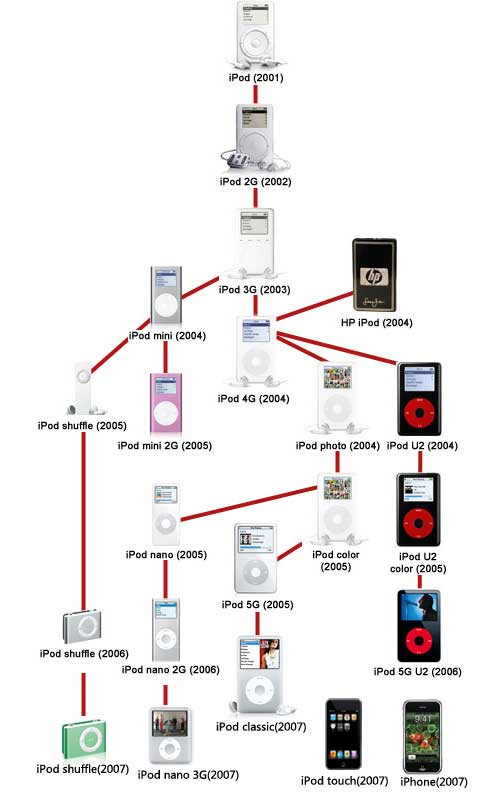
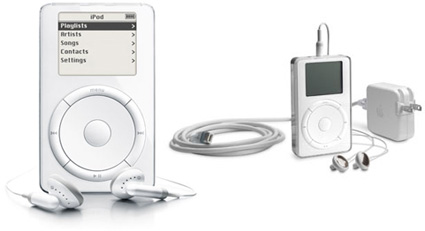
We're hard pressed to say the iPod family's fallen on particularly hard times, but being under such excruciating public scrutiny can take its toll on any dynasty; especially in a year like 2005, the family shaken to its core by so many tragic deaths. From the humble beginnings of the iPod that began the legacy so many years back, all the way up to the tragic loss of the iPod mini just yesterday, we felt it might be time to take a visit to the iPod family cemetary on this early autumn afternoon.

iPod Family
iPod family Tree

2001

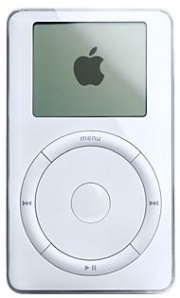
first generation iPod
The first generation iPod-October 2001 - July 2002

2002
second generation iPod
The second generation iPod-July 2002 - April 2003
But a few mournful months after the passing of the 5GB iPod and the birth of the 10GB iPod, came a new 10GB iPod and the 20GB, which started at $499. Perhaps one of the least well-remembered of the iPod family, this iPod included the first non-mechanical (solid state) scroll wheel, though the center and circumference buttons remained tactile. Perhaps most groundbreaking was the official Windows support (via Musicmatch Jukebox, ironically), though the wired remote, calendar, and artist search were all significant as well. Eventually this iPod would undergo tattoos by Beck, No Doubt, Madonna, and Tony Hawk before being committed to history in April of 2003.

2003
third generation iPod
The third generation iPod-April 2003 - July 2004
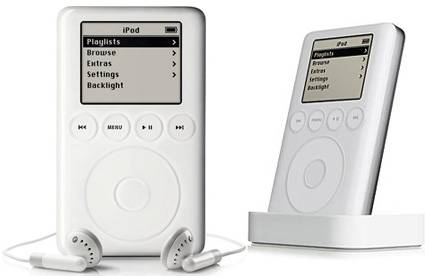
This was the iPod—born of humbler pedigree—that grew up, provided for itself a higher education, and made its own way in the world. The third generation of the family rid itself entirely of mechanical buttons on its body, shed some of its baby fat around the waist down to 4.1 x 2.4 x 0.62-inches, and came forth at $299 for 10GB, $399 for 15GB, and $499 for 30GB. This was also the first iPod child to feature a remote connector and dock connector—which finally enabled USB 2.0. In September the 30GB iPod was priced at $399, and a 40GB model was released for $499.

Related theme:
The iPod family(part 2)
The iPod family(part 3)
The iPod family(part 4)
The iPod family(part 5)

Recommended Products For you:
DVD to iPod Converter for Mac
It's a specially designed iPod conversion program to Convert DVD to iPod touch, iPod classic, iPod nano, convert DVD to iTunes on Leopard.
iPod Video Converter for Mac
It can convert MP4, MOV, 3GP, AVI, RM, MPEG, ASF and FLV to iPod video with high output quality and various features .

2010年8月9日星期一

The Science of Sharing

In 2001, grad student Jonah Peretti accidentally created an Internet sensation when e-mails of his attempts to put “sweatshop” on sneakers customized with Nike (NKE) ID went viral. In 2005, he set out to repeat his unexpected success with far different content: Black People Love Us, a parody site of a quintessentially white couple’s efforts to ingratiate themselves with African Americans. It also became a viral hit.

Read the rest of this post on the original site

2010年8月8日星期日

Lawmakers Seek Answers on Online Tracking

U.S. Reps. Ed Markey, D-Mass., and Joe Barton, R-Texas, are seeking information about the privacy practice of the 15 websites that the Wall Street Journal has identified as installing the most tracking technology on their visitors’ computers.

The representatives, who co-chair the House Bi-Partisan Privacy Caucus, sent letters on Thursday to 15 websites saying they were “troubled by the findings in this report, which suggest that the price of consumers’ daily use of the Internet increasingly is surrender of their personal information.”

The Wall Street Journal’s investigative report, What They Know, found that the top 50 US. websites installed an average of 64 tracking tools on visitors’ computers. Of those files, an average of 44 were installed by outside companies – the rest were installed by the websites themselves. Many of those so-called third party companies are in the business of tracking consumer behavior across the Internet.

In the letters, the lawmakers asked the websites to detail their privacy practices and those of the tracking technologies installed on visitors’ computers by outside companies. The letters also seek information on the types of technologies used for tracking and the types of data collected, and whether the sites are targeting consumers based on health or financial data.

Read the rest of this post on the original site

2010年8月6日星期五

Warner Music: We Can’t Wait for Google Music! (But We Can’t Say That Out Loud)

Warner Music Group saw revenues drop last quarter, while losses increased. Meanwhile its digital business, which is supposed to be its growth engine, bumped up only 2 percent.

Warner (WMG) has the same problem that the rest of the business has: For now, digital music is pretty much owned by Apple’s (AAPL) iTunes, and that business has been flattening out for some time, at least in the U.S.

What’s going to change that? Google (GOOG), says CEO Edgar Bronfman Jr. More specifically, Google getting into the mobile music business, where the market is still open.

Bronfman, speaking to analysts during Warner’s earnings call this morning, chose his words carefully: “Google has yet to make any announcements about its music plans, and I certainly don’t want to preempt those.” And for the record, I don’t believe Google has a deal yet with Warner or any other big music label yet.

But Bronfman and the rest of the industry certainly expect Google to get into music–most likely some kind of download store tethered to Android, perhaps coupled with some kind of cloud-based “locker” service. And the hope is that when Google does that, it will accomplish two things:

  • Provide the industry with a new revenue source and
  • Even more important, provide competition for Apple, and give the industry real bargaining power when it comes to setting terms with Steve Jobs.

It might even happen! Then again, it might not–the industry had similar hopes for Amazon (AMZN) when it got into digital music a couple of years ago. But while Jeff Bezos clawed a few share points, the market hasn’t fundamentally changed.

2010年8月4日星期三

How to download free youtube, yahoo, google, stream video for free

This step-by-step guide will show you how to download video from YouTube, Google Video, Yahoo and other video download website. Videos come from those websites are streaming videos. You need special software to capture steaming videos. Today we take YouTube video for example, write a guide about how to download streaming video to computer for free. This guide provides two methods:
1. with free online flv converter;
2. with firefox
This guide is also fit for other video websites as follow video list:
http://www.aiseesoft.com/article/free-download-video-list.html
3. How to transfer the downloaded youtube video to iPod PSP Zune iPhone Cell Phone and other MP3/MP4 player?

1. With free online flv converter
Step1. Open this website: http://vixy.net/. It's a free online FLV converter.
Step2. Then go to YouTube http://www.youtube.com and find a video that you love. Copy the URL that in the Red box. Like this format: http://www.youtube.com/watch?v=sdUUx5FdySs

free download youtube guide - download youtube to iPod, youtube downloader, convert youtube to zune

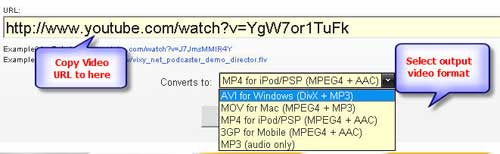
Step3. Paste your video file URL to the input box (figure as follow), choose the right format you want. If you want to edit the video, AVI is a good choice. And MP4 is fit for iPod, PSP, Zune, Apple TV and other MP4 players. This online converter also can rip audio to MP3. Then wait for the conversion.

free download youtube guide - download youtube to iPod, youtube downloader, convert youtube to zune

Step4. When the conversion finished, we got the download link of the output video. Click the download link to download the video and save in your computer (remember where you save it in). Done.

free download youtube guide - download youtube to iPod, youtube downloader, convert youtube to zune

2. With Firefox
If you have Firefox browser, you can follow these steps.
Step1. Install the videodownloader extension. This is a free plug-in for Firefox. It enables you capture streaming video from website. Here is the Download link:
https://addons.mozilla.org/firefox/2390
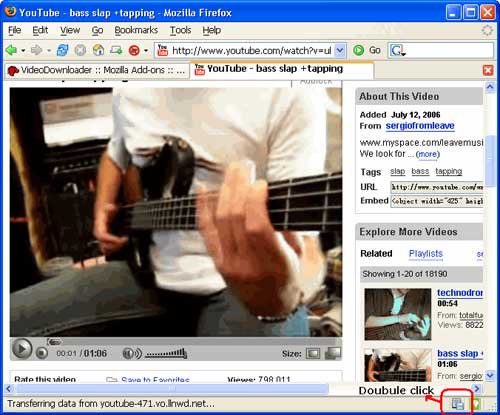
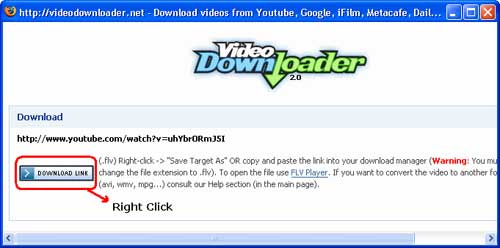
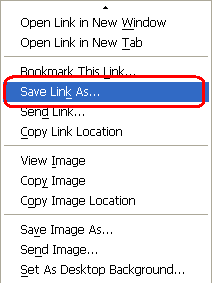
Step2. After installing videodownloader, restart Firefox. In the bottom right, you'll see a little box. Go to the video you want to download, double click that little box, and select download link. Then you could download the streaming video you want. (Note, you have to rename the file extension from “html” to “flv”)

free download youtube guide - download youtube to iPod, youtube downloader, convert youtube to zune

free download youtube guide - download youtube to iPod, youtube downloader, convert youtube to zune

You have to rename the file extension from “html” to “flv” when you save the link. (Make sure your compute is show file extension)

free download youtube guide - download youtube to iPod, youtube downloader, convert youtube to zune

3. How to transfer youtube video to iPod PSP Zune Phone and other MP3/MP4 player?
For iPod: if your download youtube video already is MP4 video, drag it to your iTunes library (or click iTunes "file" -> "add files to library"), plug in your iPod to computer, and then select your iPod device on the left panel of iTunes, click "Movies" tab, check the videos you want to sync and click "Apply", done.
If your downloaded YouTube video is not MP4 video, you have to convert it to iPod format at first, take a look at this free iPod converter, it embeds an iPod manager that can convert and transfer YouTube video to iPod directly without iTunes, here is a step by step guide about it:
http://www.aiseesoft.com/article/ipod-movie-converter.html
For PSP: PSP is the same as iPod, they are both support MP4 video, if you have converted the YouTube video to MP4 with above method, you can copy the MP4 video directly to the "Video" folder in your memory stick (if there is no "Video" folder in your memory stick, you can create by yourself). If your downloaded YouTube video is not MP4 video, you have to convert it to PSP format at first, take a look at this PSP Movie converter, it t can convert and transfer YouTube video to psp directly, fully support all firmware version of PSP, here is a step by step guide about it:
http://www.aiseesoft.com/article/psp-movie-converter.html
For Zune: Zune can play WMV video, if you have converted your download YouTube video to zune format, then open the Zune software, drag the wmv video to your Zune software, plug in your Zune to computer, and then Zune software should detect your Zune automatically, then click "Start to sync", the video will be transfered to Zune player.
If your downloaded YouTube video is not WMV video, you have to convert it to Zune format, take a look at this free Zune converter, it can convert video to Zune format, it can also convert YouTube video to MP3 for other player, here is a step by step guide about it:
http://www.aiseesoft.com/article/zune-movie-converter.html
For cell phone: Cell phone accepts 3GP video and MP4 video, just convert your downloaded YouTube video to the proper format, connect your cell phone to computer, and then copy the videos to your cell phone memory card. If you don't know how to convert video, take a look at this step by step guide:
http://www.aiseesoft.com/article/total-video-converter.html

2010年8月3日星期二

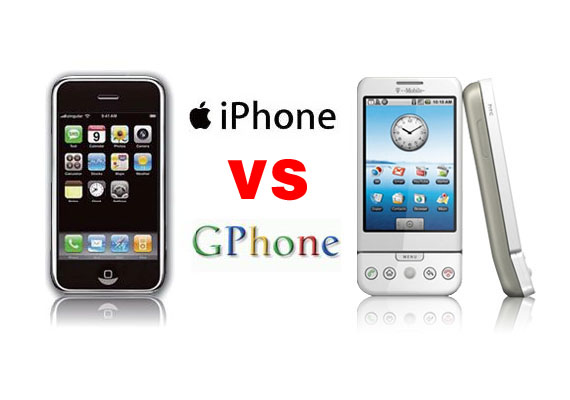
Gphone vs iPhone, which is better?

As iPhone is the most talked about smart phone on the planet and it has won millions of hearts of users by his multi-touch screen and other powerful/beautiful design. Of course, iPhone has brought so much money for Apple.
On 23rd, Sep 2008 Google released G1 and claimed that they will have a share of the big market of smart phone.
So, which is better about iPhone and G1? That maybe asked by many people who want to buy a new phone. Here I will give some of opinion about G1 and iPhone.
I will compare these two phones in three aspects, hardware, software, and their performance as a media player.

Gphone vs iPhone

Part 1: Hardware.

1. The price and storage memory
First, the price and storage memory is what I concern most, for iPhone $199 8GB, $299 16GB, for G1 $179 1GB. When you see this you will say G1 is $20 lower than iPhone but G1 is only 1GB and you will pay another $40 for an 8GB SD Card. So I think iPhone win in this round.

2. Appearance
iPhone is 133 grams/4.7 ounces and G1 is 158 grams/5.57 ounces. G1 is taller while iPhone is thinner (G1: 117.7*55.7*17.1, iPhone: 115.5*62.1*12.3).

3. Mobile Network
For mobile Network, they both have Quad Band GSM/EDGE UMTS, but G1 uses T-Mobile-only US 3G and iPhone uses AT&T-only US 3G.

4. Touch screen and input
About touch screen display, iPhone has Multi-touch 3.5 480*320 163 ppi, but G1 does not support mulit-touch. And in input aspect, G1 uses keyboard, Trackball, 6 buttons and touch screen, while iPhone has home button and multi touch screen.

5. Expansion
In expansion ports, G1 uses SD, ExtUSB(USB+audio) but iPhone has headphone, Dock connector (USB+ audio, video, remote). They have the same wireless WiFi 820.11b/g Limited Bluetooth 2.0 EDR.

6. Others
About hardware, the two phones perform almost the same and the only big difference is the iPhone uses multi-touch screen and G1’s camera is better than iPhone. And iPhone has a 1400Ah battery with 300 hours standby time but G1 only has a 1150Ah battery with 5 hours talk time and 130 standby.

Part 2: Software.

iPhone and G1 are both using Webkit as their browser engine. In media playback aspect, iPhone supports music, audiobook, video, streaming, downloads and rental, while for G1, only music playback. G1 has Android Market as its third party software store while iPhone has iPhone app store. G1’s platform is Modified Java development and iPhone uses Cocoa Touch.

Part 3: Their performance as media player.

G1 supports H.264, 3GPP, MPEG4, Codec 3GP video and MP3、AAC、AAC+、WMA、MPEG4、WAV、MIDI、REAL、AUDIO、OGG audio formats.
iPhone supports AAC,Protected AAC,MP3,MP3 VBR,Audible (formats 1, 2, 3), Apple Lossless, AIFF, WAV audio formats and H.264 (up to 1.5Mbps), MPEG-4 (up to 2.5Mbps) 640*480, 30fps, AAC-LC (up to 160 Kbps), 48kHz dimensional sound .m4v, .mp4 and .mov format.

Amazon MP3 Store allows you to download 6 million songs without the DRM protection, 89 cents per song. It is similar with the Apple iPhone, you need to pay for the video and audio sources on the Apple store. But how to get free sources for your G1.

For iPhone and G1 you can buy songs and videos from store, which is really expensive, and you can also make songs and videos for your iPhone and G1 by yourself, you just need to convert your DVDs and videos to mp4 format and then you can put them easily to your iPhone and G1.

Here I recommend you Aiseesoft DVD Converter Suite, it includes Best DVD Ripper, Total Video Converter and iPod to Computer Transfer.
For Mac user, I recommend you Aiseesoft DVD Converter Suite for Mac, it includes DVD Ripper for Mac and Total Video Converter for Mac.

2010年8月2日星期一

Norwegian Newspaper Taps Into Web’s Efficiencies

Last summer, as the crisis in the newspaper business worsened, executives at Edda, a publisher in Norway, met to discuss the Internet. As managers fiddled with their iPhones, someone suggested a novel approach: If the company was serious about securing a place in the digital future, why not devote half its resources to the Web and other new media?

Read the rest of this post on the original site

2010年8月1日星期日

How to Play all Video Files on Xbox 360 with Mac

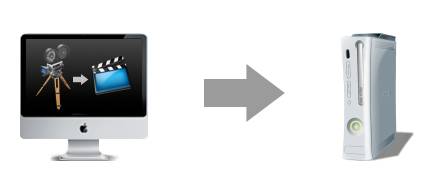
Video to Xbox 360

This is a step by step guide on how to play any video file on your Xbox 360 from your Apple Mac computer.
How to play any video file on your Xbox 360 with your Mac – Only $35.00 Video Converter for Mac can clear up all your problem.

Here Is What You Will Need:
Xbox 360 - Preferably the Elite version… just because its black. And has black controllers.
Apple Computer - iMac, MacBook Pro, Apple Air, etc.
Video Converter for Mac Only $35.00 - Has a Free Trial!

How to play any video file on your Xbox 360 with your Mac:
Step 1, Convert videos to mp4 format that compatible with Xbox 360.
Choose a small video to test for you first video, as encoding and conversion times can be lengthy if you choose a full movie. Try downloading a trailer for a movie in your favorite format that the Xbox 360 can’t read. Like: AVI, and a lot of other weird formats.
Open up Video Converter for Mac. Video Converter for Mac is a phenomenal video conversion tool, it can convert video formats from one to another with perfect output quality and high conversion speed for Mac OS X users. It supports all popular video formats including flv, MPEG1, MPEG2, MP4, 3GP, 3G2, AVI, M2TS, MPEG TS/TP (for HD Video), M4V, etc.
At the bottom of Video Converter, it shows the format we can convert to. Choose MP4. It is the best.
Choose output folder such as “Open Folder”.

Video Converter for Mac - merge

At the bottom right, click on the “Start” button. Then wait… , And the conversion speed is out of your surprise.

Step 2, connect your Mac and Xbox 360
Before you start configuring, open up Terminal (in Applications -> Utilities) and type "ifconfig en0" (zero, not a capital-o). You're looking for the bit that says "inet xxx.xxx.xxx.xxx". In my case, the number I get here is 192.168.2.1 Second, note down the IP address of your wireless router, which in my case is 192.168.0.1

On your Mac
1. Connect your Mac to your wireless internet connection
2. Connect your Xbox 360 to your Mac via Ethernet
3. In System Preferences -> Sharing, enable Internet Sharing between your Airport and Ethernet connection

On your Xbox 360
1. Start up your Xbox and navigate to the Network settings menu
2. Under IP address, enter the number you got from the "ifconfig en0" command earlier on, but with the final number one place higher. In my case, I take the 192.168.2.1, and input 192.168.2.2 in the IP address box on my Xbox 360.
3. Under subnet, input 255.255.255.0
4. Under router/gateway, enter the number you got earlier from the "ifconfig en0" command. In my case, that's "192.168.2.1"
5. Move onto DNS. Enter the IP address of your wireless router (in my case, "192.168.0.1") in both the primary and secondary IP address fields
6. Leave PPPoE and advanced settings blank (i.e. OFF and Automatic)
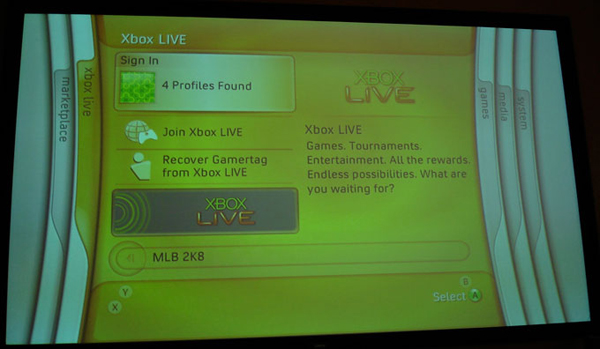
7. You should now be able to connect to Xbox Live via your internet sharing Mac

Step 3, Play Video File on Xbox 360:
First, on your Mac, open up your new file in VLC and in QuickTime. Make sure it can play in both (Not necessarily at the same time). If you have done that, now it is time to move to your 360. Follow these instructions:
Turn on your Xbox 360

Turn Xbox 360

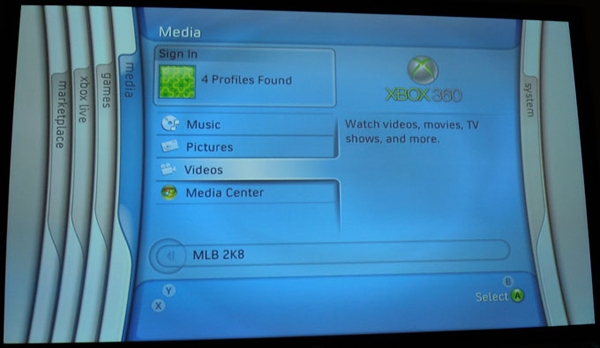
Navigate over to the “Media Tab”, and select the “Videos” option.

Xbox 360 - Media Tab

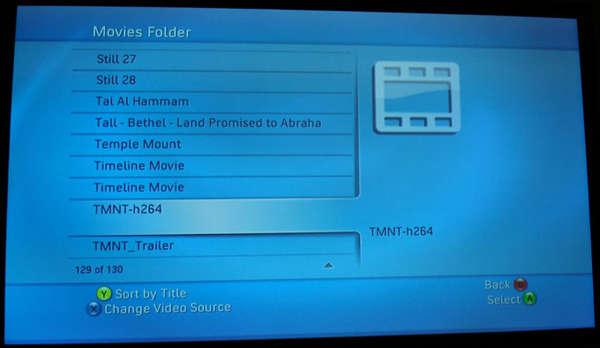
Note: Since the Xbox 360 Dashboard update of about 6 months ago, once you click on”Videos” it will just show you all of the videos on your Xbox 360 hard drive. So presses “X” to change the current source. Then browse down to your Apple / Mac computer. Mine is an iMac.

Click on the “Movies Folder”. That is where you should have saved the file there earlier.
Now browse through your video files and select your sweet, newly converted video file, and play it!put Video on Xbox 360

All the operations is just like pie. So you can watch any your favorite video on your Xbox 36o from your Mac easily Now. Watch and Enjoy it!