2011年2月25日星期五

How to convert DVD to iPod/iPhone/Sansa/PSP/Zune/iRiver/Google Phone/Cell Phone, etc. on Mac

This article is divided into four parts separately introduce what is iPod Compatible Video, which video format is better for Apple iPod Video, is my video iPod compatible and how to make the video compatible with your iPod.

Part One: What is iPod Compatible Video?
Part Two: Which video format is better for Apple iPod video?
Part Three: Is My Video iPod Compatible?
Part Four: How to make the video compatible with your iPod?

Part One: What is iPod Compatible Video?

Firstly, I will introduce you what is iPod Compatible Video, iPod Nano Compatible Video such as iPod Video MP4, iPod Video H 264, the specifications page lists the following:
Apple iPod video specifications from their official website:

H.264 video, up to 1.5 Mbps, 640 by 480 pixels, 30 frames per second, Low-Complexity version of the H.264 Baseline Profile with AAC-LC audio up to 160 Kbps, 48kHz, stereo audio in .m4v, .mp4, and .mov file formats;

H.264 video, up to 2.5 Mbps, 640 by 480 pixels, 30 frames per second, Baseline Profile up to Level 3.0 with AAC-LC audio up to 160 Kbps, 48kHz, stereo audio in .m4v, .mp4, and .mov file formats;

MPEG-4 video, up to 2.5 Mbps, 640 by 480 pixels, 30 frames per second, Simple Profile with AAC-LC audio up to 160 Kbps, 48kHz, stereo audio in .m4v, .mp4, and .mov file formats

That’s a little confusing, but there’s only a few numbers you’ll need to remember for each format.

The highest video bitrate with the H.264 codec is 768 kilobits per second. The biggest picture size for your H.264 movie is 320 pixels wide by 240 pixels high, the exact dimensions of your iPod’s screen. Your iPod can play H.264 video at framerates up to 30 frames per second. Every one of the applications that we’ll be using encodes with the Baseline Profile. Your audio needs to be encoded as AAC audio up to 160 Kbps, 48 kHz, and it can be in either stereo or mono. As long as you follow all the guidelines, your movie can be a QuickTime movie or an MPEG-4 movie file.

Your other option, MPEG-4 video, supports a much higher bitrate than H.264 video - 2,500 kilobits per second. Using higher bitrates will also create larger files. The result: you’ll have less space for additional songs and movies. The biggest picture size for your MPEG-4 video is 480 pixels wide by 480 pixels high - three times as many pixels as your iPod’s screen is capable of displaying. Your iPod will shrink the picture proportionally so that everything fits on the screen. Again, the iPod can play videos up to 30 frames per second and our audio and file format options are the same as H.264 video.

Part Two: Which video format is better for Apple iPod video?

That’s a tough question. H.264 is arguably better because it offers high quality and a much smaller file size when compared to MPEG-4. However, both formats look quite good when you encode your video at the higher supported video settings. One thing that most people will agree on is that H.264 video takes longer to encode than standard MPEG-4. This means that converting a two hour movie to iPod video can take considerably longer using the H.264 codec (especially with QuickTime Pro’s pokey Export: Movie to iPod video option). Still, I prefer the H.264 codec in most instances.

Part Three: Is My Video iPod Compatible?
Some of the video files that you download from the web or from file sharing networks like BitTorrent may be iPod compatible - even if they’re not marked as such.

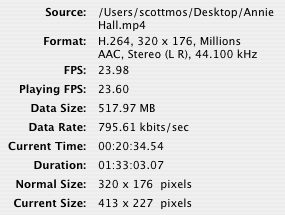
The easiest way to determine whether a video can be played on your iPod is to open the file in QuickTime and select Window: Show Movie Info. In most cases your video should be iPod-ready if the format is H.264 or MPEG-4, the audio is AAC, and the size of your video is 320 x 240 (or smaller) for H.264 or 480 x 480 (or smaller) for MPEG-4. Also, look at the data rate and make sure it’s not over 900 kbits/sec for H.264 or 2600 kbits/sec for MPEG-4.


Part Four: How to make the video compatible with your iPod?

If you have QuickTime Pro ($30 and worth every penny) or the latest version of iTunes (free!), this is, by far, the easiest conversion that we’ll talk about.
In iTunes, after you’ve added your video to the library, right click it. Select [b]Convert Selection for iPod[/b]. iTunes will let you know if your video is already in the correct format. If it’s not, your video will slowly be converted to an H.264 video.

UPDATE: I’ve heard several complaints of iTunes creating iPod videos without sound. You should probably avoid using iTunes to convert your videos.

In QuickTime Pro, open your movie and, in the file menu, select Export… and in the export drop-down, select Movie to iPod (320 x 240) and click Save. QuickTime will create an optimized H.264 video with AAC audio.

You may want to go pour yourself a cup of tea or take a nap. If your file is large, QuickTime’s slow conversion process can take several hours.

If you’re an inexperienced user, I recommend using QuickTime Pro or iTunes because they’re absolutely foolproof. However there are other much faster, more powerful applications for converting your videos. Read on!

Don’t have QuickTime Pro? Aiseesoft iPod Video Converter!

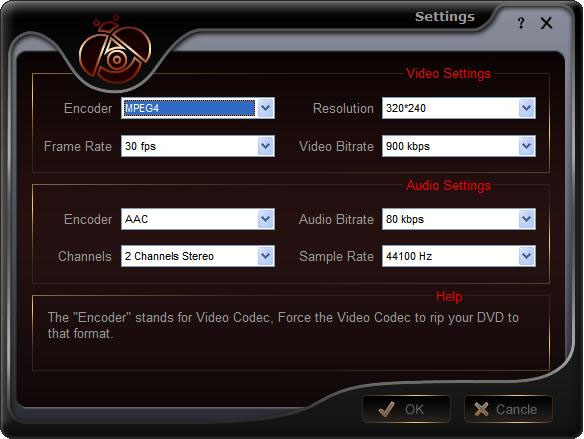
Aiseesoft iPod Video Converter supports so comprehensive video formats including converting MPG, MPEG, MPEG2, VOB, MP4, M4V, RM, RMVB, WMV, ASF, MKV, TS, MPV, AVI, 3GP,3G2, FLV, MPV, MOD, TOD to iPod Video MP4, iPod Video H 264. You can customize your own output video by the settings function. For example, if you want a high quality video you can raise the values of Video Biterate, Audio Biterate and Audio Sample Rate, if you want a smaller file you can reduce the value.


If you want to make your DVD compatible with your iPod and even transfer your iPod video to Computer, you can choose Aiseesoft DVD to iPod Suite which is an all-in-one solution to convert DVD to iPod Video MP4, iPod Video H 264 and convert video to iPod Video MP4, iPod Video H 264. Moreover, it can transfer video from iPod to computer. You don’t need to worry about losing anything.

For Mac user, you can choose Aiseesoft iPod Video Converter for Mac and Aiseesoft DVD to iPod Suite for Mac.

2011年2月24日星期四

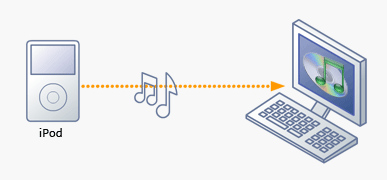
How to transfer music from iPod with iPod Rip and iPod Rip for Mac

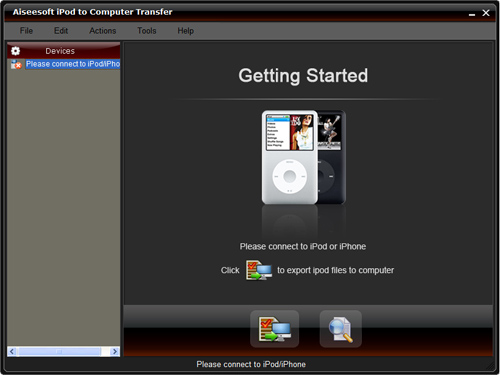
Basically, there is a need for you to transfer music from iPod with iPod Rip and iPod Rip for Mac to avoid your files are lost. Now, I guide you how to rip your iPod to hard drives with Aiseesoft iPod to Computer Transfer. So you don’t need to worry about losing anything.


Step 1: Download Aiseesoft iPod to Computer Transfer and install.


Step 2: Launch the program
Double-click the icon to run the software; or launch it from the “Start” Menu.
Step 3: Rip iPod files.
1)Run the software, and connect your iPod/iPhone to your computer via USB cable. After done, the iPod/iPhone icon and its library and playlists will appear in the Device list.
2)Open the library/playlist that you want to export files, and then check the music/movie you want to export in the file list to your computer.
3)Click the "Export to PC" button to select the destination of the exporting files and start ripping files
Otherwise, you could also choose the Export to local option from the Actions menu, and then export the files from your iPod/iPhone to actual device.

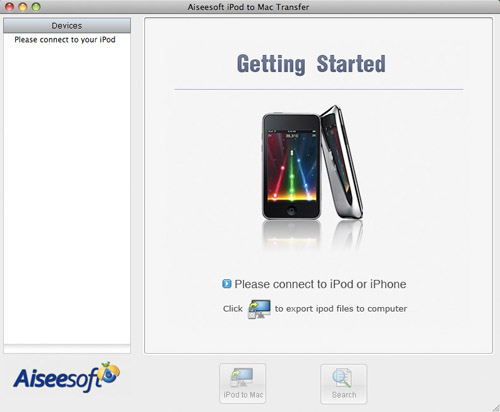
Tip: Use “Track filter” function to help you quickly browse your library by genre, artist and album. If you are using Mac, please use the iPod Rip for Mac software. Click here to download Aiseesoft iPod to Mac Transfer

2011年2月16日星期三

How to crop, combine and edit DVD movie?

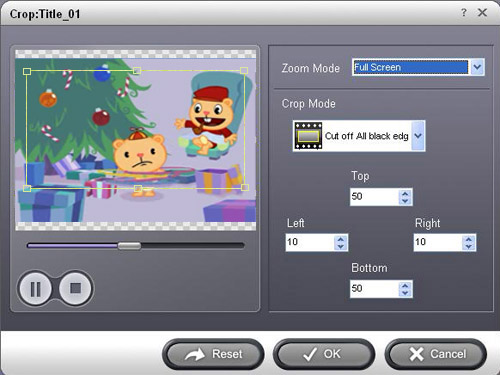
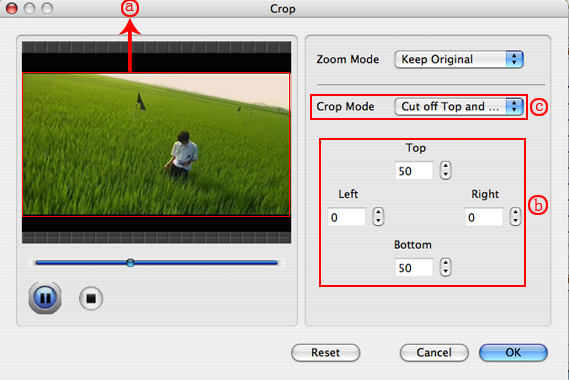
After you load the DVD file. If you want to cut the black edges of the DVD movie, you can click the "Crop"button, and then you will see a pop up windows (See the figure below). See the below picture:


Furthermore, you can click the Crop drop-down list to select a Crop model you prefer, for example: "Cut off top and bottom black edges". You can even type the number in the box to cut off black border accurately.
If you want to combine several DVD chapters into one file, on the main interface, there is a check box "Merge into one file", select it, then you will only get one output file instead of several files by chapters.
If you want to snapshot pictures from DVD, while you previewing the DVD movie, there will be a small camera icon below the preview window, click it when you want to snapshot the picture, it support output picture as JPEG, GIF or BMP format.
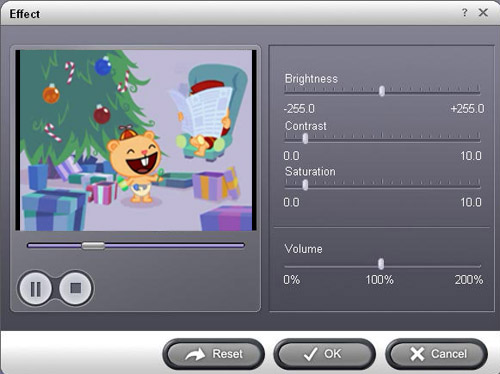
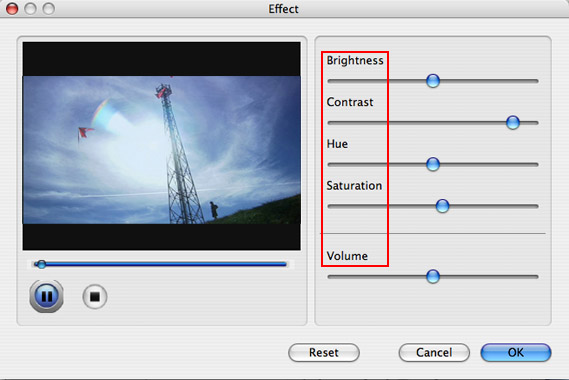
You can click the "Effect" button and customize the brightness, saturation, contrast, volume, etc (See the figure below).

2011年2月15日星期二

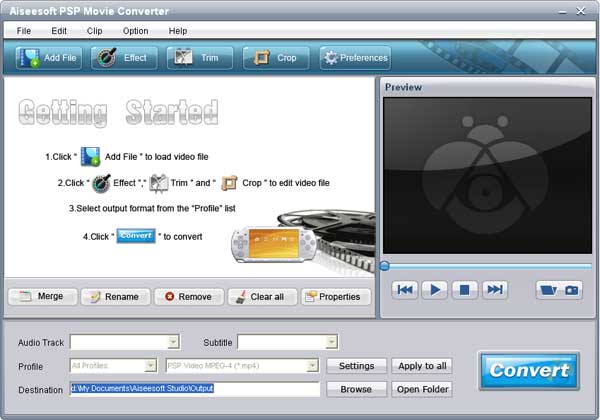
How to convert video to PSP?

Step1. Please download Aiseesoft PSP Video Converter; you can free download it from here.
http://www.aiseesoft.com/psp-movie-converter.html

Step2: Install and run Aiseesoft PSP Movie Converter, click the “Add File” button to import your videos. If you experience any problems adding videos by directly clicking the “Add” button, you can click “File -> Add file” to add the video files you want to convert from your computer.


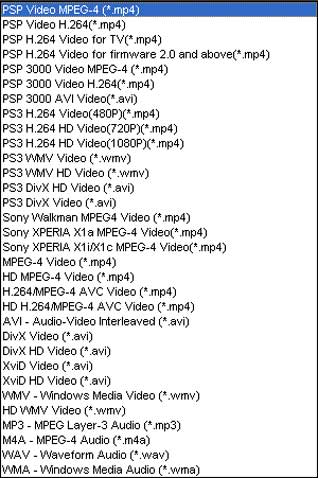
Step3. Then Click the “Profile” drop-down list to select the format you prefer for each added file. If you don’t know what formats your device support, you can just select the format according to the device


After you finish all the above steps, please click “Start” to begin the conversion.

How to convert DVD/movies to DPG

Have you always been thinking convert your movies and play on your Nintendo DS? The wondering can stop now. Here I recommend you you two ways to do that. One way is Moonshell + BatchDPG + AviSynth. This way is really hard to operate but it is free. The other way is really easy to do and it cost you a little: Moonshell + DPG Converter.

DPG- the abbreviation of nDs-mPeG, is a special format of MPEG-1 video specifically for playback using the homebrew Moonshell program for the Nintendo DS. The video is encoded on a computer and then transferred, along with Moonshell, to the DS for playback.

Part 1. How to convert movies to DPG with Moonshell/BatchDPG/AviSynth
There are a few things you need to download:


Step 1: Download all the programs
Tips: When you download Batch from the link in my post do not forget to copy “avisynth.dll” to C:\Windows\System32 directory.


Step 2: Input
After you install it and you will see the following interface.

In the Input section, you can load the movie you want to convert and you can also add subtitle file and audio file

Step 3: Output
In this section you need to select a temporary path and a output directory.

Step 4: Video/Audio
If you want, you can change the setting in the video and audio section. But it is set to a good format by default anyway.
To add your movie file to the queue press the button “add” at the bottom and then you can click “run” to start the converting.

Step 5: Insert you SD Card and transfer the extracted Moonshell files and converted DPG video files from your computer to SD Card.

Part 2: How to convert movies to DPG with DPG Converter

You need to download Moonshell if you don't have it in your SD Card and Download the DPG Converter.


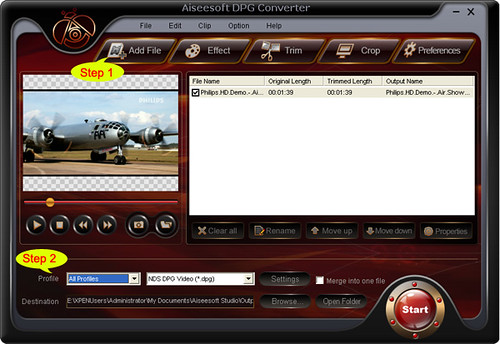
Step 1: Load files
Click “Add File” or “File”> “Add File” to load the video you want to convert.

Step 2: Choose profile and adjust settings
You can choose the output profile from a drop-down list “profile”. This powerful DPG Converter can not only convert videos to DPG format, but also can convert your videos to other formats, such as mp4, wmv, avi, mpeg, mov, mkv, flv, 3gp and other popular video format.
You can adjust the settings of the output video, you can adjust the Resolution, encoder, Bitrate, and other specific settings of the video and you can also save the setting as your own profile.
After everything is done, you can click the “Start” button and later you will get your DPG movie.

Tips: You can also do many video editing works with it:


1.Effect: You can adjust “Brightness”, “Saturation”, “Contrast” of the output video as you want

2.Trim: Tis function allows you to pick up one part of the video to convert. You can do it in 3 ways, a: set the exact start time and end time to trim b: click the “Trim From” and “Trim To” button when you preview the video c: drag the “trim bar” below the preview window and choose where to start and end.

3.Crop: You can use “crop” function to remove the black edges on your movie and you can also choose your play area. You can crop your video in 2 ways, a: drag the frame on the preview window b: set the exact crop value.

Part 3: How to convert movies to DPG with DPG Converter for Mac


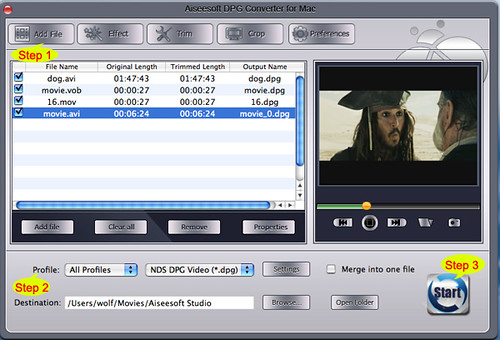
Step 1: Load the video you want to convert by click “Add File”
Step 2: Choose output profile and adjust the setting of the output video
Step 3: Conversion. Click “Start” to begin the conversion.

Part 4: How to convert your DVD movies to DPG format.
Here you just need a DVD to DGP Converter.


Step 1: Load your DVD
Put your DVD to your DVD Drive and click “Load DVD”.

Step 2: Choose output profile
You can choose your output profile from a drop-down list “Profile” and also you can adjust the specific setting of the output DPG video, such as encoder, resolution, bitrate and so on.

Step 3: Edit Video
You can edit the effect of the output video including “Brightness”, “Saturation”, “Contrast” and so on.
Also you can “Trim”, “Crop”, “Merge” video according to your need.

Step 4: Conversion
After all the things done, you can click “Start” button to begin your conversion.

2011年2月11日星期五

How to convert DVD to iPod/iPhone/Sansa/PSP/Zune/iRiver/Google Phone/Cell Phone, etc. on Mac

Many people like enjoy movies at home and they have piles of DVDs. So do I. I like watch lastest movie on my new Mac and it is wonderful. However, I always break and lose my DVDs and I was really sad because they cost most of my money. Luckily, I find a way to store my DVD movies on my new Mac computer and evern put it on my iPod because I use a DVD Ripper for Mac and it can rip DVDs to so many video formats, such as AVI, MP4, MOV, MKV, WMV, DivX, XviD, MPEG-1/2, 3GP, 3G2, VOB and so on.

To do this you must have a nice dvd ripper for Mac. So I find Aiseesoft DVD Ripper for Mac

OK, let’s do it.
Step 1. Download and install Aisesoft DVD Ripper for Mac.

For Intel Click Here

For Power PC Click Here

Step 2. Load you DVD.
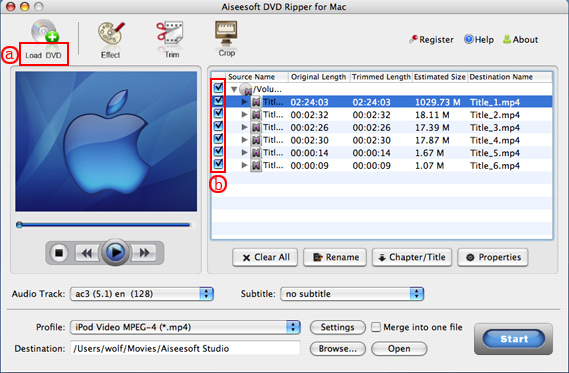
Click the “Load DVD” button(a), find the DVD folder of the movie you want to add from your DVD-ROM, and Click “Open”.


Tick the check boxes(b) before the titles and chapters that you want to rip.

Step 3. Chose output profile and settings.
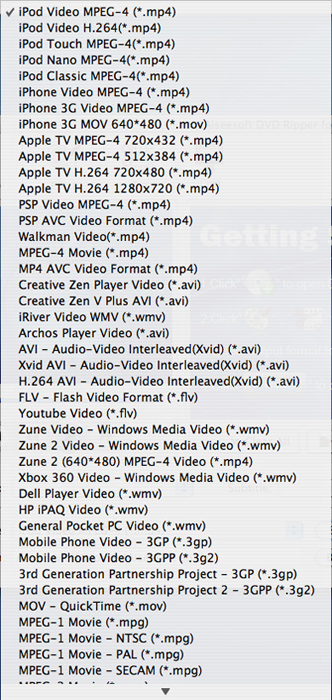
Selecting output format is really easy, you can chose your output format according to your devices players and the default setting works great.


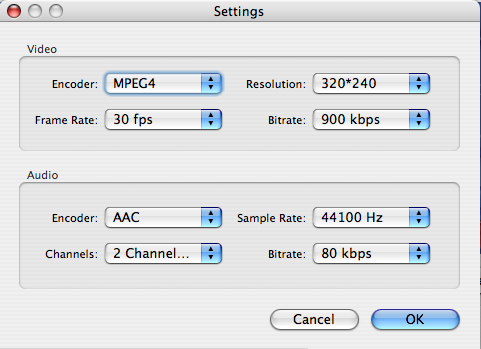
For a veteran of digital player, you could customize your own settings by clicking “Settings” button to chose your own video resolution, frame rate, bit rate, encoder, etc.


Tips: Sample rate (Hz) = any value up to 48000 (higher value = better sound quality = bigger file)
Bitrate (kbps) = any value up to 160 (higher value = better sound quality = bigger file)


After setting your own output and settings you can click “Start” button to start your conversion. (The time of the conversion depends on your DVD and the settings you chose.)

Do a few more clicks to make your movie more enjoyable.
1. Trim


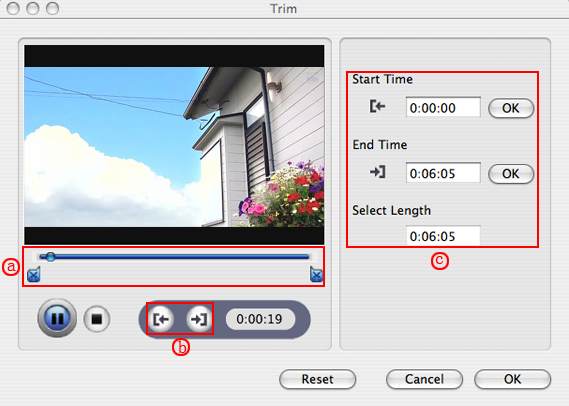
If you want to rip only a part of the DVD movie, please click “Trim” button and drag the “Start trim slider” to set the start time and “End trim slider” to set the end time.(a). You can also do that by clicking the “Start trim button” and “End trim button”(b). The third way you do that is set the exact Start/End time at the right of the pop-up window and click “OK”.


2. Crop
If you want to remove the black edges or you want to rip a certain area of your video, please click the “Crop” button. You can do this either by drag the frame around the movie (a) or set the crop value: “Top, Left, Bottom, Right”.(b). Another way to do that is choose mode from “Crop Mode”(c).
Aiseesoft DVD Ripper for Mac also allows you to choose the output aspect ratio above the crop pane, “Keep Original, full screen, 16:9 and 4:3” are available.


3. Effect
If you want to adjust the effect of your movie, please click the “Effect” button and a pop-up effect window will appear. It allows you to edit your movie’s effect including “Brightness, Contrast, Hue, Saturation and Volume”.


4. Merge into one file/audio track/subtitles
If you would like to put several titles and chapters into one output file, please tick the check box of the “Merge into one file”.
You can choose audio track and subtitles you like according to what you prefer and the DVD supports.

Follow what I said above I hope you could enjoy your DVD movies on your Mac and also on your iPod and other portable players.