2010年7月11日星期日

How to play DVD on Mac

This tutorial includes 4 parts:
Part 1, DVD Regions
Part 2, How to play DVD on Mac?
Part 3, How to Unlock DVD Regions on Mac?
Part 4, how to copy protected DVD Movie on Mac OS X

Part 1, DVD Regions
Region 1: North America; U.S. territories; Bermuda
Region 2: Europe; Western Asia; Kingdom of the Netherlands; Egypt, Japan, Lesotho, South Africa, Swaziland; British overseas territories, French overseas territories; Greenland
Region 3: East and Southeast Asia
Region 4: Oceania; Central and South America; Caribbean; Mexico
Region 5: Africa, Central and South Asia, Belarus, India, Mongolia, North Korea, Russia, Ukraine
Region 6: Mainland China

Part 2, How to play DVD on Mac?
VLC is part of a remarkably sophisticated suite of VideoLan applications available for a wide range of operating systems, ranging from Linux to Windows and, of course, Mac OS X.
Download and install VLC and open it, then select File > Open Disc. Click on the Disc tab, click on DVD, select the device, and click OK
Or select File > Open File..., select your VIDEO_TS folder, and voila! You're watching your movie.
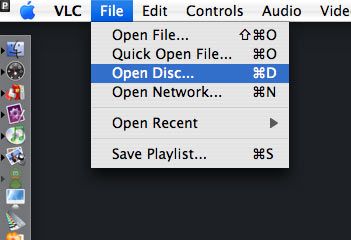
Play DVD on Mac

Part 3, How to Unlock DVD Regions on Mac?
Most commercial DVDs use encryption that keeps them locked to one or more “region codes,” meaning the discs you pick up in other continents usually won't play on an American DVD player. If you believe the movie studios, this encryption is a necessary tool in the ongoing war against piracy. Basically, it helps them release the same movie in different parts of the world—at different times and for different prices. However, because pirates rarely resell legitimate copies of movies (they are pirates, after all), this system's primary effect is to prevent movie collectors and frequent travelers from enjoying legally purchased films once they get home.
There are some multi-region DVD players out there. They are perfectly legal, but they tend to be pricey and rare. And if you are the jet-setting type who is likely to pick up foreign flicks in the first place, you probably want to watch them on the go using your laptop. That's why the most frustrating part of region codes is the way they affect laptop DVD players.
Although laptop DVD drives are technologically capable of playing any DVD, they typically force you to switch among region settings to play imported discs. Try switching this setting more than a fixed number of times (typically five over the entire life span of the computer), and the setting will be locked forever.
For example, if you switch from Region 1 (the United States and Canada) to Region 3 (parts of Asia) to watch a kung-fu flick you picked up on a trip to Hong Kong, you'll have to switch back to Region 1 before playing any movies you purchased at your local Best Buy. Watching that one Jet Li movie just burned up two of your five switches—and not even reinstalling your operating system will get you more. Fortunately, some clever programmers have created software solutions that circumvent disc regions entirely, turning your notebook into a portable multiregional DVD player.
There are plenty of programs for Macs that allow you to rip DVD movies on Mac. I recommend Aiseesoft DVD Ripper for Mac which allows you to rip DVD movies on Mac easily. This Mac DVD Ripper is fast in ripping DVD to all popular video and audio formats as it includes the features of DVD Ripper and DVD Audio Ripper. It can rip DVD video to video formats including MP4, AVI, MOV, M4V, 3GP, MPG, MPEG, FLV, etc. and it can convert DVD audio to MP3, M4A, AAC, AC3, etc. It's the best solution to rip a dvd to video or audio formats on Mac. This solution has its advantages (chief among them is that watching movies off your hard drive uses far less battery life than reading them from an optical disc.)
If you do not want to spend money, I recommend downloading VLC, an open-source media player that sometimes circumvents region encoding. The DVD drives on different computers (including various Macs) come from diverse manufacturers, a.nd VLC plays out-of-region discs on some, but not all of them. Unfortunately, there's no way to know if it will work on your system until you try. Fortunately, the program is free.

Part 4, how to copy protected DVD Movie on Mac OS X
Copy protected DVD action can turn into failure if you don't have appropriate software. Very often DVDs are protected against ripping and thus copying the contents of the disc to your hard disk doesn't work. Even if you do succeed in ripping the contents of the disc, to copy protected DVD also means to fit the files on your recordable DVD since the latter can only hold 4.4GB of data while the original DVD is more than 7GB in size.
Copy protected DVD software for those, who have no experience whatsoever with backing-up DVDs, is big deal. DVD Copy for Mac

2010年7月9日星期五

Sirius Tunes In Subscriber Gains

Just about this time a year ago, Sirius XM Radio was up a certain creek with nary a paddle in sight. Its shares were trading at around 35 cents, it was hemorrhaging money, and anemic car sales had just led it to post its first-ever decline in net subscriber additions. The company ended its June 2009 quarter with 18.6 million subscribers–up 3.5 percent from a year earlier but down 404,000 subscribers from the preceding quarter. And though it added 1,338,961 new customers, Sirius lost 1,743,383.

Which makes the satellite-radio operator’s announcement of a nice spike in subscribership today all the more sweet.

Sirius (SIRI) said this morning that it added 583,000 net subscribers in the second quarter, bringing total subscribership to 19,524,448–a new record. And with that as a backdrop, the company raised its forecast for net subscriber additions for the third time, boosting this year’s projected growth to 1.1 million subscribers from 750,000.

“Our subscriber results mark the best quarter of gross additions, deactivations and net additions since the merger of Sirius and XM in July 2008,” CEO Mel Karmazin said in a statement. “The strong execution in both adding subscribers and retaining them resulted in our record-high 19.5 million subscriber milestone, despite continued economic uncertainty. The further improvement in our guidance reflects the attractiveness of satellite radio but maintains a cautious outlook for continued improvement in the economy.”

2010年7月6日星期二

HTC Well-Served by Android

Taiwan handset maker HTC, producer of many of the top Android-based smartphones, is seeing a payoff from its embrace of Google’s mobile operating system. The company’s second-quarter results show a 58 percent increase in revenue and a 33 percent gain in profits year-over-year, both well above forecasts.

The Fifth Wave Of Computing

If fortune in business does not always favor the bold, misfortune seems a far more certain fate for those in the media who fail to respond to the fifth wave of computing–the massive ramping up of the mobile Internet and the evolution of mobile phones into “life devices” through 3G, cloud computing, GPS and second generation barcoding.

Read the rest of this post on the original site

2010年7月5日星期一

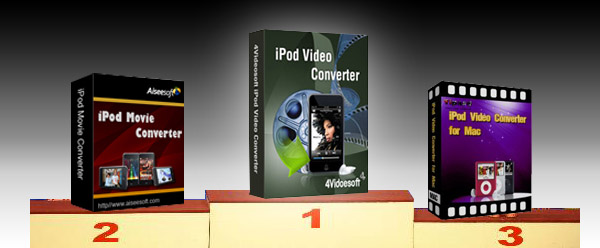
Top 5 Best iPod Video Converter Review

There is hundreds of iPod software available now. After the wide investment, for you to manage your iPod efficiently, we made this iPod Video Converter Review for the best iPod Video Converters. It includes iPod Nano Converter, 3gp converter iPod, etc. So it is also the video converter review.

1. 4Videosoft iPod Video Converter
Free Download  $29.95
This iPod video converter can assist you convert MP4, MPG, MPEG, MOV, M4V, RM, WMV, ASF, MKV, 3GP, MOD, TOD, etc, even the YouTube FLV video to your iPod video or audio supporting formats.
More features:
* So cool and friendly user-interface for you to easily and quickly operate.
* Support all video and audio sources.
* More helpful editing functions for you to create your own video.
* Excellent and timely support email services.
* Free upload for life included.
* Customize output settings.

Any of the five iPod software is good. They all have the excellent features to meet your needs.

2. Aiseesoft iPod Movie Converter
Free Download  $29.00
This iPod software is designed for Windows iPod users. Convert all video and audio formats to iPod MP4, H.264, MP3, AAC, M4A.
More features:
* Easy, simple and quick installation and operation.
* Accept MPG, MPEG, MPEG2, VOB, MP4, M4V, RM, RMVB, WMV, ASF, MKV, TS, MPV, AVI, 3GP, 3G2, FLV, MPV, MOD, TOD.
* High-quality of converted video and audio.
* More editing functions: Trim, Crop, Merge into one file, Take snapshot.
* Free and life-long upgrade.
* 7*24 online email support.

3. Tipard iPod Video Converter
Free Download  $19.00
This is another best iPod Video Converter for Windows user to convert any video and audio sources to iPod MP4, H.264, MP3, AAC, M4A.
More features:
* Fully support Windows NT4/2000/2003/XP and Windows Vista, Windows 7 Hardware.
* Support batch conversion.
* Allow preview during the whole process.
* You decide the video size via adjusting the specific parameters of output file.
* Convert 3GP, FLV to iPod easily.
* The output quality is excellent.
* Life-long upgrade.

Best iPod Video Converter

4. Aiseesoft iPod Video Converter for Mac
Free Download (Intel, Power PC)  $29.00
This iPod software is the best iPod video converter for iPod Mac users to convert any video and audio formats to iPod MP4, H.264, MP3, AAC, M4A.
More features:
* Possessed with friendly user-interface.
* One of the quickest software available.
* Preview available during the whole process.
* Capture any time-length clips from source video.
* Adjust the aspect ratio.
* Pre-set the specific parameters for output format.
* Capture your favorite pictures.
* Supported formats: MPG, MPEG, MPEG2, VOB, MP4, M4V, RM, RMVB, WMV, ASF, MKV, TS, MPV, AVI, 3GP, 3G2, FLV, MPV, MOD, TOD, AAC, AC3, WAV, MID, WMA, M4A, RA, RAM.

5. Tipard iPod Video Converter for Mac
Free Download (Intel, Power PC)  $29.00
This best iPod video converter is another iPod software for iPod Mac users. Convert MPG, MPEG, MPEG2, VOB, MP4, M4V, RM, RMVB, WMV, ASF, MKV, TS, MPV, AVI, 3GP, 3G2, FLV, MPV, MOD, TOD, Youtube to iPod MP4, H.264 video formats and MP3, AAC, M4A audio formats.
System Requirement:
Processor: PowerPC® G4/G5 or Intel® processor
OS Supported: Mac OS X v10.4 - 10.5
Hardware Requirements: 512MB RAM, Super VGA (800×600) resolution, 16-bit graphics card or higher
More features:
* Works with all video sources.
* Has pre-defined settings for you to get the high or standard output quality.
* Create your own customized video under the useful editing functions of trim, crop, join.
* Total preview for the whole process.
* 7*24 email support.

Best iPod Video Converter for Mac

Hope the best iPod Video Converter, iPod Video Converter for Mac software would help you, and make your digital media life colorful.

2010年7月4日星期日

How to share the iTunes Music and videos between two computers for free

Some people may meet that situation: You and your brother both have iTunes library under the same credit card account. Occasionally, you want to get the same song, however you wouldn't want you both to pay the $0.99 where virtually the same account is purchasing the song twice. So how can you and/or he download the songs from each other once it's purchased on a single computer? This is a guide to tell you how to share iTunes Music and videos between two computers such as sharing iTunes Music and videos between Windows PC and Mac OS X, sharing iTunes Music and videos between Mac OS and Mac OS X and sharing iTunes Music and videos between Windows PC and Windows PC

Step 1, Networking computers.
If you want to share iTunes videos and music between computers, you need to network PC and Mac first.
If you do not know how to Network Windows with Mac OS X, go there:
Networking Windows (2000/XP/2003*) with Mac OS X (10.3/10.4)
Information you will need to know
1.The IP Address of your PC (Start > Run > CMD {return} > "ipconfig" {return})
2The IP Address of your Mac (Applications > Utilities > Terminal {Run app} > for ethernet connection "ipconfig getifaddr en0" {return} or for wireless "ipconfig getifaddr en1" {return})>
3.The workgroup the PC is in (Right click on My Computer, select Properties, and select the Computer Name tab)

System Configuration
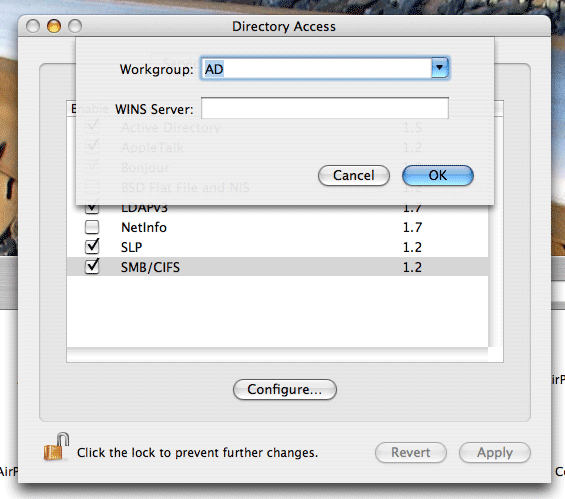
It is important that the account you log in with on your XP system has a password set, if it does not you will not be able to login to your Windows share from OS X. You need to put your Mac in the same workgroup as your Windows PC. To do this open "Directory Access" (Applications > Utilities > Directory Access). Click on the padlock in the bottom left corner to make changes; you will be prompted for your password. If "SMB" is not ticked off, then tick it off. Select "SMB" and hit the "Configure…" button. Now enter the name of your Windows workgroup. In my case the name is "AD".

Share iTunes videos between pc and Mac, iTunes videos from pc to  Mac

Setting up the PC to share files
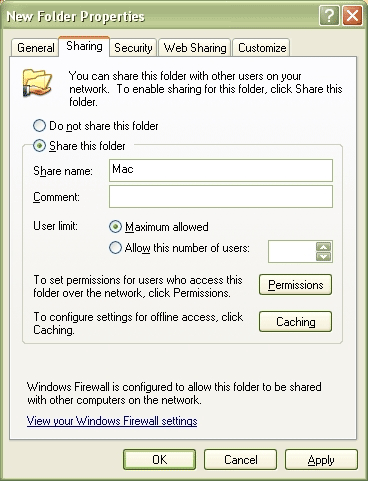
You need to create and share a folder on your PC that you will then access from your Mac. To do this create a folder (or select and existing one) right click on it from Windows Explorer and select "Properties". Select the "Sharing" tab and share out the folder. I'd recommend you use a one word name for the share. For example "Mac", not "Apple Mac Share", it just narrows the risk of complications.

Share iTunes videos between pc and Mac, iPod videos from pc to Mac

Setting up the Mac to share files
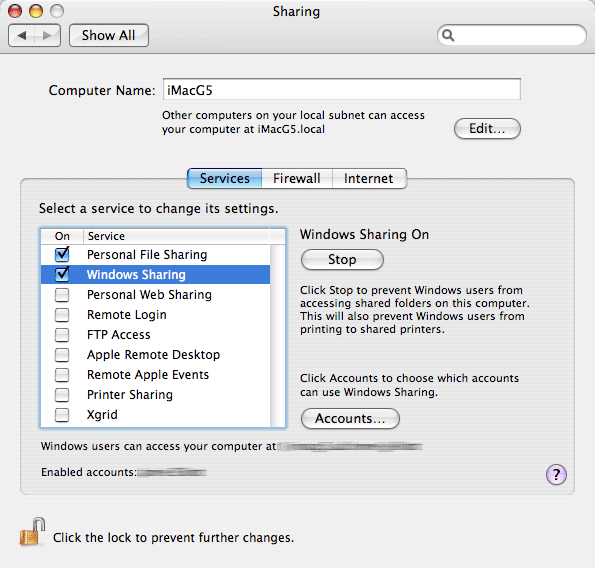
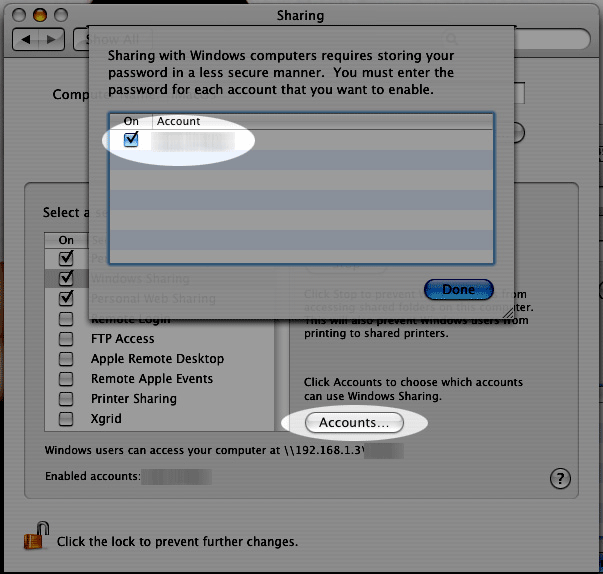
Open "System Preferences" (Applications > System Preferences). Go to "Sharing" under "Internet & Network", and tick off "Windows Sharing", and if it doesn't start by itself, click "Start". This will share out your entire home folder.

iTunes videos from pc to Mac

If You're running Tiger (10.4), you will also need to click the "Accounts" button and tick off the box next to your account name so that OS X knows to share out your particular home folder.

iTunes videos from pc to Mac

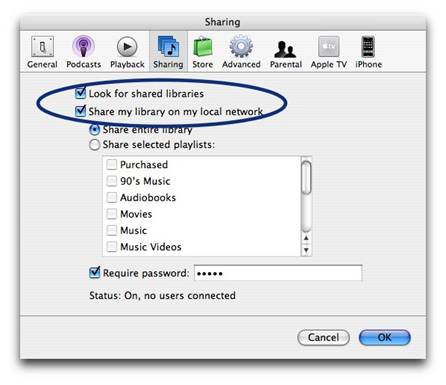
Step2, Go to preferences, under the sharing tab, enable "Share library..." and "Look for shared libraries..." on both computers.
Select the items you want to share.share iTunes videos and music for free

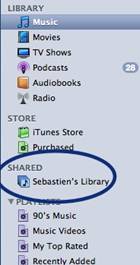
It will show up in iTunes' side panel:
share iTunes videos and music for free

To require users to enter a password before they can see your shared items, select "Require password" and enter a password.
You will need to authorize both computers to play purchased content however. You may authorize up to 5 Machines per iTunes Music Store account.
Tips:If you want to share music with other users on your computer ,read this article: iTunes: How to share music between different accounts on a single computer

2010年7月2日星期五

How to Copy DVD, Rip DVD, Convert Video on Mac

Many friends want to share their home-make DVDs and their DVD movies with others and also they always feel difficult to do that. Today I will share you a really easy way to Copy DVD to another DVD disc, DVD image ISO, or a DVD folder. Also I will also introduce you how to rip DVD and convert videos on Mac.

Part 1: How to copy a DVD to another DVD disc/DVD image ISO/DVD folder on Mac
Step 1: DVD Copy for Mac.
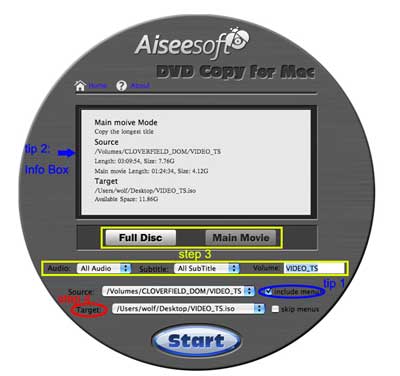
To copy a DVD on Mac, you need a DVD Copy for Mac to help you. Aiseesoft DVD Copy for Mac is a good choice.

DVD copy for Mac

Step 2: Load Your Source
This excellent DVD copy for Mac allows you to load DVD folder and DVD image ISO.

Step 3: Choose Output Info
1. "Full Disc" or “Main Movie”
This DVD copy for Mac enables you to copy the full disc and also the main movie according to your need.

2. "Audio", "Subtitle" and "Volume" name
You can choose your output audio from the "Audio" drop-down list, such as "all audio"/ "None"/ or some audio the DVD provide.

Subtitle is always an important thing, you can choose your output subtitle in "Subtitle" drop-down list.

You can also name your output volume's name

Step 4: Choose Your Target
You can copy your DVD to another DVD disc, DVD folder or DVD image ISO.

Tips:
1. You can also choose to copy the menus or not.
2. All the info you choose will be displayed on the "Info Box".

Part 2: How to rip DVD to video formats on Mac

Step 1: Download Aiseesoft DVD Ripper for Mac.

Step 2. Load DVD
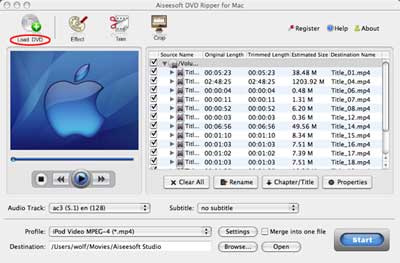
Insert DVD into your DVD-ROM, run DVD Ripper for Mac, click "Load DVD", find the DVD folder of the movie you want to add from your DVD-ROM, and Click "Open".

DVD ripper for Mac

Step 3. Set output format.
This best DVD ripper for Mac provides you output formats as many as you want. Just choose one from the drop down list "profile" according to your portable player.

Step 4: Conversion
You can just Click "Start" to begin your conversion.

Part 3: How to Convert Video files on Mac

Step 1: Download Aiseesoft Video Converter for Mac

video converter for Mac

Step 2: Load video
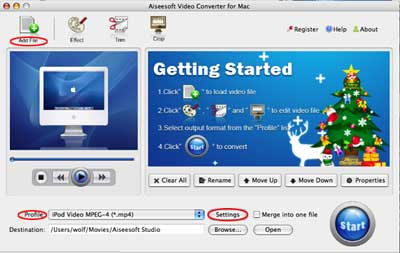
Easily click "Add File" to load your video that you want to convert.

Step 3: Choose output profile and settings
At the bottom of the interface there are a drop-download list named "profile". You can choose your output format here.

Tips:
1. Trim
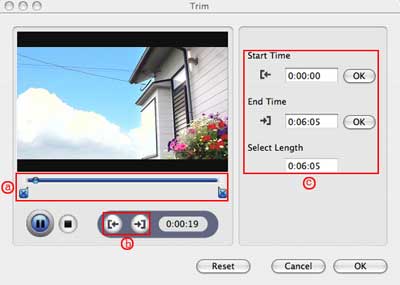
If you want to pick up a part of the video to convert, please click "Trim" button and drag the "Start trim slider" to set the start time and "End trim slider" to set the end time. (a) You can also do that by clicking the "Start trim button" and "End trim button" (b). The third way you do that is set the exact Start/End time at the right of the pop-up window and click "OK".(c)

trim

2. Crop
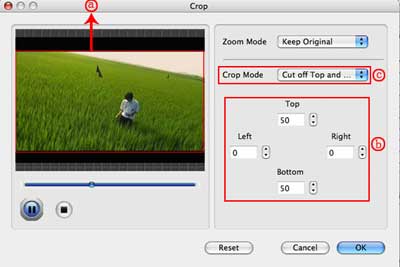
If you want to remove the black edges or you want to convert a certain area of your video, please click the "Crop" button. You can do this either by drag the frame around the movie (a) or set the crop value: "Top, Left, Bottom, Right".(b). Another way to do that is choose models from "Crop Mode"(c).
Aiseesoft Video Converter for Mac also allows you to chose the output aspect ratio above the crop pane, "Keep Original, full screen, 16:9 and 4:3" are available.

crop

3. Effect
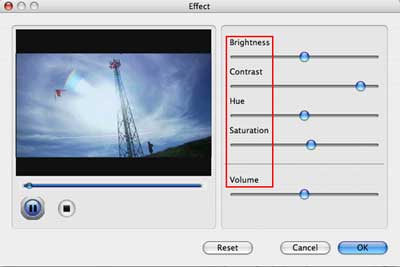
If you want to adjust the effect of your movie, please click the "Effect" button and a pop-up effect window will appear. It allows you to edit your movie’s effect including "Brightness, Contrast, Hue, Saturation and Volume".

effect